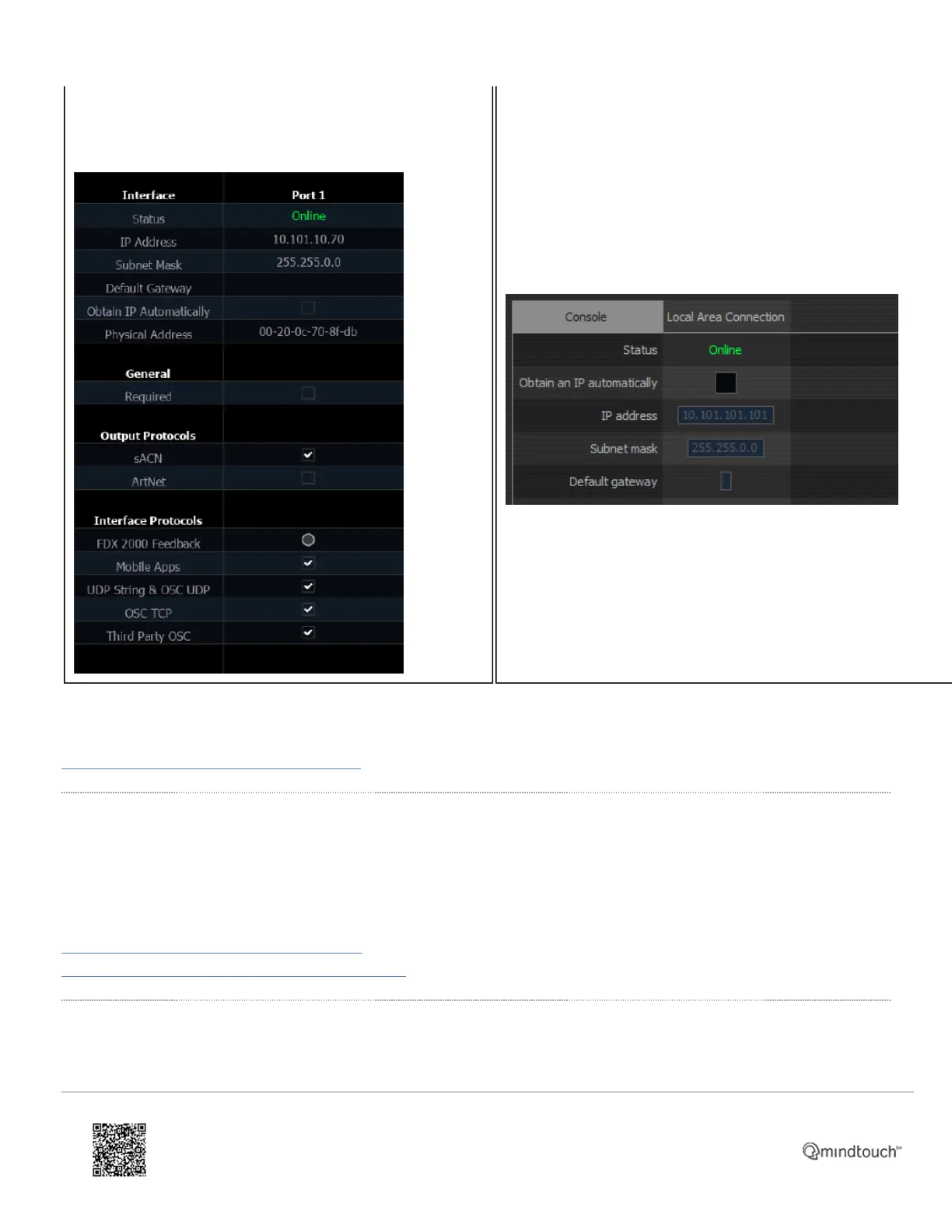
Press [Displays] or [Browser] and choose {Setup} ->
{Device Settings}. Click on the {Network} tab.
On Eos Family consoles, press [Displays] or [Browser] and choose {Exit}. Click on {Settings}
when it pops up in yellow. Click on the {Network} tab.
ETC has a set of standard network IP addresses, including appropriate defaults.
Standard IP Addresses Support Article Link
DHCP
One console in the system should be configured to hand out IP addresses to other devices in the system. This service is
called DHCP, or Dynamic Host Configuration Protocol. In an ETC system, the DHCP service is run on either a console
or Net3 Conductor appliance. Net3 Conductor is preferred. If you have multiple consoles and no Net3 Conductor
appliance, we recommend choosing the console assigned as Primary (for Eos Family devices).
Net3 Conductor article on setting up DHCP
Eos and Cobalt Family article on setting up DHCP
Enable WiFi Remotes
https://support.etcconnect.com/ETC/Consoles/Console_Apps/How_to_Set_Up_Your_Wireless_Network_for_iRFR_or_aRFR_…
Updated: Tue, 03 Oct 2023 07:16:35 GMT
Powered by
4



 To Next Page