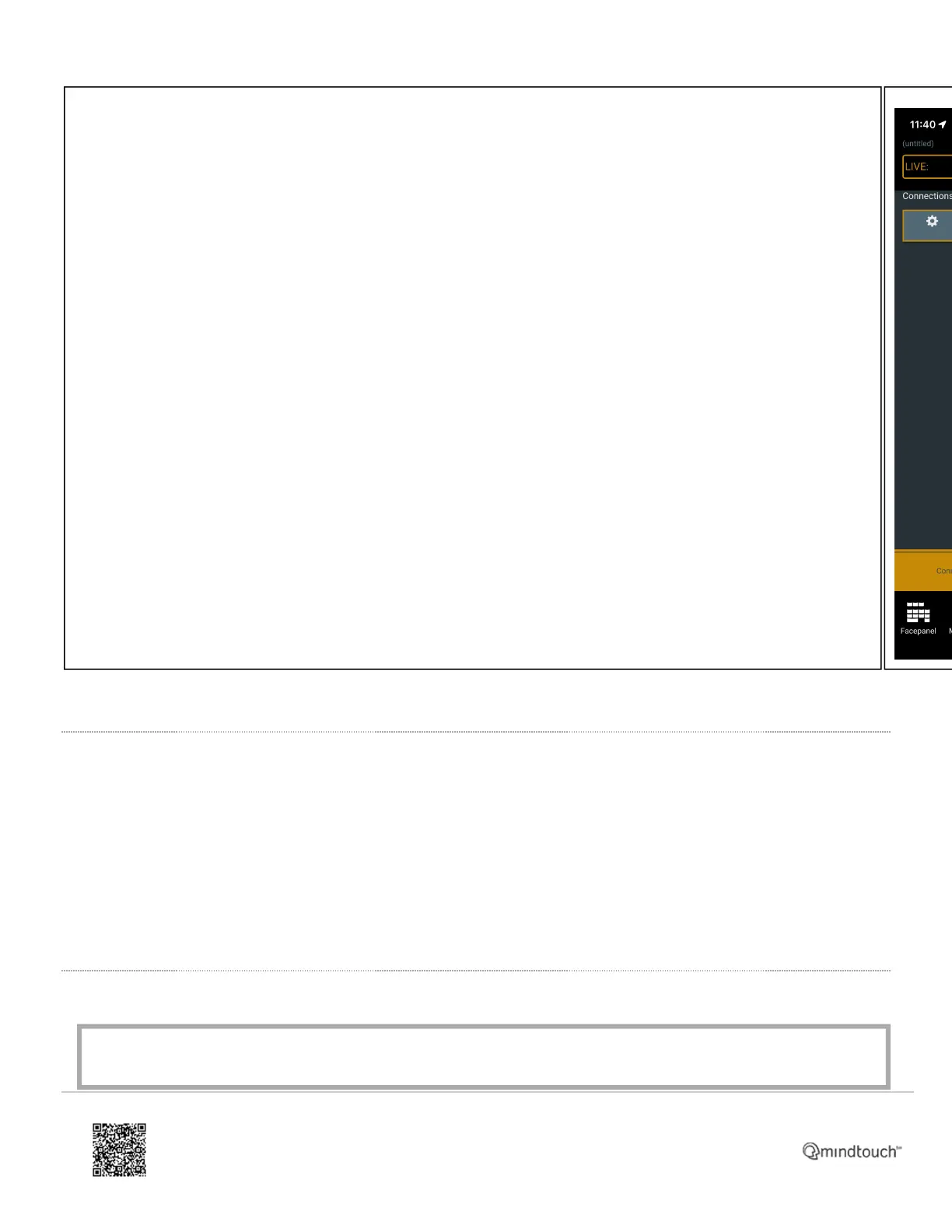
• The connection should now show in white text and have a gold highlight showing that it is connect properly to
the console.
Troubleshooting
• Console is shown as a WIFI symbol with a line through it
◦ Verify that the console’s IP address was entered correctly
◦ Verify that you are connected to the correct wireless network
◦ Make sure the console and access point or router are connected and running
◦ Verify the console’s network port shows activity lights, indicating an active connection
Related Links
Media, iframe, embed and object tags are not supported inside of a PDF.
https://support.etcconnect.com/ETC/Consoles/Console_Apps/How_to_Set_Up_Your_Wireless_Network_for_iRFR_or_aRFR_…
Updated: Tue, 03 Oct 2023 07:16:35 GMT
Powered by
12



 To Next Page