Eos
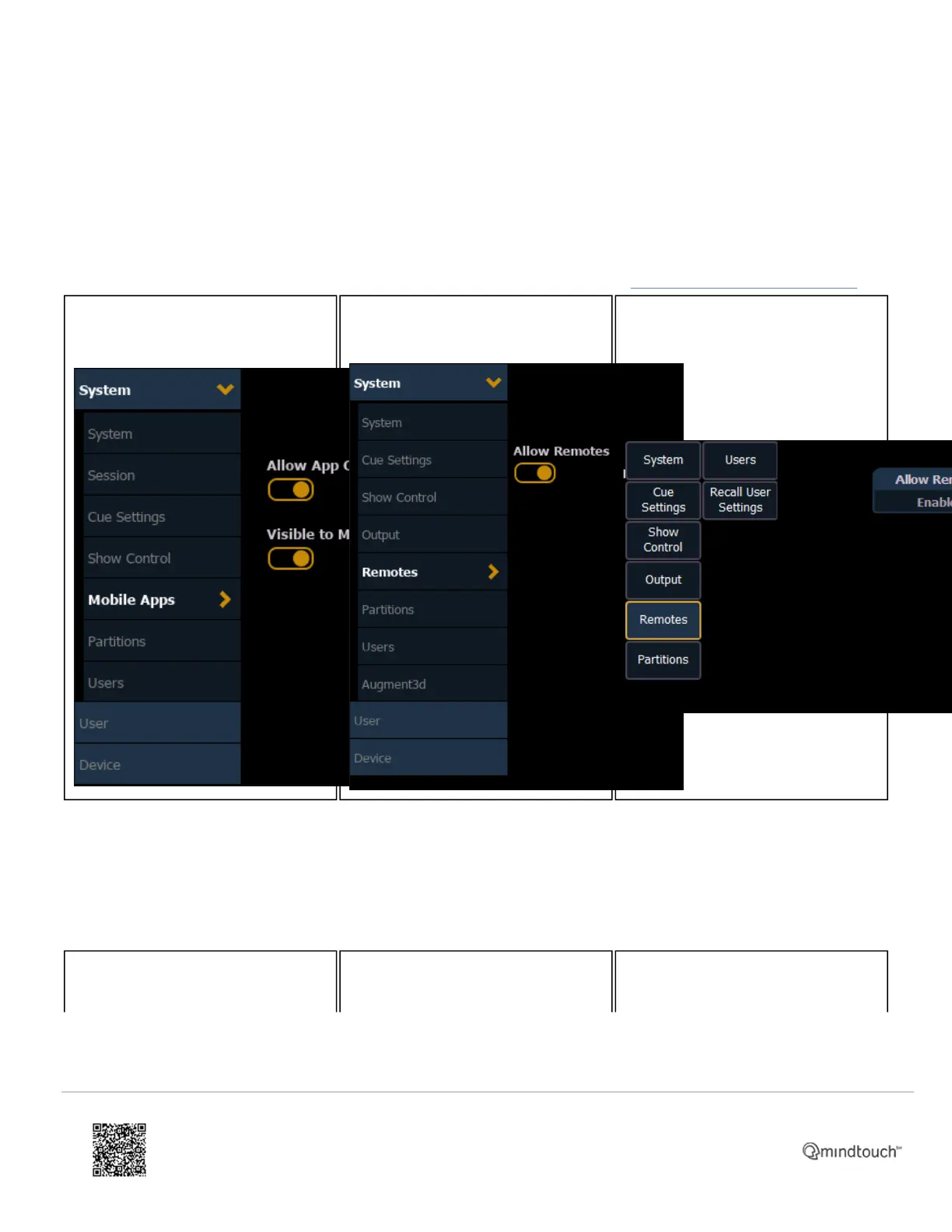
Allow Remotes/Allow App Connections
Press [Displays] or [Browser] and choose {Setup} -> {System Settings}. Click on the {Remotes} tab. Ensure that {Allow
Remotes} is set to Enabled.
After Eos 3.2.0 we will go into {Mobile Apps} and enable {Allow App Connections}.
If you are unsure which version of Eos your console is running, follow these steps: Finding Software Version on Eos
v3.2.0 and greater:
v3.0.0 to 3.1.5:
v2.9.3 and lower:
Visible to Mobile Apps/Visible to Remotes
Press [Displays] or [Browser] and choose {Setup} -> {Device Settings}. Click on the {Config} tab. Ensure that {Visible to
Remotes} is set to Enabled.
After Eos 3.2.0 we will go into {Setup} -> {System Settings} -> {Mobile Apps} and enable {Visible to Mobile Apps}.
v3.2.0 and greater: v3.0.0 to 3.1.5: v2.9.3 and lower:
https://support.etcconnect.com/ETC/Consoles/Console_Apps/How_to_Set_Up_Your_Wireless_Network_for_iRFR_or_aRFR_…
Updated: Tue, 03 Oct 2023 07:16:35 GMT
Powered by
5



 To Next Page