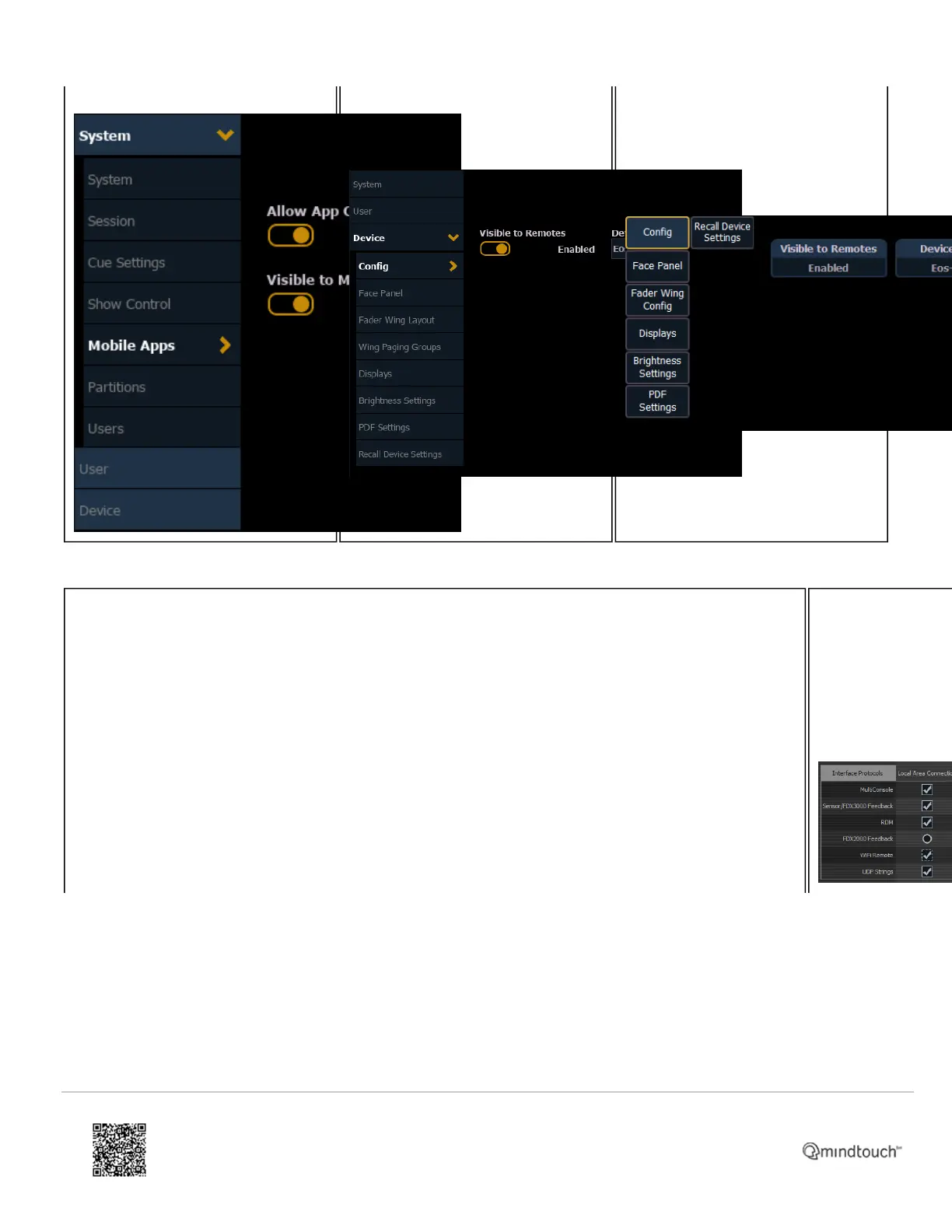
Configuring Network Port(s)
v3.2.0 and lower:
Press [Displays] or [Browser] and choose {Exit}. Click on {Settings} when it appears in yellow. Navigate
to the Network Tab and make sure that Mobile Apps is checked on the network port(s) where the
wireless router or access point is connected.
v3.1.5 and lower:
Press [Displays] or [Browser] and choose {Exit}. Click on {Settings} when it appears in yellow. If you are
running version 2.0 or higher, navigate to the Network tab. Ensure that WiFi Remotes is checked on the
network port(s) where the wireless router or access point is connected. If you are running an older
version, the check box may be located in the {RFR} tab instead.
https://support.etcconnect.com/ETC/Consoles/Console_Apps/How_to_Set_Up_Your_Wireless_Network_for_iRFR_or_aRFR_…
Updated: Tue, 03 Oct 2023 07:16:35 GMT
Powered by
6



 To Next Page