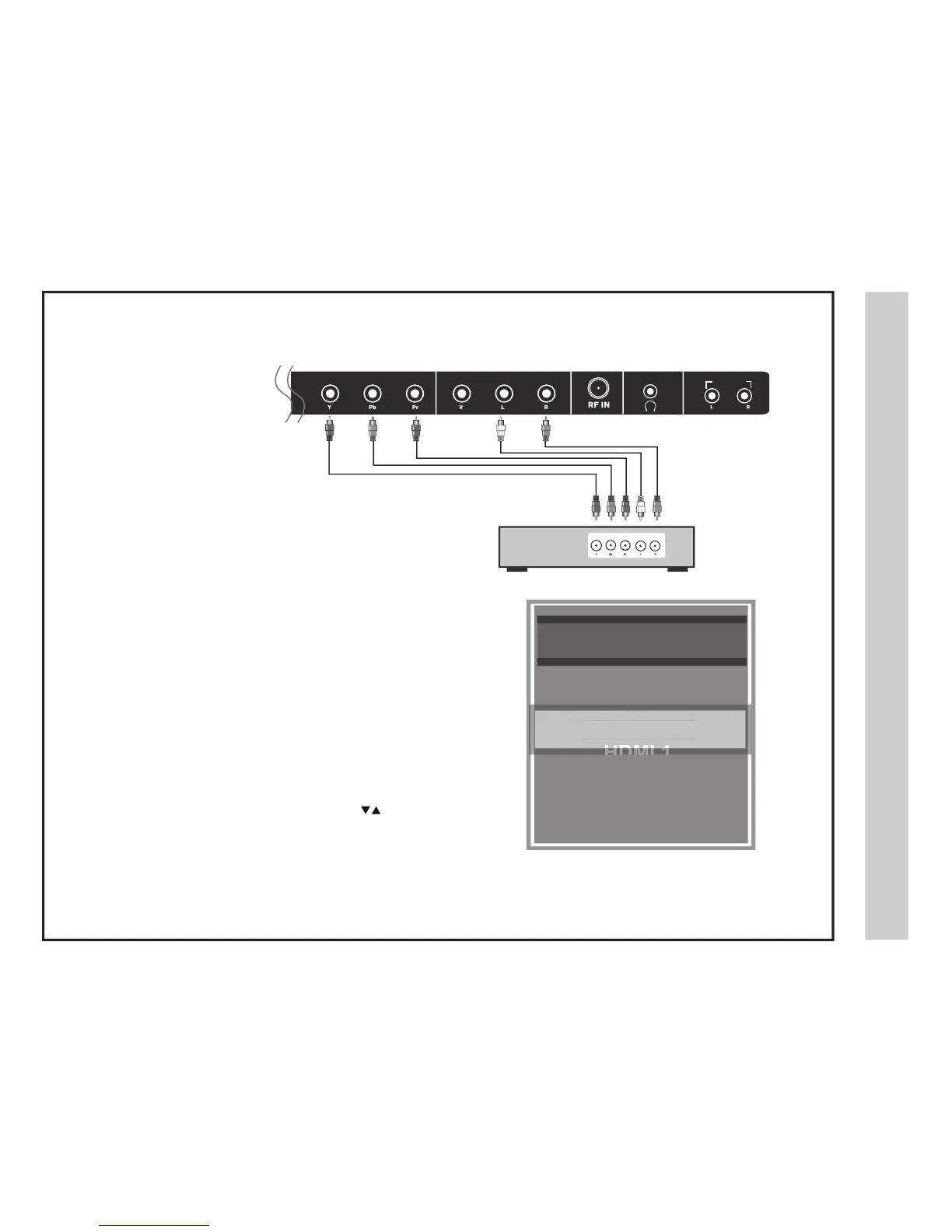
Connect to external equipment that features component video output jacks
for better performance. Use the Component Y Pb Pr video and audio
inputs with a set top box, gaming console or DVD player.
•
When connecting external equipment to your television, match the colors
of the connec
ting jacks (Video: Blue, Green, Red; Audio: White / Red ).
•
Connec
t the optional component video cables (blue, green, red) (not included)
from the video output jacks (Y, Pb, Pr) on your external equipment to the
Component Y Pb Pr input on the TV’s rear panel.
• Connect white / red audio cables for sound from the audio (L/R) output
jacks on your external equipment to the AV L/R input jacks on the TV’s
rear panel.
How to Use
• Press the INPUT button on the remote control. Use the buttons
to highlight the input to view (Component) then press ENTER.
Digital set top
box, gaming
cons
ole or DVD
How to Connect Component
AUDIO OUT


 To Next Page