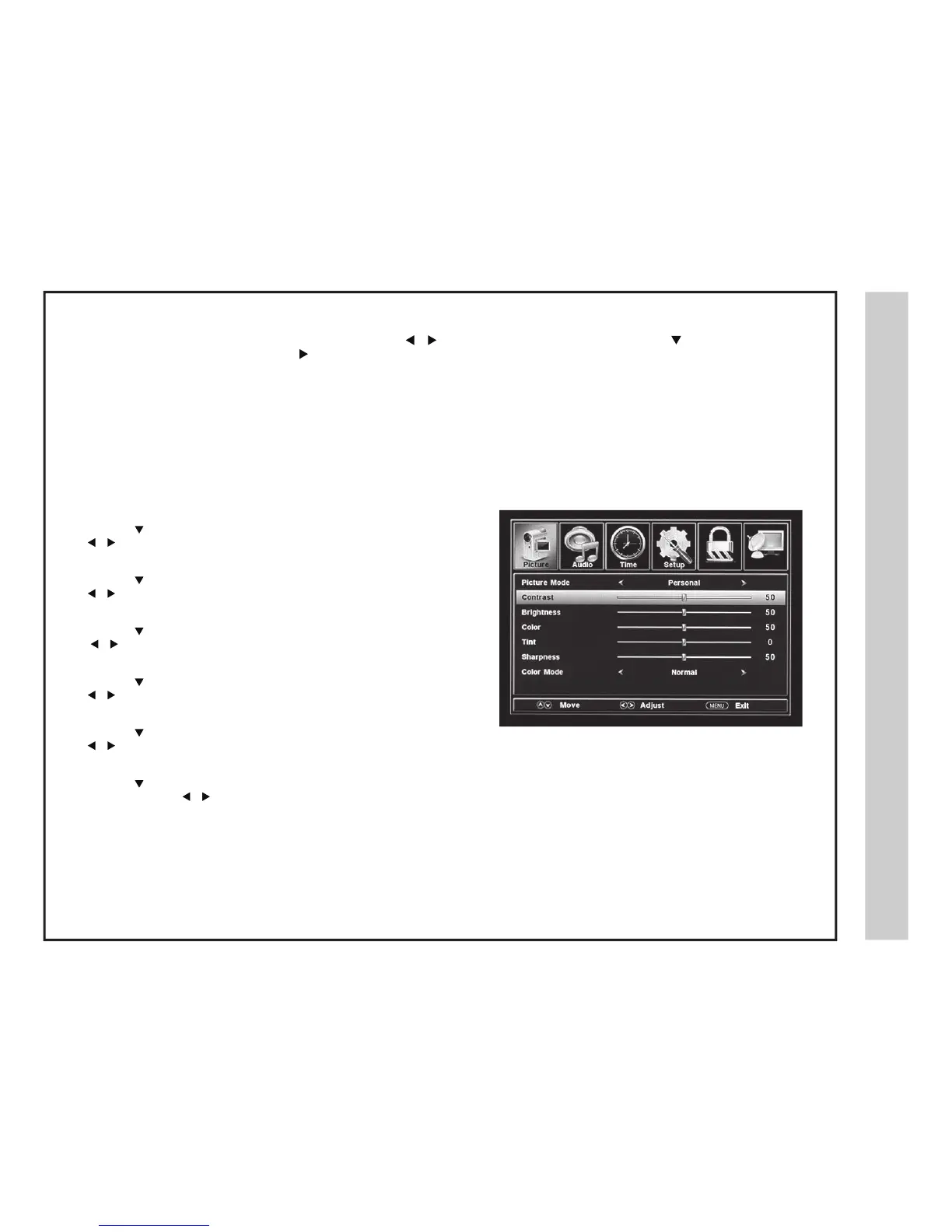
How to Navigate:
Press the MENU button on the remote control. Navigate using
buttons to select PICTURE. Press the down
button to
highlight PICTURE MODE, then press the
button to select your viewing preference from 4 options:
ST
ANDARD > DYNAMIC > MILD > USER. The STANDARD setting is recommended for most viewing environments. Depending on
the ambient light level in the room, you may find one of the other options more pleasing.
Lock
Channel
• Contrast
Press the
button to highlight Contrast. Use the
buttons to increase or decrease contrast intensity.
•
Brightness
Press the
button to highlight Brightness. Use the
buttons to increase or decrease overall brightness.
•
Color
Press the button to highlight Color. Use the
buttons to increase or decrease color intensity.
•
Tint.
Press the button to highlight Tint. Use the
buttons to adjust the tint colors toward green or reddish tint.
•
Sharpness
Press the
button to highlight Sharpness. Use the
buttons to view softer or crisper edges in the picture.
•
Color Temperature
Press the button to highlight your Color Temperature
preference. Use the
buttons to select COOL
(more Bluish tone), NORMAL or WARM (less Bluish tone) settings.


 To Next Page