stnemtsujdAuneMCP
sgn
i
tteSdecnavdA
32A66-24
Lock
Channel
Lock
Channel
Lock
Channel
Lock
Channel
Lock
Channel
Lock
Channel
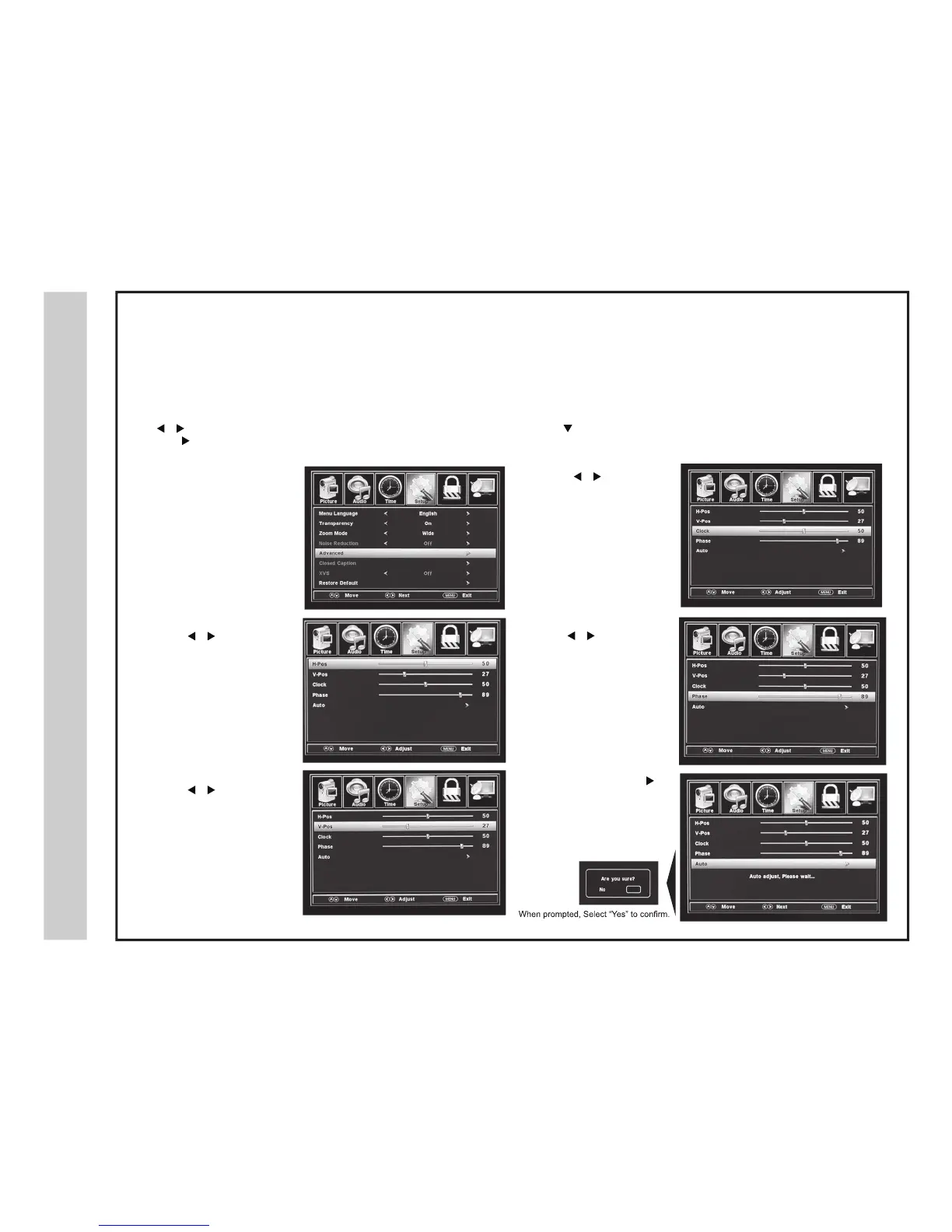
In the SETUP menu, you may adjust the position of images displayed on screen once you connect your PC. The recommended resolution setting
is 1366 x 766. For use with a laptop computer, refer to the owners manual for instruction on proper display output.
If yo
ur PC system uses a standard signal mode, the TV screen will adjust automatically. Connect an optional 3.5mm audio cable (not included)
for stereo sound. See page 15 for details.
How to Navigate:
After connecting to a PC, press the VGA button on your remote control. Press the MENU button on the remote control and navigate using
The
buttons to select SETUP. Access the position adjustment options by pressing the
button to
highlight Advanced. Then
press the
button to s
elect from the following options.
• Highlight Clock. Navigate
using the buttons
to control the width of the
image.
• Highlight H-Pos. Navigate
using the
buttons to
adjust the position of images
displayed from side to side.
• Highlight Auto. Press the
button to automatically
adjust the display to the best
setting. When prompted, select
Yes to confirm.


 To Next Page