Heat Treat
The included heat treat programs are listed in Appendix B: Firing Programs.% !
Custom
The Genesis Spark has 30 Custom user programs slots. Programs 1-12 have 32 segments
each, while 13-30 have 8 segments each. When you select custom, you will first see a screen
with all 30 custom programming slots. You must choose one of the thirty slots to add your
custom program; if they are all full, you must choose one to override. !
• If you select an Empty program slot, the controller will first ask for a name the custom
program. The Custom Programming section below will outline how to enter the segments
for your custom program. !
• If you select a slot with a program, you will be taken to the firing review screen. Please
refer to the Firing Review Screen section of the manual to continue firing with the selected,
existing custom program.!
Library
The included library programs are listed in Appendix B: Firing Programs.%!
Custom Programming!
First, enter a name with the alpha-numeric
keypad for your custom program. Press Save.!
After you have entered a name the controller
program the first segment of the custom program.
Enter the ramp rate, temperature to achieve and
whether to hold at the temperature. After entering
each piece of information, press the forward arrow.
Use the backward arrow if you need to adjust any
value you’ve entered. !
After entering all three for a segment, the Firing
Review Screen will be shown. !
•
START: Start the program!
•
EDIT: Press Edit to add/edit the custom
program segments!
•
GRAPH: Review the program in a graph!
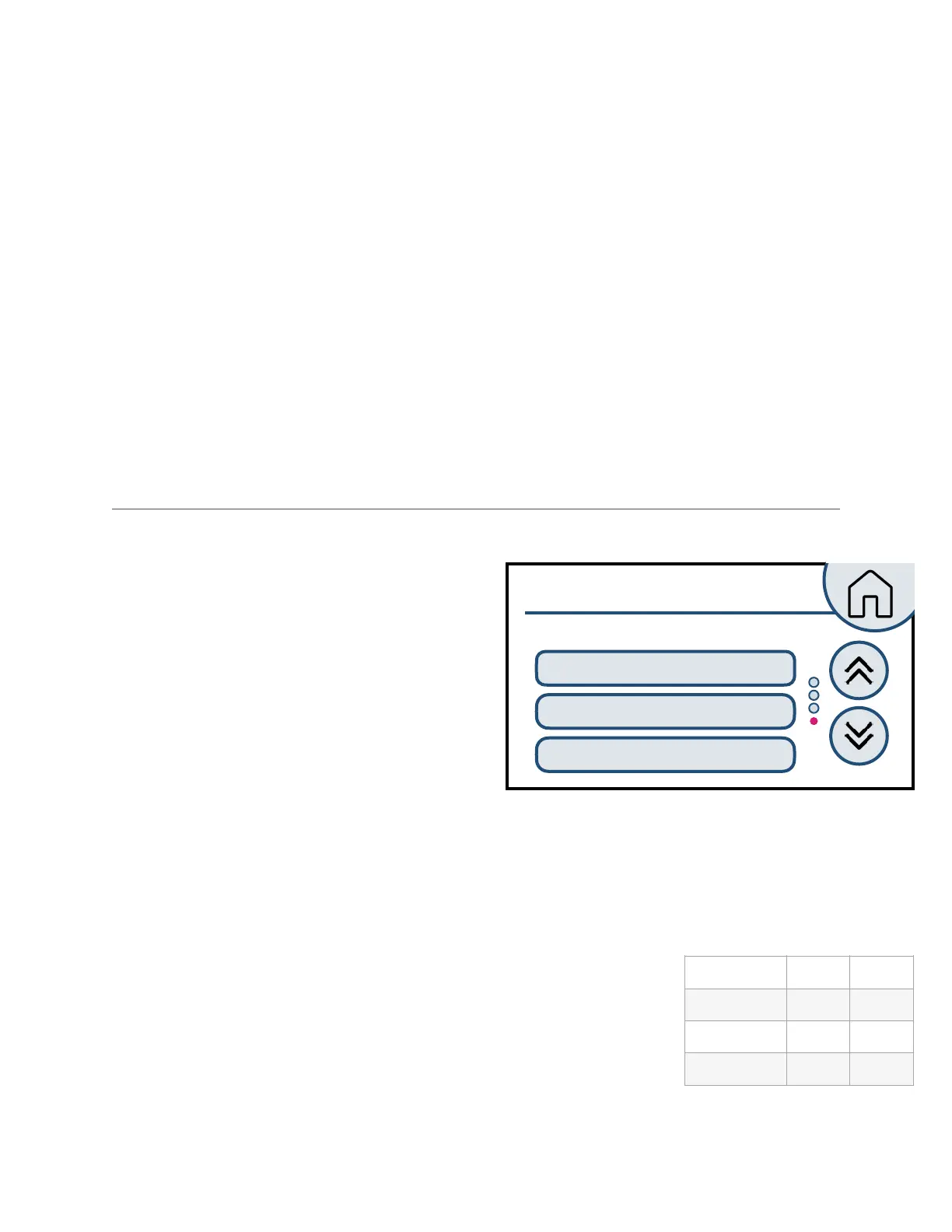
The Edit button will navigate to the Segment List Screen (see Figure 2). The following
actions are permitted on each segment: delete, insert [after] and edit. Press anywhere in the
segment line to take an action on the segment.!
From the edit screen, pressing a segment will display the Segment
Review Screen (Fig. 3) with action buttons. The edit button will navigate
through editing the ramp rate, temperature to achieve and possible hold
time.!
The validations for each field are displayed to in the table shown to the
right. !



 To Next Page