EZN3261/3361
18
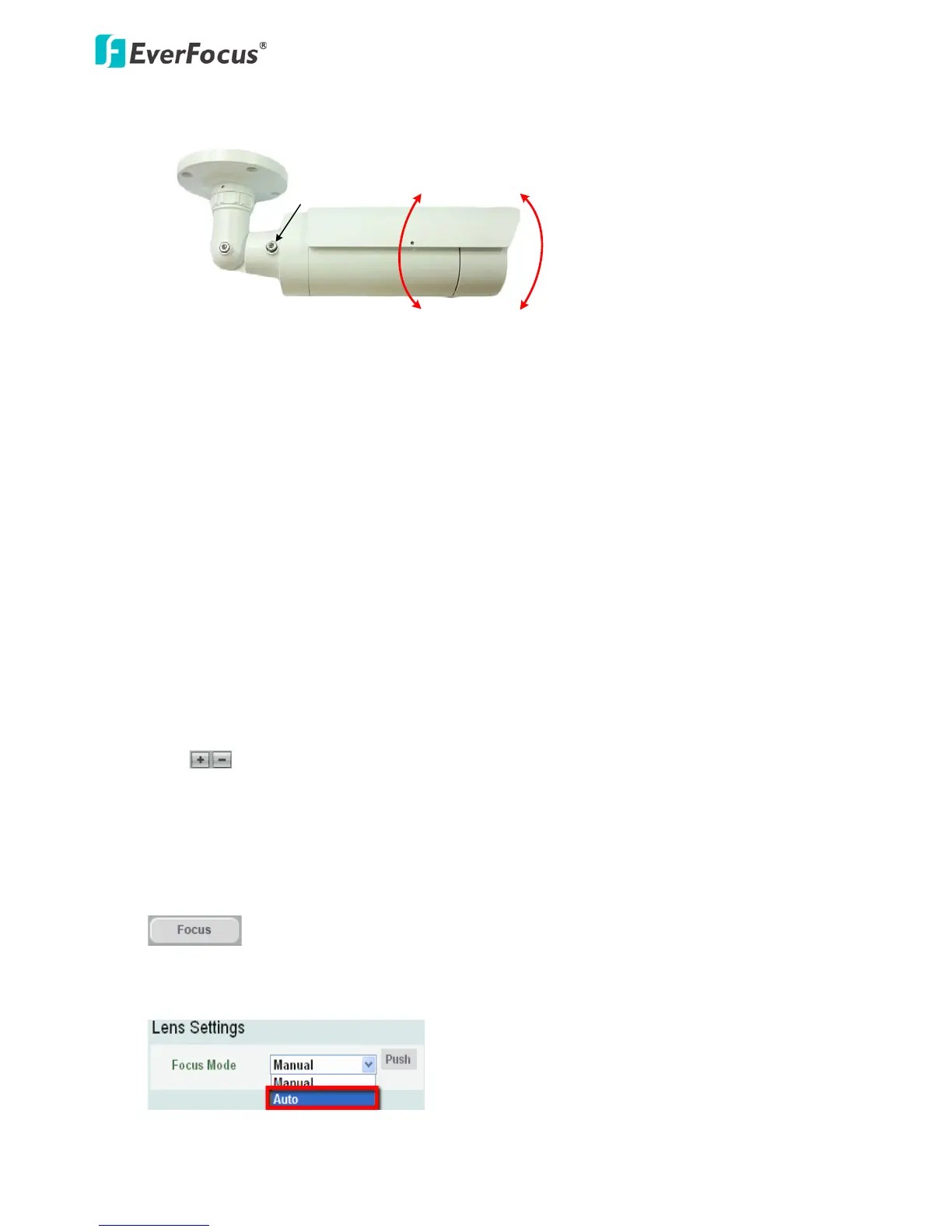
Note: To achieve the best 9:16 display effect, it’s recommended to:
1. Install the camera sideways by rotating the camera to the left or right by 90°.
2. Select a 16:9 View Size (e.g. 1920x1080 / 1024x768).
3. Use the Rotate button.
9. Video Stream
Select the Video Stream (Stream 1, Stream 2, Stream 3 or Stream 4) that will be displayed in the live
view window on the bottom. Stream 2, Stream 3 and Stream 4 are only selectable if you have
enabled the stream (see 7.2.1 Streaming and Audio). The default setting is Stream 1 only.
10. View Size
Use this to select the appropriate view size and shape of the live view window on the bottom. A
smaller size might increase transmission speed and video quality.
11. Language
Click the Language drop-down list to select the desired language.
12. Digital Zoom
Click to zoom in / out the camera view up to 10x. Clicking on a magnified image will
re-center the image around that point.
13. One Push
The One Push button can be displayed on the live view window by enabling the Show One Push
Buttons function in the Live View Layout Settings (see 7.1.4 Display and Overlay). Click the
button to Auto Focus. To enable the Auto Focus button, you have to select Auto in
the Focus Mode drop-down list (see 7.2.3 Camera). When the Auto Focus function is enabled, the
camera will automatically adjust focus every time you click the Zoom in/out buttons.


 To Next Page