Evolution
©Evolution Controls Inc
14-June-2021
EVO/
TM
ECM-ACU-PRO . CONTROLS INC. EVO/
TM
Configurator
EVO/
TM
Configurator User Guide V3.0 Evolution Controls Inc. Page 8 of 26
The information in this document is confidential and must not be disclosed to any third party without the written consent of Evolution
Controls Inc.
The COM port number may vary from PC to PC so it may not be the same as shown above. If
there are multiple COM ports connected to your PC, you need to identify which COM port is
for the IF-Tool. Disconnect the IF-Tool USB cable and relaunch the EVO Configurator
software. The COM port disappeared from the list is the one you should use. Re-connect the
USB cable and repeat this step to connect.
The app saves the COM port selection and automatically re-uses the same COM port next
time when the app is launched.
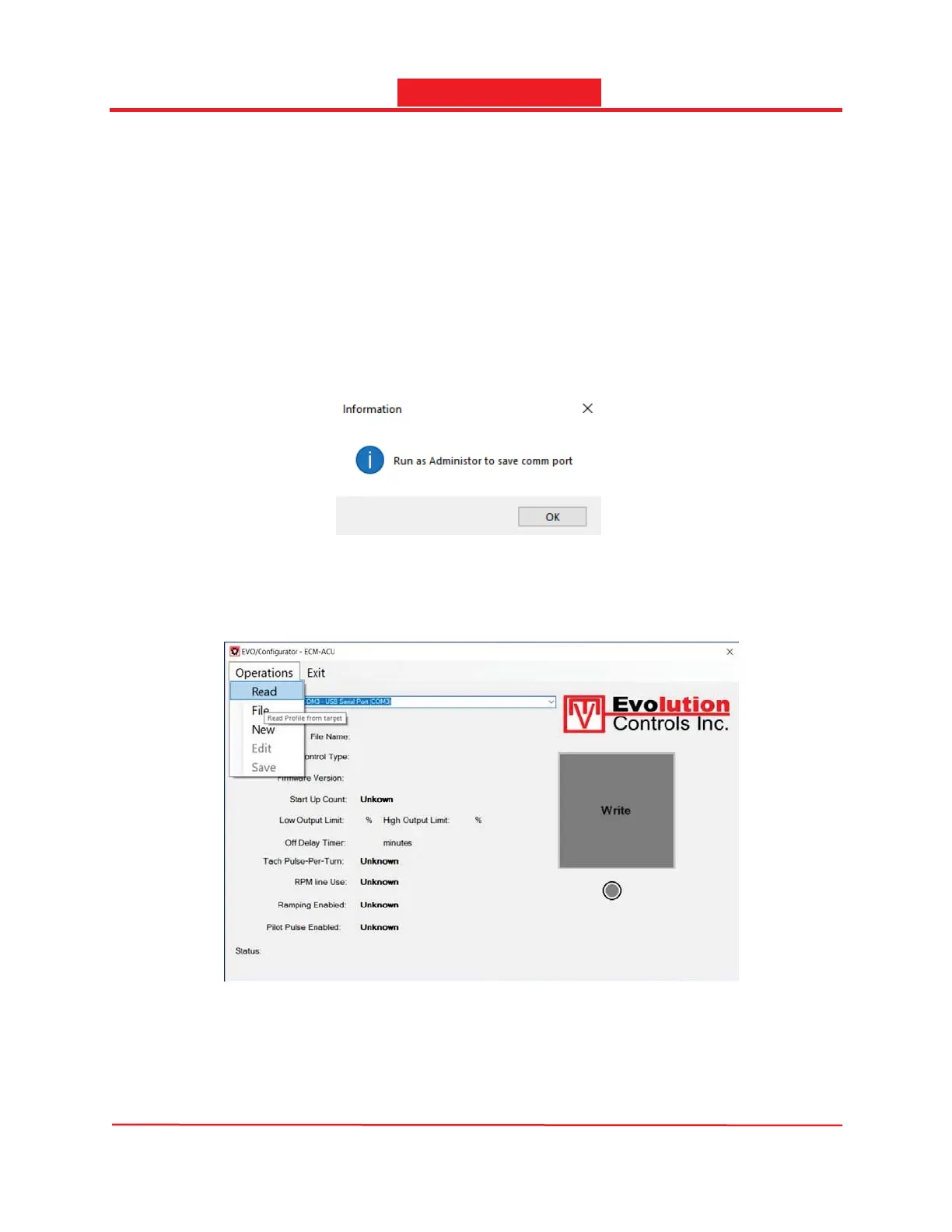
Note: When the app is installed in the Program Files (x86) folder, the COM port selection is
write protected. It can only be changed when the app is run as an administrator. Otherwise,
the message below will pop up.
Follow the steps in Appendix A.2 to run the app as an administrator.
- Select the Read option from the Operations drop down menu to upload the profile from an
ECM-VCU target.


 To Next Page