EasyManua.ls Logo

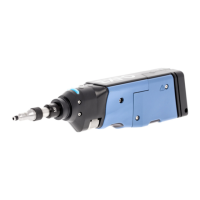
EXFO FIP-400B Series - User Manual

EXFO FIP-400B Series
163 pages
Print Icon
To Next Page IconTo Next Page
Loading...
User Guide
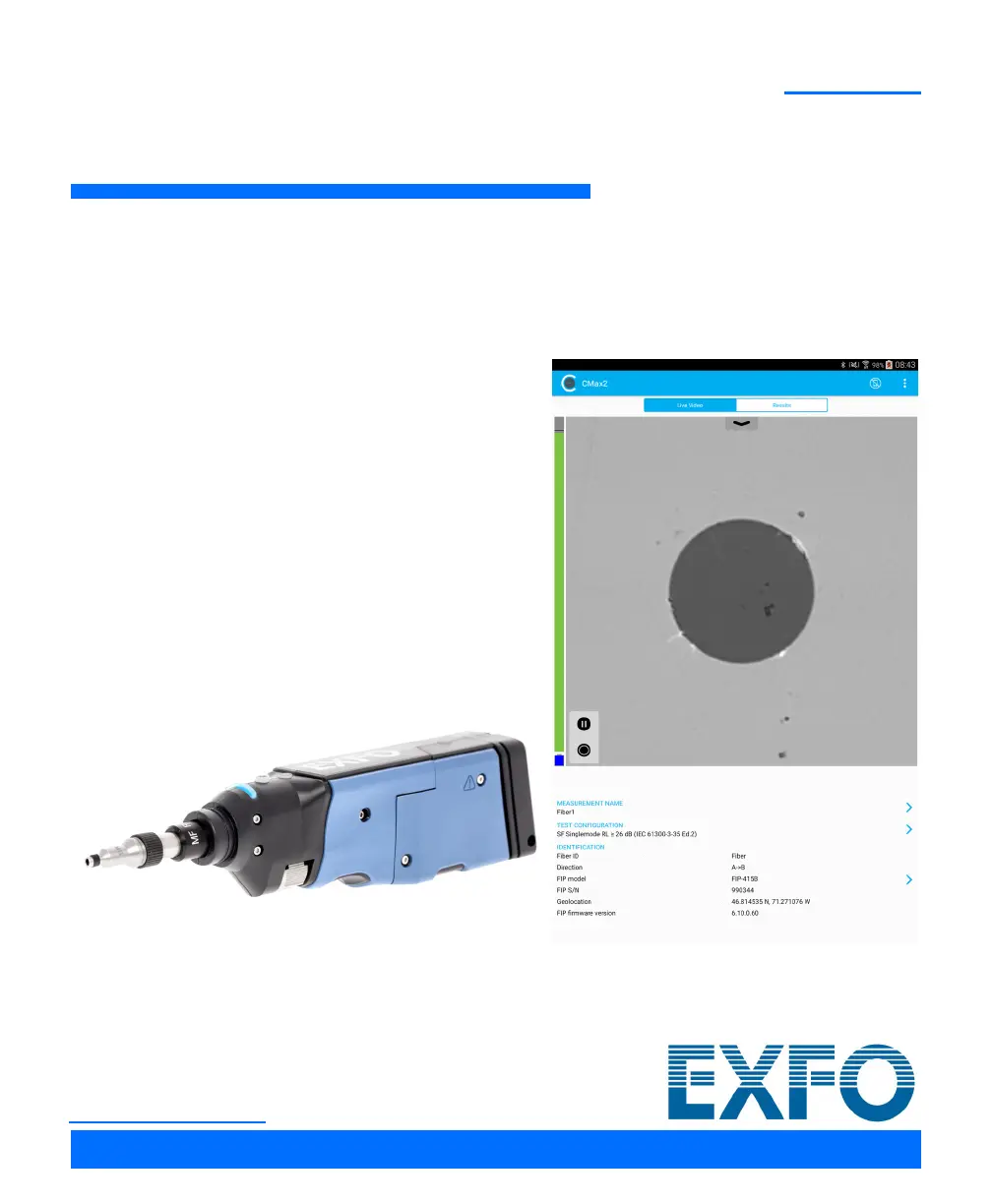
Fiber Inspection Probe and
ConnectorMax2 Mobile (Android)
FIP-400B
www.EXFO.com

Table of Contents

Questions and Answers

  • S
    Sarah HernandezAug 17, 2025
    What to do if I see a connection problem message with EXFO Analytical Instruments?
    • B
      bakergaryAug 18, 2025
      If you see a connection problem message with your EXFO Analytical Instruments, first, if the probe is in use by another device, disconnect it and try again. If connected via USB to a computer or EXFO platform, disconnect the probe from the USB port, close ConnectorMax2 Mobile on the computer, and try again. If connecting via Wi-Fi fails and the device connects to a previous Wi-Fi connection, use the device settings to connect to the probe. To return to the previous connection, use the device settings as well.
  • M
    Mr. Thomas MoyerAug 20, 2025
    What to do if I cannot see the fiber on-screen with EXFO FIP-400B?
    • D
      Diane RileyAug 20, 2025
      If you cannot see the fiber on-screen with your EXFO Analytical Instruments, check the probe connection status to see if ConnectorMax2 Mobile is detecting the probe. If it is properly connected, close and reopen ConnectorMax2 Mobile. Ensure that Wi-Fi is on and the probe is also on.
  • B
    Barbara ProctorAug 22, 2025
    Why is the ConnectorMax2 Mobile application icon not available for EXFO FIP-400B Analytical Instruments?
    • P
      Paul McculloughAug 22, 2025
      If the ConnectorMax2 Mobile application icon is not available in the list of applications displayed, ensure your smart device is not in Safe Mode. If it is, restart the device. Also, verify that the ConnectorMax2 Mobile application was installed from the current user account, not from another account.
  • D
    Douglas LeeAug 25, 2025
    Why is the image blinking in live video mode on EXFO Analytical Instruments?
    • D
      Dakota BeckerAug 26, 2025
      If the image displayed in live video mode is blinking on your EXFO Analytical Instruments, make sure that the type of connector selected in the software matches the type of connector physically connected to the probe.
  • A
    Andrew CabreraAug 27, 2025
    How to fix auto centering on EXFO Analytical Instruments?
    • B
      Beth CalhounAug 27, 2025
      To resolve auto centering issues with your EXFO Analytical Instruments, try cleaning the connector and adjusting the image focus.
  • J
    Jennifer SingletonAug 30, 2025
    What does it mean if the FIP status LED blinks red for 2 seconds in live video mode on EXFO FIP-400B Analytical Instruments?
    • R
      Rick BoydAug 30, 2025
      If the FIP status LED blinks red for 2 seconds in live video mode and turns from unlit to blue (auto focus timeout), with your EXFO Analytical Instruments, try to put the fiber back in place.
  • J
    Jonathan BryanSep 1, 2025
    What to do if the FIP internal temperature is too high on EXFO FIP-400B Analytical Instruments?
    • D
      Daniel BaxterSep 1, 2025
      If the FIP internal temperature is too high on your EXFO Analytical Instruments, let the FIP cool down.
  • C
    Chad ParkerSep 4, 2025
    Why is the FIP measurement corrupted when imported via USB to EXFO FIP-400B?
    • B
      Benjamin MillerSep 4, 2025
      If the FIP measurement is corrupted when imported from a computer to the smart device via a USB cable with your EXFO Analytical Instruments, try transferring the files using a cloud application like Google Drive. The corruption may be caused by the smart device drivers.
  • S
    Steven GravesSep 6, 2025
    How to fix a truncated user interface in the EXFO FIP-400B application?
    • A
      Anna CampbellSep 7, 2025
      If the user interface displayed in the application is truncated on your EXFO Analytical Instruments, change the font size in your smart device settings to improve readability.
  • B
    brandon75Sep 9, 2025
    Why is the capture button not available on my EXFO FIP-400B Analytical Instruments?
    • J
      Jeffrey HughesSep 9, 2025
      If the capture button is not available on your EXFO Analytical Instruments, ensure that the type of connector selected matches the type of connector connected to the probe. Also, ensure that the focus value is sufficient to perform the analysis by using the focus knob on the probe until the focus indicator displays an acceptable (yellow) or preferred (green) range.

Summary

Introducing the FIP-400 B Fiber Inspection Probe and ConnectorMax2 Mobile

Probe Overview

Provides a detailed description of the FIP-400B probe and its operational controls.

ConnectorMax2 Mobile Software

Details on the companion mobile application for fiber inspection and analysis.

Safety Information

Electrical Safety Information

Details safety precautions and equipment ratings related to electrical usage.

Setting up Your Fiber Inspection Probe and ConnectorMax2 Mobile

Connecting or Disconnecting the Wireless Probe

Steps to establish and terminate wireless probe connectivity with the mobile app.

Setting up Identification

Configuration of fields for identifying test parameters like cable ID and fiber ID.

Inspecting Fiber Ends

Inspecting Fiber Ends (Single Fiber and Transceiver - Fiber Receptacles)

Comprehensive guide for inspecting single fiber and transceiver connectors.

Analyzing Captures

Explains how to perform and interpret automated pass/fail analyses.

Working with a Multifiber Source

Understanding Fiber Polarity

Details the different types of fiber polarity in multifiber patchcords.

Maintenance

General Maintenance

Provides guidelines for routine cleaning and upkeep of the unit.

Battery Safety Recommendations

Outlines essential safety precautions for handling and replacing batteries.

Troubleshooting

Solving Common Problems

A table listing common issues and their corresponding solutions.

Warranty

Service and Repairs

Information on how to send equipment for service or repair.

Fiber Inspection Probe Tip Compatibility Chart

EXFO FIP-400B Series Specifications

General IconGeneral
TypeFiber Inspection Probe
Light SourceLED
Image SensorCMOS
Magnification400x
Connector Types SupportedLC, SC, ST, FC
ConnectivityUSB
Operating Temperature0 °C to 32 °F
Storage Temperature-20 °C to -4 °F
Product FamilyFIP-400B Series

Related product manuals