EN7
CFI EXTEL CONNECT - V1
1. Go to the main menu on your monitor
2. Go to the Wifi sub-menu and go into the pairing menu
3. In the pairing menu, you will see that the ‘STATUS’ icon has this appearance and is grey. This means that
‘Hotspot’ mode has not yet been activated.
Press the RESET key
4. Wait for around 20 seconds
5. When the ‘STATUS’ icon looks like this , ‘Hotspot’ mode has been activated. Don’t touch the monitor
again, it is ready to be paired.
b.PairingyourdoorkeeperwithanAndroidsmartphoneforthersttime
Download the Extel Connect application from Google Play
1
20 sec connection
cg05167913
OK
password
2 3 4
5 6 7 8
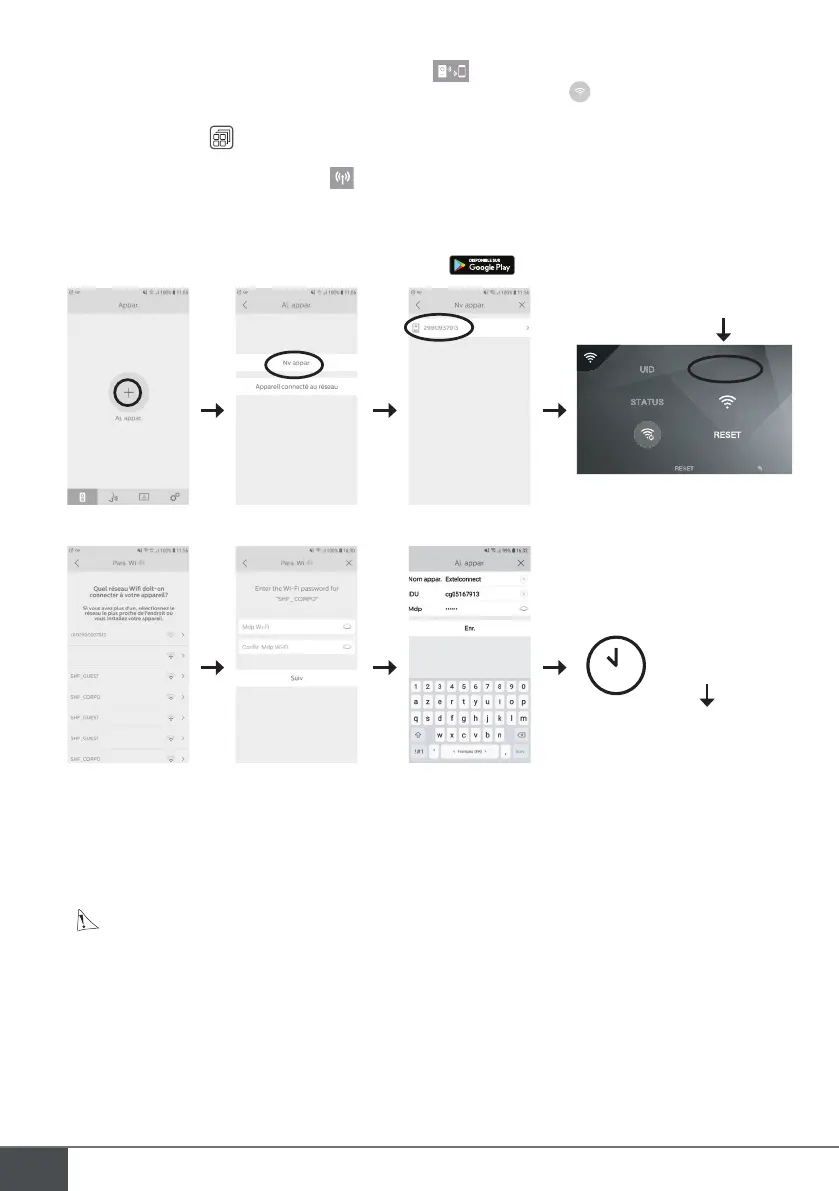
1. After the application has been started, it suggests you add a device by pressing the + in the centre of the
screen.
2. Select New device
To move to the next step, your telephone must authorise access to your telephone’s location. If you are asked,
grant access to the Extel Connect application.
3. Your video doorkeeper will appear in the list of devices available. Select it.
Warning sometimes, the monitor may not be detected at the first attempt. In this case, the application
will ask you “Has your device been reset successfully?” Click No, and
it will relaunch the monitor search. If it fails again, we recommend that you go through the Hotspot activation
process on your monitor again.
4. Once the device has been selected, the application will ask you for its password. The password is displayed on
the Extel Connect videophone monitor opposite UID. In the example shown in these cg05167913 instructions
5. The application asks you which Wifi network the video doorkeeper can be connected to. Select your network
6. Enter your home Wifi password


 To Next Page