1
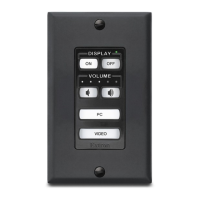
Extron
DISPLAY
VOLUME
ON
OFF
LAPTOP
HDMI
PC
VGA
SCREEN
UP
SCREEN
DOWN
DOC
CAM
MUTE
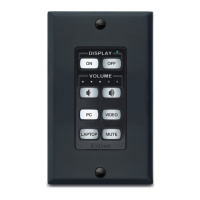
Extron
DISPLAY
VOLUME
ON
PC
VIDEO
MUTE
OFF
LAPTOP
Extron
DISPLAY
VOLUME
ON
OFF
PC
VIDEO
MUTE
LAPTOP
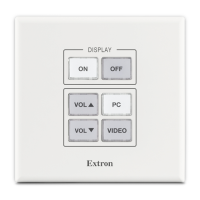
Extron
DISPLAY
ON
PC
VIDEO
OFF
VOL
VOL
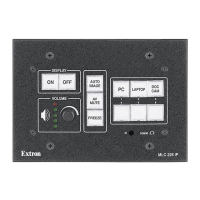
Extron
DISPLAY
VOLUME
LAPTOP
HDMI
PC
VGA
SCREEN
UP
SCREEN
DOWN
DOC
CAM
ON
OFF
MUTE
MLC Plus 50
MLC Plus 100
MLC Plus 200
MLC Plus 100 AAP
MLC Plus 200 AAP
MLCPlus50/100/200 Series • Setup Guide
The Extron MLCPlus50/100/200Series MediaLink
®
Controllers with IP Link
®
Pro integrate Ethernet
connection into AV systems. This allows users to remotely control, monitor, and troubleshoot AV equipment,
including display devices and switchers. Each controller includes an embedded web server and support
for Power over Ethernet (PoE). It also includes ports for bidirectional serial control, IR output, relays, digital
input, and (except for the MLC Plus 50) volume control. Each MLCPlus is shipped with a mud ring.
• All models fit standard US junction boxes or mud rings.
• The MLCPlus100AAP and MLCPlus200AAP
also include space to mount from one to four
Extron AAP plates.
This guide provides instructions to install an
MLCPlus Series controller and to create a basic
configuration. Configure the controller using Extron
GlobalConfigurator
®
(GC) software running in
Global Configurator Professional (GCProfessional) or
GlobalConfigurator Plus (GCPlus) mode. The MLC
integrates with Extron GlobalViewer
®
Enterprise (GVE)
software and the GlobalViewer web-based AV resource
management for remote control applications. Global
Configurator and other useful software applications are
available at www.extron.com.
Installation
Step 1: Get Ready
Use the following check list to prepare for the installation.
• Download and install the latest version of the following:
• Global Configurator Professional or Global Configurator Plus software — for setting up and configuring the controller.
GC includes a link to the Toolbelt software and a way to upgrade the firmware of the controller. You must have an Extron
Insider account to use GC software. Contact an Extron support representative regarding training to use the full features
of GC Professional (see Locating Software, Firmware, and Driver Files on the Extron Website on page11).
• Toolbelt software — for setting up and configuring the controller
• IPLinkPro device drivers — for use with GC (Professional or Plus), to make control of other devices possible.
All are avail able from www.extron.com (see Locating Software, Firmware, and Driver Files on the Extron Website on page11).
• Obtain network information for the unit from the network administrator. You will need the following details for each MLCPlus device:
• DHCP setting (on or off) • Subnet mask • User name
• Device (MLC Plus) IP address • Gateway IP address • Passwords
• Write down the MAC address of each IPLinkPro device (such as the MLC Plus 50/100/200) to be used.
• Obtain model names and setup information for devices the MLC Plus 50/100/200 will control.
• Each controller comes with a factory-installed Secure Sockets Layer (SSL) security certificate. If you intend to install a
different SSL certificate, contact your IT department to obtain the certificate or for instructions on how to obtain one. See
“Secure Sockets Layer (SSL) Certificates” in the MLCPlus50/100/200Series User Guide for requirements and guidelines
regarding SSL certificates. IEEE 802.1X authentication is also supported once enabled (see “IEEE 802.1X Certificates” in the
MLCPlus50/100/200 Series User Guide for details).
Rev. D: Added
paragraph about
SSL certificates
and 802.1X
certificates.

 Need help?
 General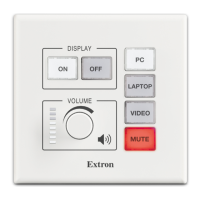

 To Next Page