12
MLC Plus 50/100/200 Series (Continued)
© 2015-2022 - Extron Electronics All rights reserved. www.extron.com
All trademarks mentioned are the property of their respective owners.
Worldwide Headquarters: Extron USA West, 1025 E. Ball Road, Anaheim, CA 92805, 800.633.9876
NOTES:
• For some software you have the option to click the Download Now button to begin downloading the software file. For other
software there is a link for contacting an Extron support representative who can provide you access to the latest version.
To obtain Extron control product software, you must have an Extron Insider account. Extron provides training to our
customers on how to use the software. Access to the full features of Global Configurator Professional is available to
those who successfully complete Extron Control Professional Certification.
• New RS-232 and Ethernet drivers are required. You must use serial and Ethernet drivers developed specifically
for the IPLinkPro platform. With the exception of IR device drivers, drivers used for the previous generation IPLink
(non-Pro) controllers are not compatible.
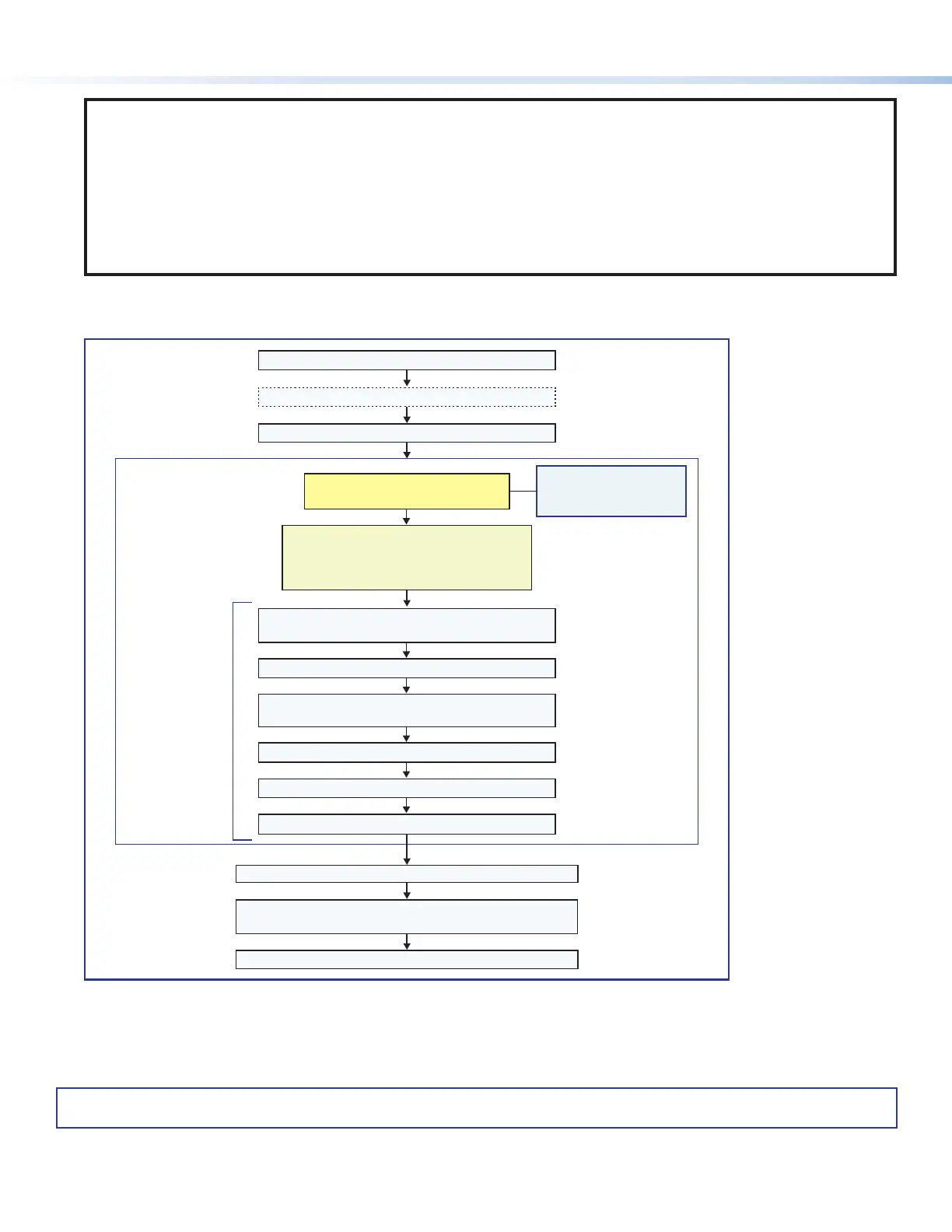
Overall Configuration Procedure for the Controller
See the network
communication setup
instructions
Create a new GC Professional or GC Plus project
and add the MLC Plus to it.
Congure ports on the controller.
Congure controller buttons.
Step 7: Test the system, make adjustments,
nalize conguration.
Save the project.
Step 4: Cable the MLC Plus, then apply power.
Cable all devices (see step 4).
Step 1: Prepare the installation site.
Step 2: Change buttons or faceplates, if desired.
Step 8: Mount the MLC Plus.
Create monitors, schedules, macros, timers,
and local variables.
Build and upload the conguration to the controller.
Step 5: Configure the IP
settings of the MLC Plus.
Within Global Configurator
(GC Professional or
GC Plus mode):
Step 6
If desired or required, use Toolbelt
to congure security settings
for 802.1X, SSL.
Upload security certicates, private keys.
Figure 10. Overall Configuration Steps
If you have questions during installation and setup, you can call the Extron S3 Sales & Technical Support Hotline or the Extron
S3 Control Systems Support Hotline (1.800.633.9877).
Rev. C: replaced GC-specific
wording about downloads
with generic “Extron control
product software” wording.
network
communication setup
instructions on page 8.
68-2806-50
Rev. D
01 23
Contact information
For information on safety guidelines, regulatory compliances, EMI/EMF compatibility, accessibility, and related topics, see the
Extron Safety and Regulatory Compliance Guide on the Extron website.


 To Previous Page