EasyManua.ls Logo

Ezviz DB2 Pro - User Manual

Ezviz DB2 Pro
18 pages
Print Icon
To Next Page IconTo Next Page
Loading...
COPYRIGHT © Hangzhou EZVIZ Software Co., Ltd. ALL RIGHTS RESERVED.
Any and all information, including, among others, wordings, pictures, graphs are the properties of
Hangzhou EZVIZ Software Co., Ltd. (hereinafter referred to as “EZVIZ”). This user manual (hereinafter
referred to as “the Manual”) cannot be reproduced, changed, translated, or distributed, partially or
wholly, by any means, without the prior written permission of EZVIZ. Unless otherwise stipulated,
EZVIZ does not make any warranties, guarantees or representations, express or implied, regarding to
the Manual.
About this Manual
The Manual includes instructions for using and managing the product. Pictures, charts, images and
all other information hereinafter are for description and explanation only. The information contained
in the Manual is subject to change, without notice, due to rmware updates or other reasons. Please
nd the latest version in the ™ website (http://www.ezviz.com).
Revision Record
New release – May 2022
Trademarks Acknowledgement
™, ™, and other EZVIZ’s trademarks and logos are the properties of EZVIZ in various
jurisdictions. Other trademarks and logos mentioned below are the properties of their respective
owners.
Legal Disclaimer
TO THE MAXIMUM EXTENT PERMITTED BY APPLICABLE LAW, THE PRODUCT DESCRIBED, WITH
ITS HARDWARE, SOFTWARE AND FIRMWARE, IS PROVIDED “AS IS”, WITH ALL FAULTS AND ERRORS,
AND EZVIZ MAKES NO WARRANTIES, EXPRESS OR IMPLIED, INCLUDING WITHOUT LIMITATION,
MERCHANTABILITY, SATISFACTORY QUALITY, FITNESS FOR A PARTICULAR PURPOSE, AND
NON-INFRINGEMENT OF THIRD PARTY. IN NO EVENT WILL EZVIZ, ITS DIRECTORS, OFFICERS,
EMPLOYEES, OR AGENTS BE LIABLE TO YOU FOR ANY SPECIAL, CONSEQUENTIAL, INCIDENTAL, OR
INDIRECT DAMAGES, INCLUDING, AMONG OTHERS, DAMAGES FOR LOSS OF BUSINESS PROFITS,
BUSINESS INTERRUPTION, OR LOSS OF DATA OR DOCUMENTATION, IN CONNECTION WITH
THE USE OF THIS PRODUCT, EVEN IF EZVIZ HAS BEEN ADVISED OF THE POSSIBILITY OF SUCH
DAMAGES.
TO THE MAXIMUM EXTENT PERMITTED BY APPLICABLE LAW, IN NO EVENT SHALL EZVIZ’S TOTAL
LIABILITY FOR ALL DAMAGES EXCEED THE ORIGINAL PURCHASE PRICE OF THE PRODUCT.
EZVIZ DOES NOT UNDERTAKE ANY LIABILITY FOR PERSONAL INJURY OR PROPERTY DAMAGE AS
THE RESULT OF PRODUCT INTERRUPTION OR SERVICE TERMINATION CAUSED BY: A) IMPROPER
INSTALLATION OR USAGE OTHER THAN AS REQUESTED; B) THE PROTECTION OF NATIONAL OR
PUBLIC INTERESTS; C) FORCE MAJEURE; D) YOURSELF OR THE THIRD PARTY, INCLUDING WITHOUT
LIMITATION, USING ANY THIRD PARTY’S PRODUCTS, SOFTWARE, APPLICATIONS, AND AMONG
OTHERS.
REGARDING TO THE PRODUCT WITH INTERNET ACCESS, THE USE OF PRODUCT SHALL BE WHOLLY
AT YOUR OWN RISKS. EZVIZ SHALL NOT TAKE ANY RESPONSIBILITES FOR ABNORMAL OPERATION,
PRIVACY LEAKAGE OR OTHER DAMAGES RESULTING FROM CYBER ATTACK, HACKER ATTACK,
VIRUS INSPECTION, OR OTHER INTERNET SECURITY RISKS; HOWEVER, EZVIZ WILL PROVIDE
TIMELY TECHNICAL SUPPORT IF REQUIRED. SURVEILLANCE LAWS AND DATA PROTECTION
LAWS VARY BY JURISDICTION. PLEASE CHECK ALL RELEVANT LAWS IN YOUR JURISDICTION
BEFORE USING THIS PRODUCT IN ORDER TO ENSURE THAT YOUR USE CONFORMS TO THE
APPLICABLE LAW. EZVIZ SHALL NOT BE LIABLE IN THE EVENT THAT THIS PRODUCT IS USED WITH
ILLEGITIMATE PURPOSES.
IN THE EVENT OF ANY CONFLICTS BETWEEN THE ABOVE AND THE APPLICABLE LAW, THE LATTER
PREVAILS.
Question and Answer IconNeed help?

Do you have a question about the Ezviz DB2 Pro and is the answer not in the manual?

Summary

Overview

Package Contents

Lists all items included in the EZVIZ doorbell kit package.

Tools You May Need

Details the tools required for installation, such as a drill.

Doorbell Basics

Explains the components and indicators of the EZVIZ doorbell.

Chime Basics

Details the components and indicators of the EZVIZ chime.

Setup

Get the EZVIZ App

Instructions for downloading, installing, and registering the EZVIZ app.

Installation Location

Guidance on selecting an optimal location for the chime and doorbell.

Plug in and Configure Chime

Steps to power on the chime and link it to the EZVIZ account.

Power On and Link Doorbell

How to turn on the doorbell and ensure it connects to the chime.

Installation

Micro SD Card Installation

Guide for inserting and initializing a micro SD card for storage.

Doorbell Mounting Height

Recommended height for mounting the doorbell for optimal performance.

Mounting Plate Selection

Choosing the appropriate mounting plate for installation.

Install Mounting Plate

Steps for attaching the mounting plate to the wall.

Mount the Doorbell

Final steps to attach the doorbell to the mounted plate.

Maintenance

Disassemble Doorbell

Instructions on how to detach the doorbell from its mount.

Charge Doorbell

Procedures for charging the doorbell via power adapter.

Appendix (Optional)

Replace Existing Doorbell

Guidance for replacing an old doorbell with the EZVIZ model.

View Your Device

Live View Operations

How to view and interact with the live video feed from the device.

Settings

Doorbell Settings

Options for configuring doorbell parameters like name, detection, and audio.

Chime Settings

Settings for the chime, including volume, DND mode, and network.

EZVIZ Connect

Amazon Alexa Integration

Steps to integrate and control the EZVIZ device with Amazon Alexa.

Google Assistant Integration

Instructions for connecting and using the EZVIZ device with Google Assistant.

Summary

Overview

Package Contents

Lists all items included in the EZVIZ doorbell kit package.

Tools You May Need

Details the tools required for installation, such as a drill.

Doorbell Basics

Explains the components and indicators of the EZVIZ doorbell.

Chime Basics

Details the components and indicators of the EZVIZ chime.

Setup

Get the EZVIZ App

Instructions for downloading, installing, and registering the EZVIZ app.

Installation Location

Guidance on selecting an optimal location for the chime and doorbell.

Plug in and Configure Chime

Steps to power on the chime and link it to the EZVIZ account.

Power On and Link Doorbell

How to turn on the doorbell and ensure it connects to the chime.

Installation

Micro SD Card Installation

Guide for inserting and initializing a micro SD card for storage.

Doorbell Mounting Height

Recommended height for mounting the doorbell for optimal performance.

Mounting Plate Selection

Choosing the appropriate mounting plate for installation.

Install Mounting Plate

Steps for attaching the mounting plate to the wall.

Mount the Doorbell

Final steps to attach the doorbell to the mounted plate.

Maintenance

Disassemble Doorbell

Instructions on how to detach the doorbell from its mount.

Charge Doorbell

Procedures for charging the doorbell via power adapter.

Appendix (Optional)

Replace Existing Doorbell

Guidance for replacing an old doorbell with the EZVIZ model.

View Your Device

Live View Operations

How to view and interact with the live video feed from the device.

Settings

Doorbell Settings

Options for configuring doorbell parameters like name, detection, and audio.

Chime Settings

Settings for the chime, including volume, DND mode, and network.

EZVIZ Connect

Amazon Alexa Integration

Steps to integrate and control the EZVIZ device with Amazon Alexa.

Google Assistant Integration

Instructions for connecting and using the EZVIZ device with Google Assistant.

Overview

This document describes the EZVIZ Doorbell and Chime system, providing comprehensive instructions for setup, installation, operation, and maintenance. The system is designed to enhance home security and convenience by allowing users to monitor their front door and interact with visitors remotely.

Function Description

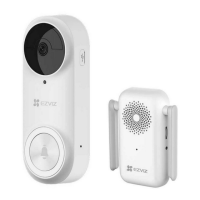
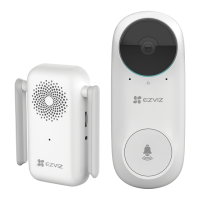
The EZVIZ Doorbell is a smart video doorbell equipped with a camera, microphone, speaker, PIR sensor, and a doorbell button. It captures video and audio of visitors at your door, detects motion, and allows for two-way communication. The doorbell connects wirelessly to a Chime, which acts as an indoor alert system and a network extender. The Chime also provides local storage for video recordings via a Micro SD card. The entire system is managed through the EZVIZ app, enabling remote viewing, recording, and configuration.

Usage Features

Setup and Installation:

The setup process begins with downloading and registering an account on the EZVIZ app. Users are guided to choose an optimal installation location for the Chime, ideally between the Wi-Fi router and the doorbell, within 4 meters of the doorbell. The Chime is plugged into a power outlet, and its LED indicator signals readiness for Wi-Fi connection. Adding the Chime to the EZVIZ app involves scanning a QR code on the device or its quick start guide and following in-app instructions for Wi-Fi configuration.

Powering on the doorbell requires a short press of the power button. If the doorbell is out of battery, it needs to be charged using a 5V 2A power adapter (purchased separately) and a USB cable. Full charging is recommended before initial use, taking approximately 4.5 hours. When charging outdoors, a waterproof power cable should be used, and the lens should face upward to avoid fraying. Once powered on, the doorbell automatically attempts to link with the Chime and connect to the network.

Installation of the doorbell involves selecting an appropriate mounting plate. Users can choose between a standard mounting plate or one of two inclined mounting plates (5° or 15°) to achieve the best surveillance angle. For smooth walls, a plate foam is applied to the mounting plate before attaching it to the wall. For uneven walls, a drill template is used to mark and drill four screw holes (6mm diameter recommended). Anchors are inserted into the holes, unless installing on a wooden doorframe. The foam sticker is then applied to the mounting plate, which is secured to the wall with screws. Finally, the doorbell is installed onto the mounting plate.

For users replacing an existing doorbell, the process involves shutting off electricity at the breaker, removing the old doorbell, and connecting the existing wires to the terminals at the back of the EZVIZ doorbell using U-shaped wires and wire connectors. The EZVIZ doorbell requires a power supply of 16 to 24 VAC. After connecting the wires and installing the doorbell, power is restored at the breaker.

Operation:

The EZVIZ app serves as the primary interface for managing the device. From the live view screen, users can:

  • View and listen to a live feed from the doorbell camera.
  • Take snapshots and record videos.
  • Select video definition (Ultra HD, Hi-Def, or Standard).
  • Share the device with others.
  • Access device settings to view or change configurations.
  • Review video history and recordings.
  • Use the two-way talk feature to communicate with visitors.
  • Select multi-screen live view window layouts.

The doorbell's LED indicator provides status information:

  • Slow-flashing red: Charging.
  • Solid red for 3 seconds then off: Person detected or doorbell button pressed, with less than 20% battery.
  • Solid blue for 3 seconds then off: Person detected or doorbell button pressed, with more than 20% battery.
  • Solid blue: Fully charged and connected to power.

The Chime's LED indicator also provides status:

  • Solid red: Chime starting up.
  • Slow-flashing red: Wi-Fi connection failed.
  • Fast-flashing red: Failed to link to doorbell or Micro SD card exception.
  • Solid blue: Chime functioning properly.
  • Fast-flashing blue: Chime ready for Wi-Fi connection.

Settings:

Within the EZVIZ app, various parameters can be configured for both the doorbell and the Chime. For the doorbell, users can:

  • Customize the device name.
  • Select working modes.
  • Configure intelligent detection types.
  • Manage device messages and EZVIZ app notifications.
  • Adjust audio and image parameters.
  • Enable or disable the doorbell indicator (exceptions apply during charging or exceptions).
  • Set speaker parameters.
  • View battery remaining capacity.
  • Encrypt videos and customize privacy areas.
  • Check network connection status and device information.
  • Share the device with family members or guests.

For the Chime, users can:

  • Customize the device name.
  • Adjust volume and enable "Do Not Disturb" (DND) mode for the doorbell ring.
  • Disable the device indicator.
  • View storage status of the memory card.
  • Check Wi-Fi name and connection status.
  • Reset the Chime by holding the RESET button for 5 seconds to change Wi-Fi settings.
  • View device information.
  • Delete the device from the EZVIZ app.

Smart Home Integration:

The EZVIZ system supports integration with Amazon Alexa and Google Assistant, allowing voice control of EZVIZ devices. To use Amazon Alexa:

  • Ensure EZVIZ devices are connected to the EZVIZ app, "Video Encryption" is off, and "Audio" is on in device settings.
  • An Alexa-enabled device (e.g., Echo Spot, Fire TV) and the Amazon Alexa app are required.
  • In the Alexa app, search for "EZVIZ" skills, enable the skill, and link the EZVIZ account by entering credentials and authorizing access.
  • Discover devices to allow Alexa to control EZVIZ devices. Voice commands can then be used, with the device name being modifiable in the EZVIZ app.

To use Google Assistant:

  • A functional EZVIZ app, with "Video Encryption" off and "Audio" on, is required.
  • A TV with Chromecast and the Google Assistant app on a phone are also needed.
  • Set up the EZVIZ device in the app.
  • Download the Google Home app, log in, and select "Set up device" then "Works with Google."
  • Search for "EZVIZ" skills, enter EZVIZ credentials, and authorize Google to access EZVIZ devices.
  • Follow the authorization steps. Once synchronized, EZVIZ devices will be listed, and voice commands can be used. Devices can be managed individually or in groups within rooms.

Maintenance Features

Micro SD Card Installation (Optional):

If a Micro SD card is purchased separately, it can be inserted into the card slot on the Chime for local video storage. After installation, the card must be initialized in the EZVIZ app via the "Storage Status" setting in the Device Settings interface. The status will change from "Uninitialized" to "Normal" once initialized, allowing video storage. A Class 10 Micro SD card with a maximum space of 256GB is recommended.

Disassembly:

To disassemble the doorbell, first turn off the "Tamper Notification" in the EZVIZ app. Then, use the provided pin to press and hold the hole on the bottom of the doorbell while pushing the doorbell upwards to detach it.

Charging:

The doorbell can be charged by connecting it to a power outlet via a power adapter and USB cable. When charging, the doorbell automatically turns on. If installed outdoors, a waterproof power cable should be used, and the lens should face upward to prevent fraying.

Troubleshooting:

The manual provides guidance for common issues, such as Alexa failing to discover devices (checking Internet connection, rebooting devices) or a device showing "Offline" on Alexa (checking wireless connection, router Internet access).

The document emphasizes the importance of responsible use of video products, adhering to applicable laws, regulations, and ethical customs. Users are reminded to respect privacy, provide warning notices in public areas, and obtain consent in non-public areas. Data security is paramount, requiring users to implement measures such as access control, suitable network environments, and regular security optimization to prevent data leakage or misuse. The document highlights that video products should not be used for illegitimate purposes or in violation of human rights.

Ezviz DB2 Pro Specifications

General IconGeneral
Sustainability complianceYes
Sustainability certificatesCE, REACH, RoHS, UL ECOLOGO, WEEE
Cables includedAC
Number of mounting brackets2
Operating temperature (T-T)-20 - 50 °C
Operating relative humidity (H-H)0 - 95 %
Volume72 dB
Best usesHome
Mounting typeWall
Product colorWhite
Detection angle100 °
Number of melodies20
Motion sensor distance5 m
Number of push buttons included1 pc(s)
International Protection (IP) codeIP65
Battery typeBuilt-in battery
Input voltage110 - 240 V
Battery capacity5200 mAh
DC input voltage5 V
Power source typeBattery, DC
Number of batteries supported1
Power consumption (transmission)2 W
Compatible memory cardsMicroSD (TransFlash)
Video formats supportedH.264, H.265
Maximum memory card size256 GB
Frequency2400 MHz
Wi-Fi standards802.11b, 802.11g, Wi-Fi 4 (802.11n)
Connectivity technologyWireless
Sensor typeCMOS
Image sensor size1/2.7 \
Fixed focal length2 mm
Maximum frame rate15 fps
Diagonal field of view176 °
Maximum video resolution2000 x 1504 pixels
Weight and Dimensions IconWeight and Dimensions
Bell depth32 mm
Bell width58 mm
Bell height150 mm
Bell weight241.35 g
Transmitter weight120 g

Related product manuals