4
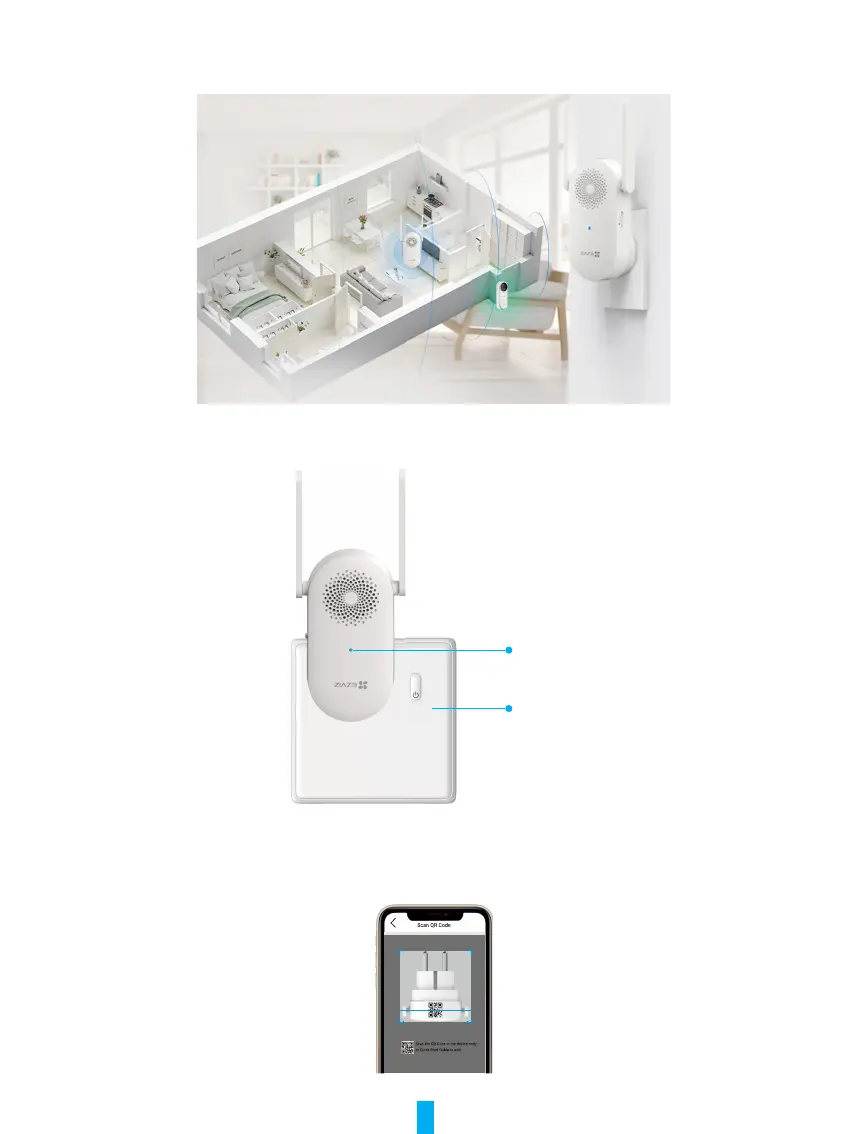
2� Choose an Installation Location
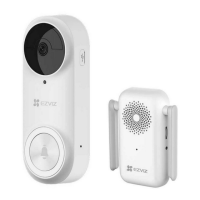
Choose a location with a good wireless signal to the Chime. Please keep the following tips in mind:
• Find a location between your Wi-Fi router and your doorbell (within 4 meters from the doorbell installation location).
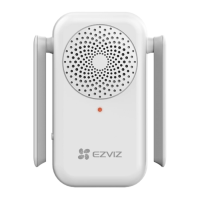
3� Plug in Chime
1. Plug the Chime into a power outlet. When the LED indicator is fast-flashing blue, it is ready for Wi-Fi connection.
Power Outlet
LED Indicator
4� Add the Chime to EZVIZ
1. Log in to your EZVIZ account.
2. On the Home screen, tap “+” on the upper-right corner to go to the Scan QR Code interface.
3. Scan the QR Code on the cover of the quick start guide or on the body of the Chime.
4. Follow the EZVIZ app wizard to nish Wi-Fi conguration.


 To Next Page