Facina_VKPCCTV_Instructions_Rev01
24
Setting the GPS coordinate:
Your camera’s photo has GPS coordinate value for you to trace
the image location and the GPS coordinate value will be show at
the captured image’s file properties.
NOTE : The latitude and longitude for any location where
you plan to place the camera can be obtained at many
websites, e.g.: Http://itouchmap.com/latlong.html.
You can enter a nearby street address, zip code or use
the various types of maps to locate the approximate
position.
• After completed the Data and Time setting, the display
shows GPS in blinking.
• Press [M] button to confirm into GPS setting.
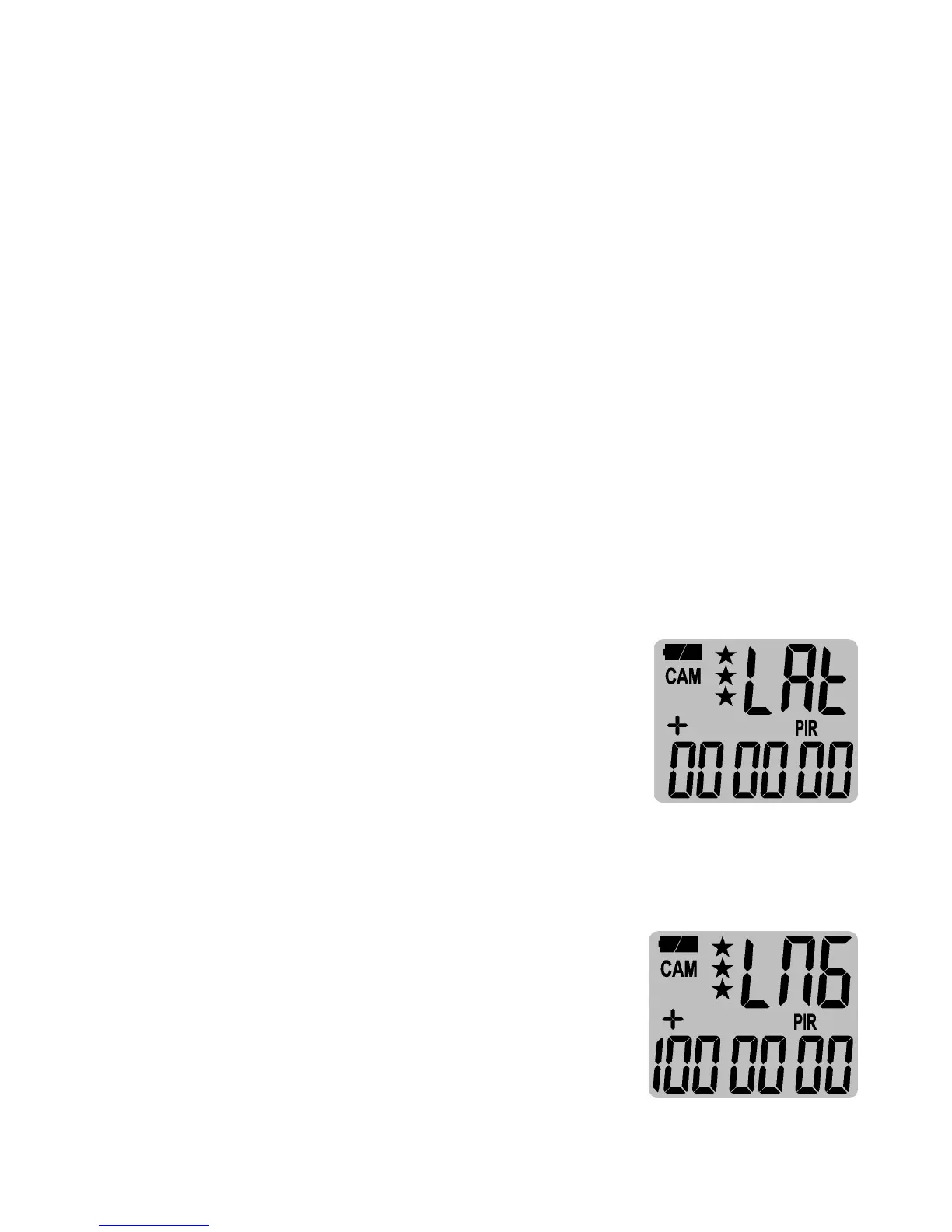
• Press [UP] or [DN] to select the LAt (Latitude), display
shows LAt in blinking, press [M]
button to confirm.
•
Press [UP] or [DN] button to select the +
for North or – for South, the press [M] to
confirm and move to next digit.
•
Press [UP] or [DN] then [M] button repeats to set the LAt
coordinate value until complete.
•
Then go to set the LNG (Longitude), the
display shows LNG in blinking,
press [M]
button to confirm
.
•
Press [UP] or [DN] button to select the +
for East or – for West, the press [M] to
confirm and move to next digit.


 To Next Page