us-pc@fangor.cn
26
ENEN
Step5: Open the Multi-screen/ Miracast" function on the Android device.
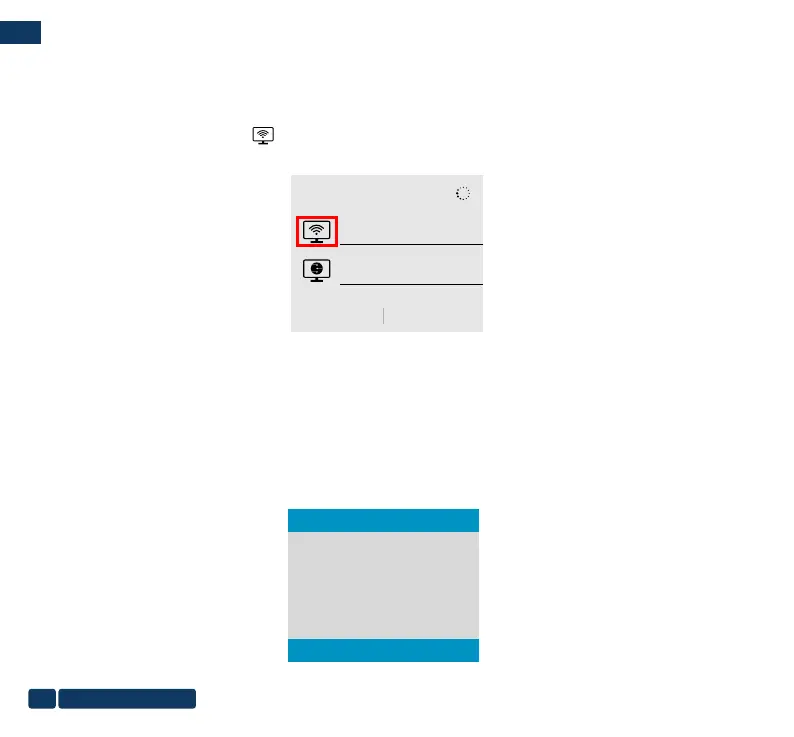
Step 6: Choose the correct SSID name, then the connection is succeeded. Due to the diversication of Android Phone,
when you open the Multi-screen function, there may appear two WiFi names.
How to choose?
①Choose the one with the WiFi logo ,
②If there is no WiFi icon,the rst one is selected by default.
Wireless projection
Available devices
Dualcast-2677E9A9
Dualcast-2677E9A9
HELPCANCEL
Tips: When you connect for the second time, Switch the portable monitor to the "Mirascreen" page, and click the
"Screen Mirroring" on your phone, the connection is successful. (No need to perform the Step 1-4)
B: Android device Without WiFi environment.(Use the phone’s network data)
Step1: Turn on the portable monitor and Click the "source" button to enter the "Mirascreen" on the portable monitor.
(Loading time 5-10 seconds)
Auto
Type-C
Mirascreen
HDMI


 To Next Page