ENGLISH
30 / 55
3.5 3D Movie Playback
This player supports real 3D movie playback and brings you into the world of 3D. Next to this
player, a 3D television, a pair of 3D glasses and a HDMI 1.4 cable are required.
To enjoy a 3D movie follow below steps:
Step 1: Navigate to the file and press Play button to start movie playback.
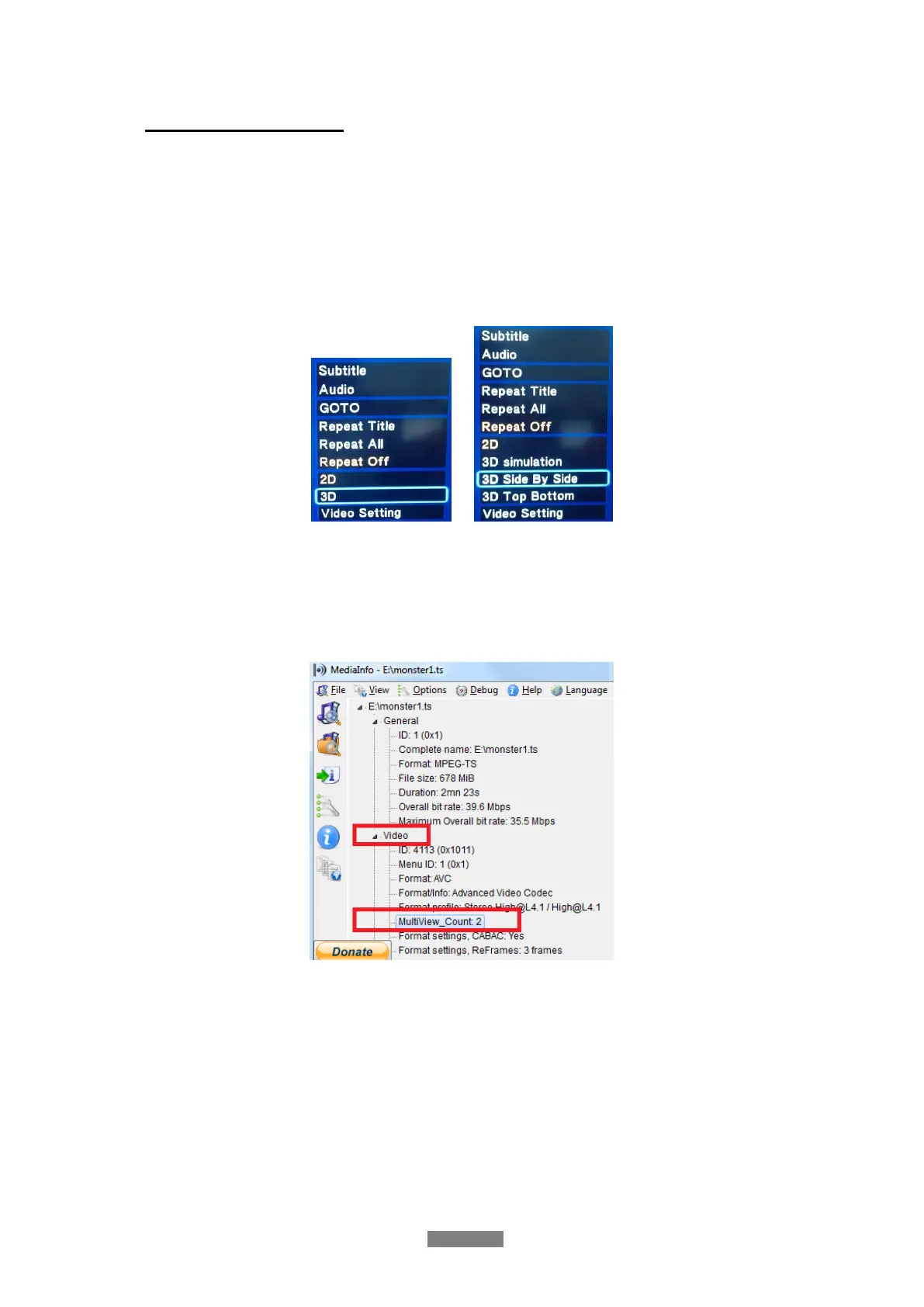
Step 2: Press the Menu button on the remote control. Different dialogues will be opened
according to different type of movies. Following options are available: There are “3D”, “3D
simulation”, “3D Side-by-side”, “3D Top bottom”.
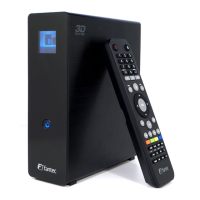
You can use Mediainfo software in order to check whether your file is a real 3D movie. If the
value of MultiView_Count is 2, you will get the option “3D”, otherwise you have to select among
“3D simulation”, “3D Side-by-side” or “3D Top bottom” options.
Note: If you have a 3D BluRay ISO movie file, with BD menu and the Player will not play this
movie in 3D, please open the Setup menu, go to System and set “BD-Lite Menu” to off.
Now please start the same movie without BluRay menu.


 To Next Page