20
Display notication on student when web is accessed
is option turns on or off the notice that is displayed on the student’s screen when they try to access
a Web site or application when Web Limiting is turned on.
e Web Limiting feature is supported on Microso Internet Explorer only. All other
browsers are closed when the Web Limiting feature is enabled.
Application Limiting
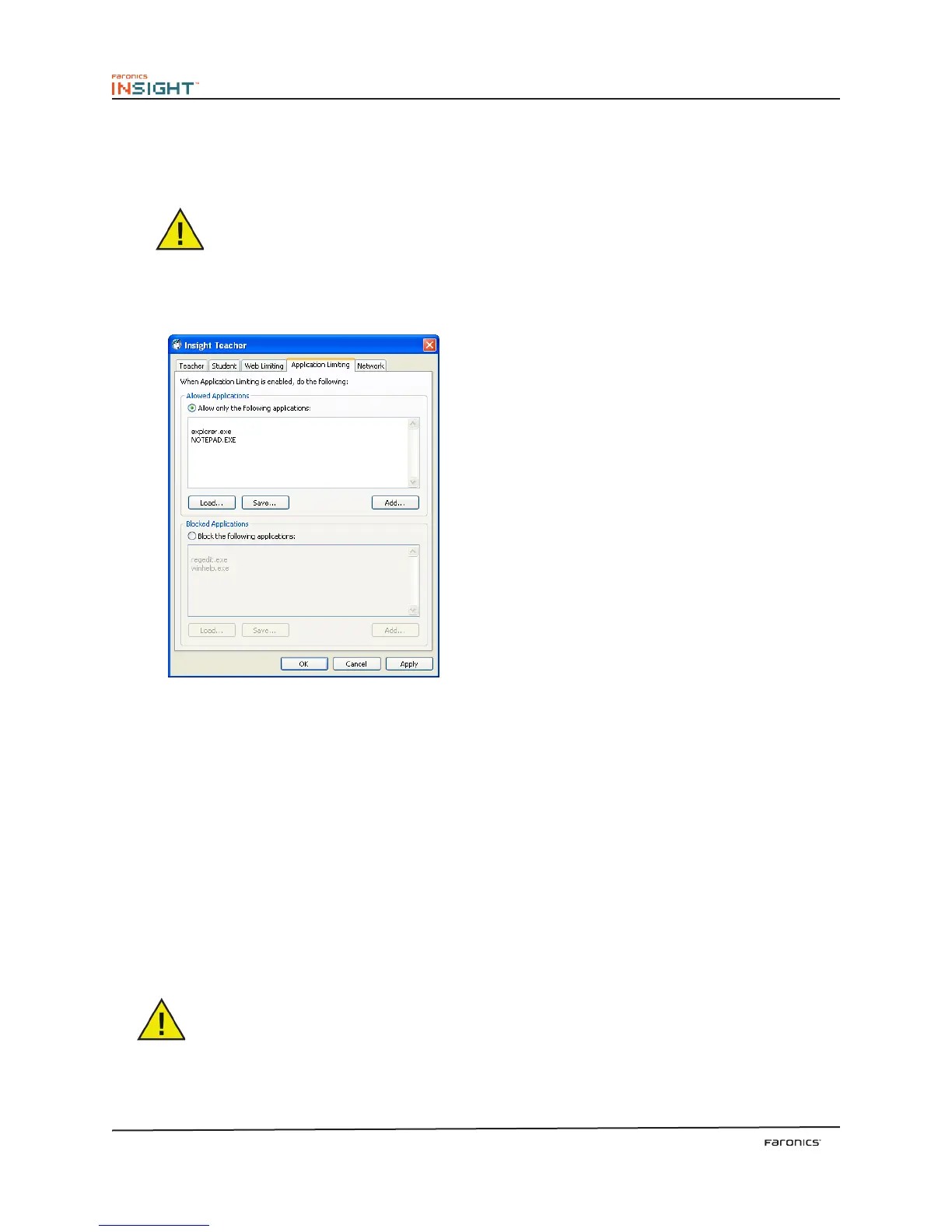
e Application Limiting tab configures the following options:
Allowed Applications
Specify a list of permissible applications when Limit Applications is turned on. Lists of applications can
be saved and loaded by using the Load and Save buttons. e files are saved as .lsa files.
Applications can be typed in directly or by clicking on the Add button and selecting an active application
on the teacher’s computer. Add an application from the student’s machine by clicking on View Student’s
Running Programs in the Monitor menu.
Blocked Applications
Specify a list of applications that are blocked when Limit Applications is turned on. Lists of applications
can be saved and loaded by using the Load and Save buttons. e files are saved as .lsa files.
Applications can be typed in directly, added by clicking on the add button and by selecting an active
application on the teacher’s computer. Add an application from the student’s machine by clicking on
View Student’s Running Programs in the Monitor menu.
You can select only one option from ‘Allowed Applications’ or ‘Blocked Applications’ at
the same time.



 To Next Page