27
displays the disabled printer icon in the student machine’s taskbar and the same icon in the status
column in the teacher console.
Limit/Stop USB
From the console you can limit the student’s ability to access a USB flash drive. USB keyboards and
mice will not be affected.
is feature is only supported on Windows 2000 or later versions.
Administer
One to One
Save and compare class lists (.lsc files) of students logged on to workstations. Students leaving or
entering Insight classrooms can be discovered.
e Enrollment Messages Pane can be opened to display a log of students logging on and off Insight
enabled workstations.
One to One is only available by double-clicking on OneToOne.exe located in the
Utility folder on the CD or in the downloaded zip file and performing the required
installation.
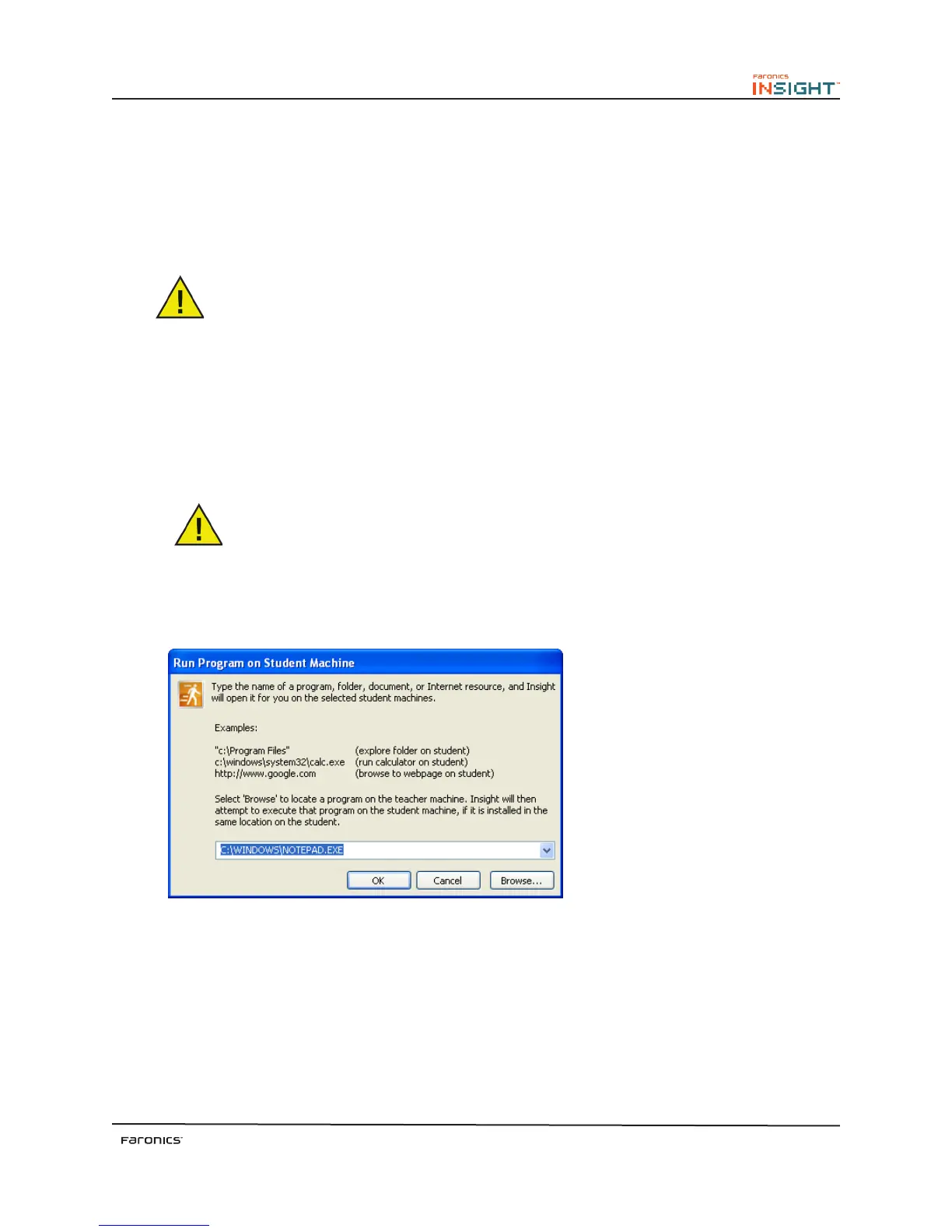
Run a program on Selected Student
Instruct a student by opening a program or webpage on the student’s machine. When selected the Run
Program dialog box appears, enter a executable file (.exe) or browse to the desired program.
Shutdown/Log Off/Restart Student
Instead of shutting down each computer individually, select all computers in the classroom and use the
Shutdown, Logoff or Restart option to shut down, restart, or log users off.
If the student computers are configured to take advantage of Wake-On-LAN technology, the Insight
teacher can Power On all student machines. Most computers are shipped with the Wake-On-LAN
option turned off; therefore it must be turned on in the BIOS settings.



 To Next Page