33
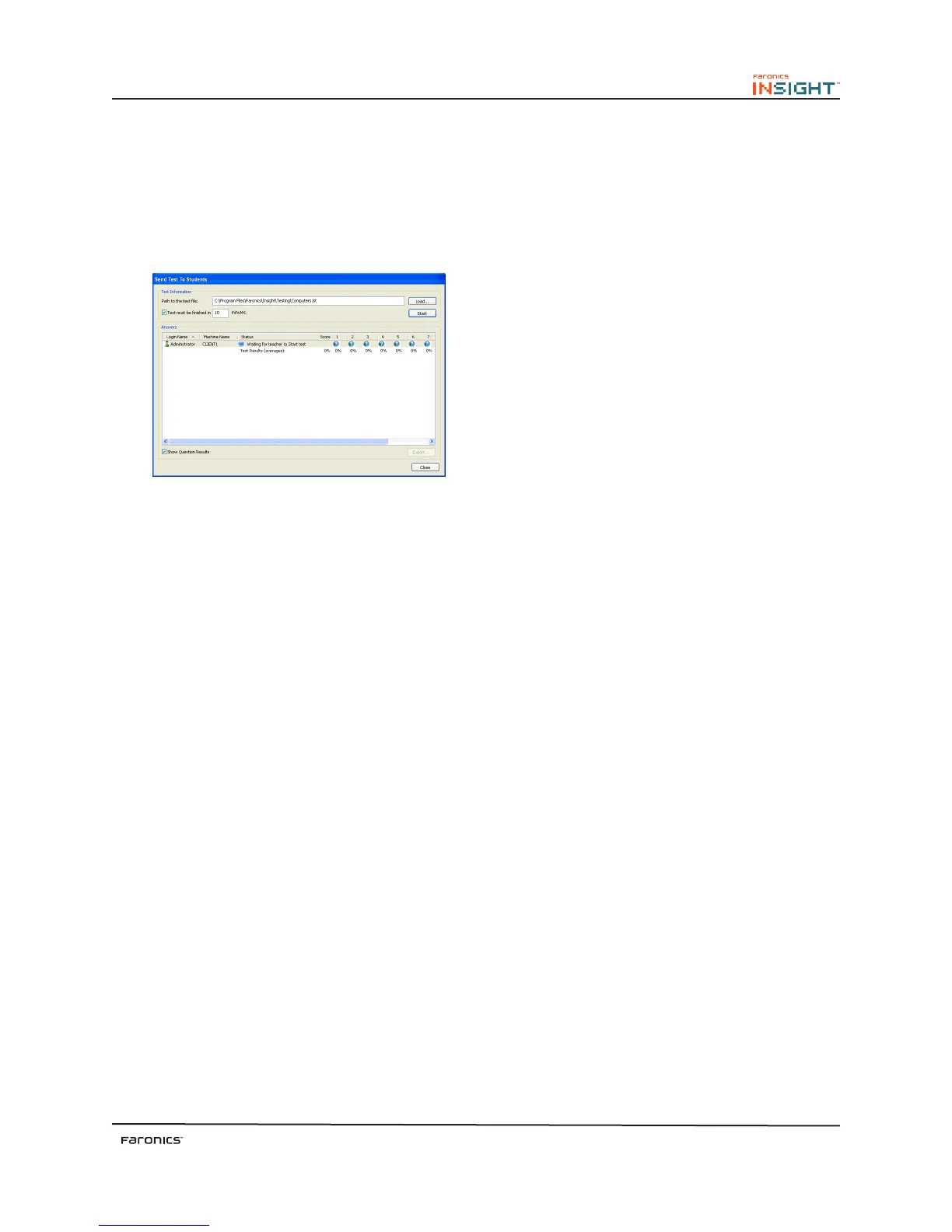
To administer a test, select Testing>Ask Student to Take Test. Click Load to load a test that was created
earlier. Select the Test must be finished in x minutes check box and specify a value for x. e test will
end aer the specified minutes.
Select the Show Question Results check box to view the responses by each student in real time. e
Test Results are displayed in the Answers area. e average score for each question is displayed in
percentage.
e results can be saved in .csv format by clicking Export.
Randomize Questions in a Test
Questions are now presented to students in a random order to prevent cheating.
Run Program
Use this feature to run an application or a Web site on student computers. is can be quite useful
for younger students who have trouble navigating to a specific web address or starting a specific
application.
Remote Control
Take control of selected student workstations. Remotely use the mouse and keyboard on the selected
student’s computer. While only a single workstation is displayed, actions performed by the teacher will
occur over each selected workstation exactly the same. With Insight, the teacher can control a computer
at the login prompt. In order to send the CTRL+ALT+DEL command to a computer during remote
control, click on the Monitor followed by Send CTRL+ALT+DEL menu item. e teacher can switch
between Remote Control and View Only by clicking the arrow next to the Remote Control button.
View Thumbnail Mode (Monitoring)
View up to 256 student machines at the same time. Every student’s screen will appear as a thumbnail in
the Insight console. is icon provides a drop-down list. If you select the Selected Only option from the
drop-down list, only the selected student workstations are displayed in thumbnail mode. e Selected
Only option is available only in the detailed view.
Student Screen Snapshot
Save a student’s screen to a standard graphic file (.bmp or .jpg) by clicking on the Snapshot button.
Send a Message
Send a message to any or all students. is is oen an effective way to get a distracted student back on
task.



 To Next Page