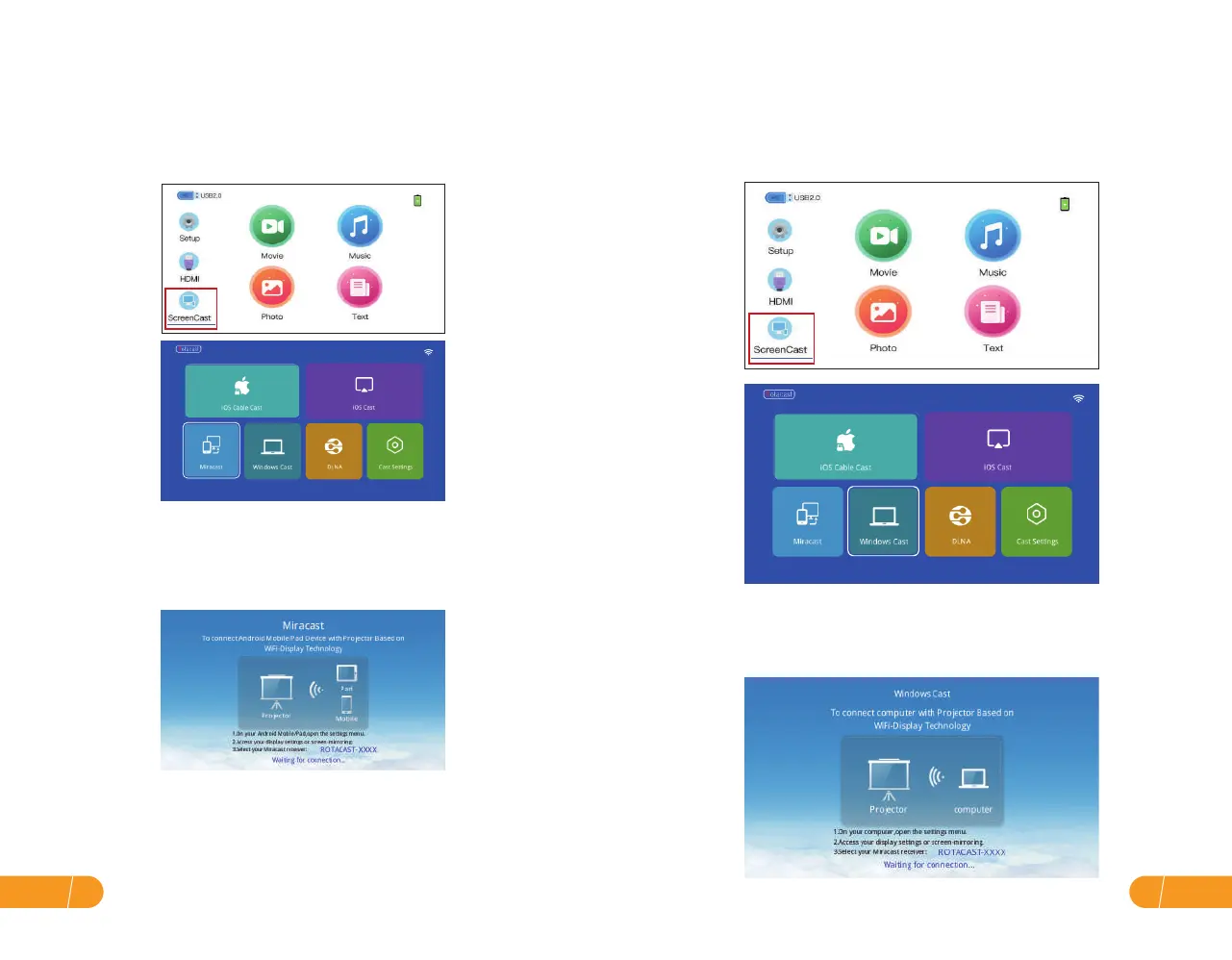
B. For Android Phone(Android system) C. For Windows Cast:
Please note:
Streaming with your WiFi (wireless connection) Streaming with your Wi-Fi (wireless connection)
a. Make sure your mobile device is within 3 ft of the projector when using the
wireless connection.
b. Some mobile devices do not support screen mirroring.
* Please make sure your mobile device supports the MHL function.
Step 1. Turn on the projector, select"ScreenCast"screen mirroring as the input
source, then go to the next screen and select"Miracast".
Step 1. Turn on the projector, select"ScreenCast"screen mirroring as the input
source, then go to the next screen and select"Windows Cast".
Step 2. Go to the Android device "Settings" and select your WLAN.
Step 2. Turn on the computer, Enter"WIN+P"Choose "connect to a wireless
display".
Step 3. Click "ROTACAST-XXXX" to connect.
Step 3. Activate the Multi-screen function in your Android device and search for
the projector, select"ROTACAST-XXXX",and click to connect. Your Android
device display will be projected to the wall/screen after a successful connection.
EN17
EN 16


 To Next Page