13
PRESETS
ADDING BLOCKS TO SIGNAL PATH
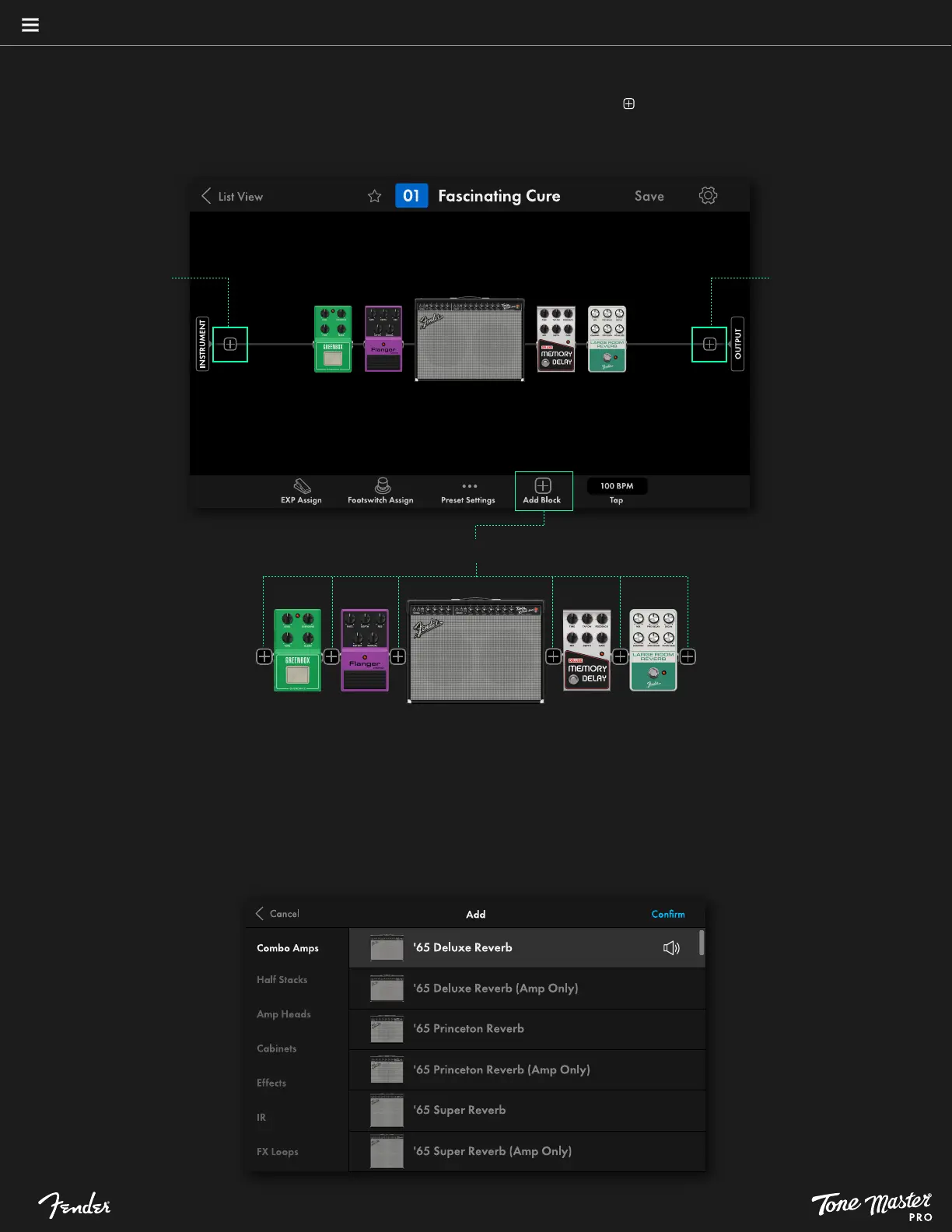
To add a block to a preset, touch Add Block in the lower ribbon. The signal path will show nodes ( ) that indicate where blocks can be added.
Select a node by touching it. A selection screen to choose categories and types of amps, effects and other signal path elements is shown, with
categories listed on the left side of the screen and the items in each category listed in the main body of the screen.
ADD BLOCK MENU
• Select a category (amps, cabinets, effects, etc.) by touching it.
• Swipe up and down on the list of models at right and touch to audition.
• Place a selected block in the signal path by touching CONFIRM at upper right; this returns the user to the preset view with the new block
added at the selected node. Additional blocks can be populated until Tone Master PRO indicates that no more can be added, at which point
some models in the selection menu will appear as grayed out.
• Cancel adding a block by touching CANCEL at upper left; this returns the user to the preset view without adding a new block.
Touch Add Block in lower ribbon to select exact placement before viewing Add Block menu
Touch node symbol to
add block to beginning
of signal path
Touch node symbol to
add block to end
of signal path



 To Next Page