PRESETS
23
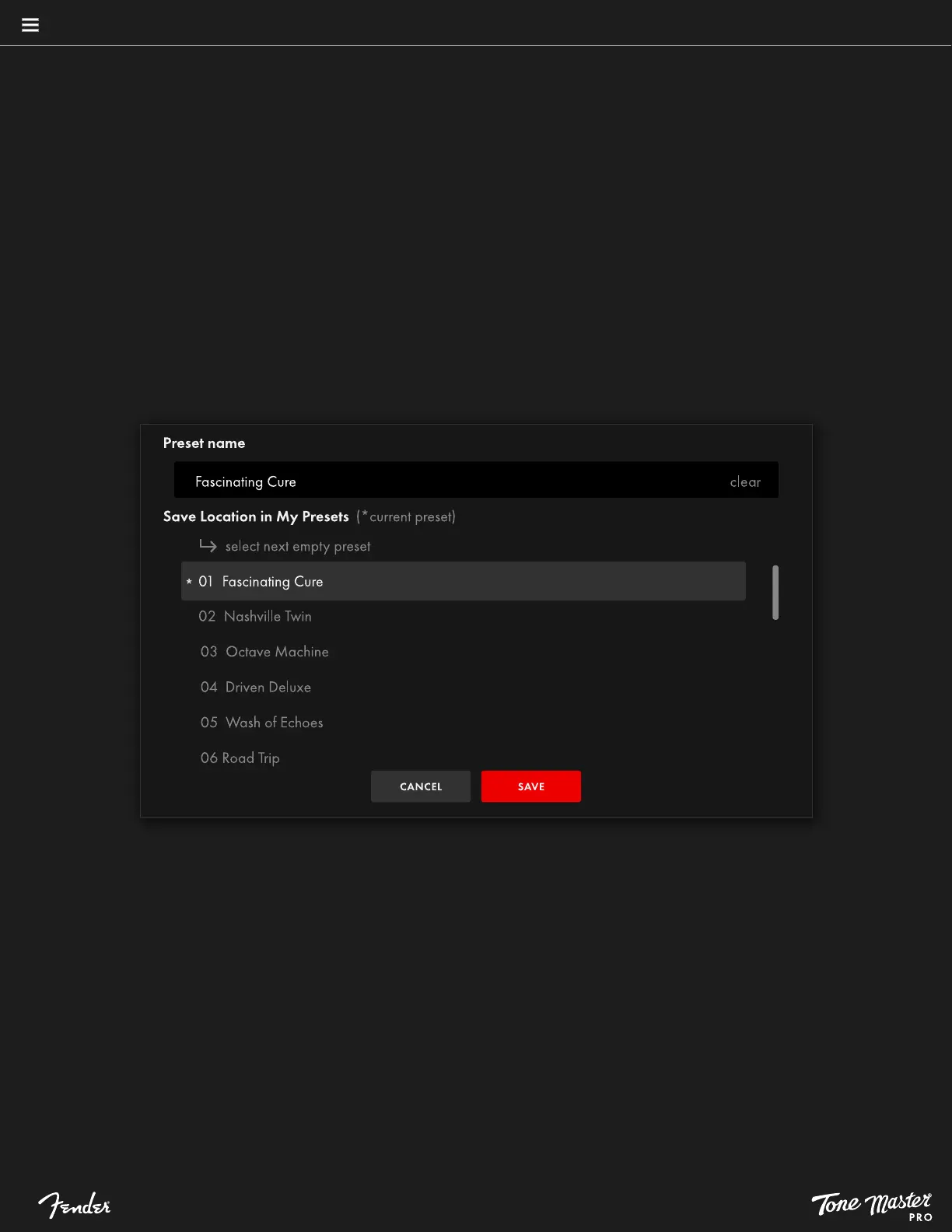
SAVING PRESETS
When a preset has been modified, its number block changes from blue to red. To save changes, touch SAVE at top right of the touchscreen, and
options will appear:
• SAVE: Touch red save button in save screen to save preset with preset name and location selected above.
• PRESET NAME: To rename a preset, tap the Preset Name field at upper left and use the pop-up keyboard to enter a new name, then touch
SAVE to confirm.
• SAVE LOCATION IN MY PRESETS: To save the preset to a new location, scroll through the preset list and select a new location, or choose
the Select Next Empty Preset button to automatically scroll to the first available location. After renaming and selecting a location, touch SAVE
to confirm.
Note that when navigating away from an edited preset that hasn’t been saved, Tone Master PRO does not automatically prompt the user to save
the edited preset. Also note that presets will always be saved to My Presets regardless of whether they originated in there or in Factory Presets or
Cloud Presets.



 To Next Page