10
Recording TV
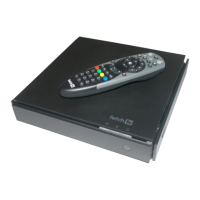
The Fetch TV box allows you to record Free-to-Air TV and any other channels that
you are subscribed to. It has space for up to 585 hours of HD recordings, and you can
record individual episodes of a show, or set a Series Tag to automatically record every
episode of a show.
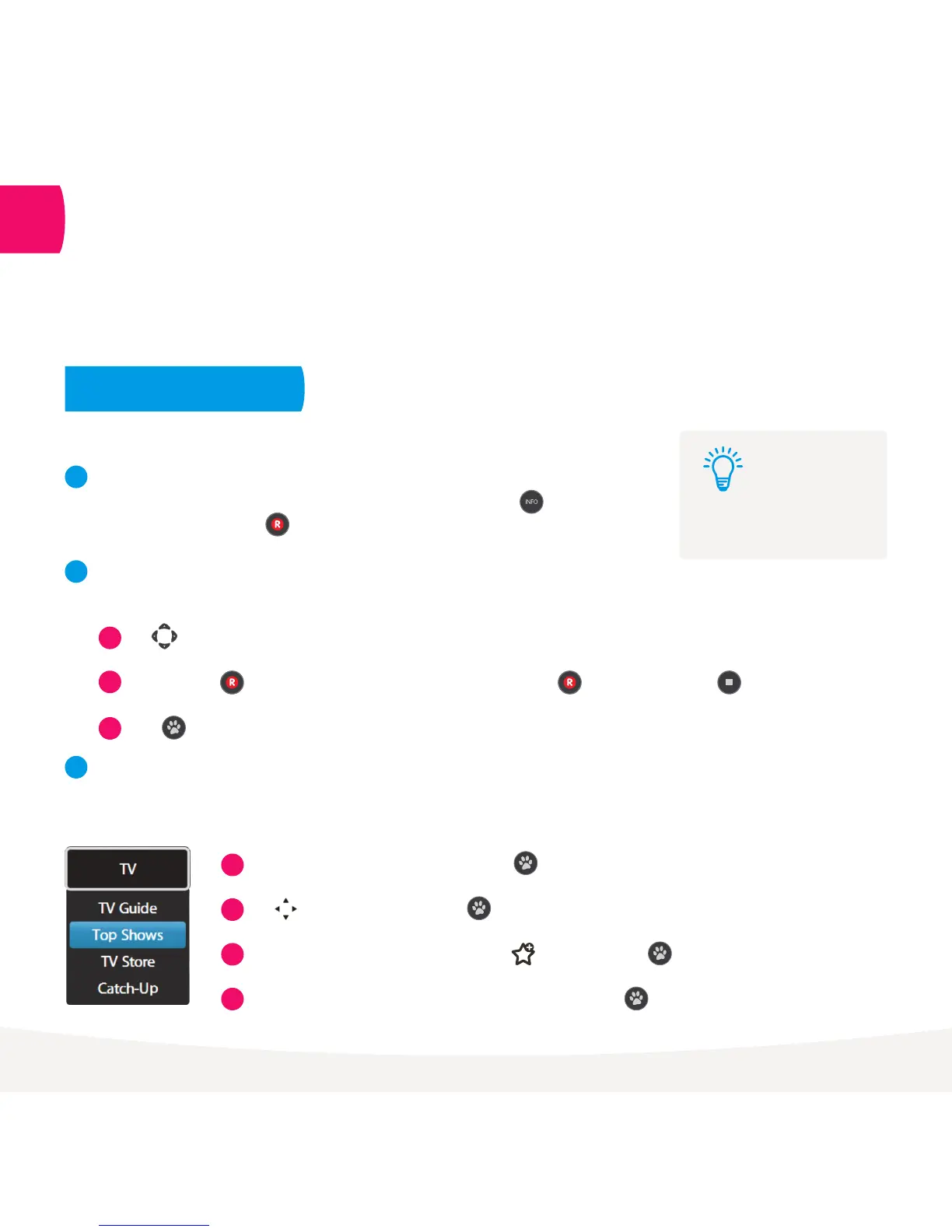
There are 3 ways to set a recording or Series Tag using your remote control.
From the Info Bar
From the TV Guide
Using Top Shows
1
2
3
3
3
When you are watching a show and decide you want to record it press to display the
Info Bar. Then simply press once to set a recording and twice to set a Series Tag.
Go to Menu > TV > TV Guide to see all your channels and set recordings using the simple steps shown below.
Top Shows is where we make it easy for you to find new and popular shows so you can set a Series Tag to
record every episode. Go to Menu > TV.
Use to find the channel and program you want to record.
Select Top Shows from the menu and press .
Press to display recording options.
Change the options if you wish, then select Confirm and press .
Find the show you want to record, highlight Set Tag and press .
1
1
2
2
To record press . To set a series tag (if available for that show) press twice. To cancel press .
Use to explore shows and press to view the show info and options.
4
3 ways to set a recording
4
You can record up to 4
shows at the same time.
Tip:


 To Next Page