23
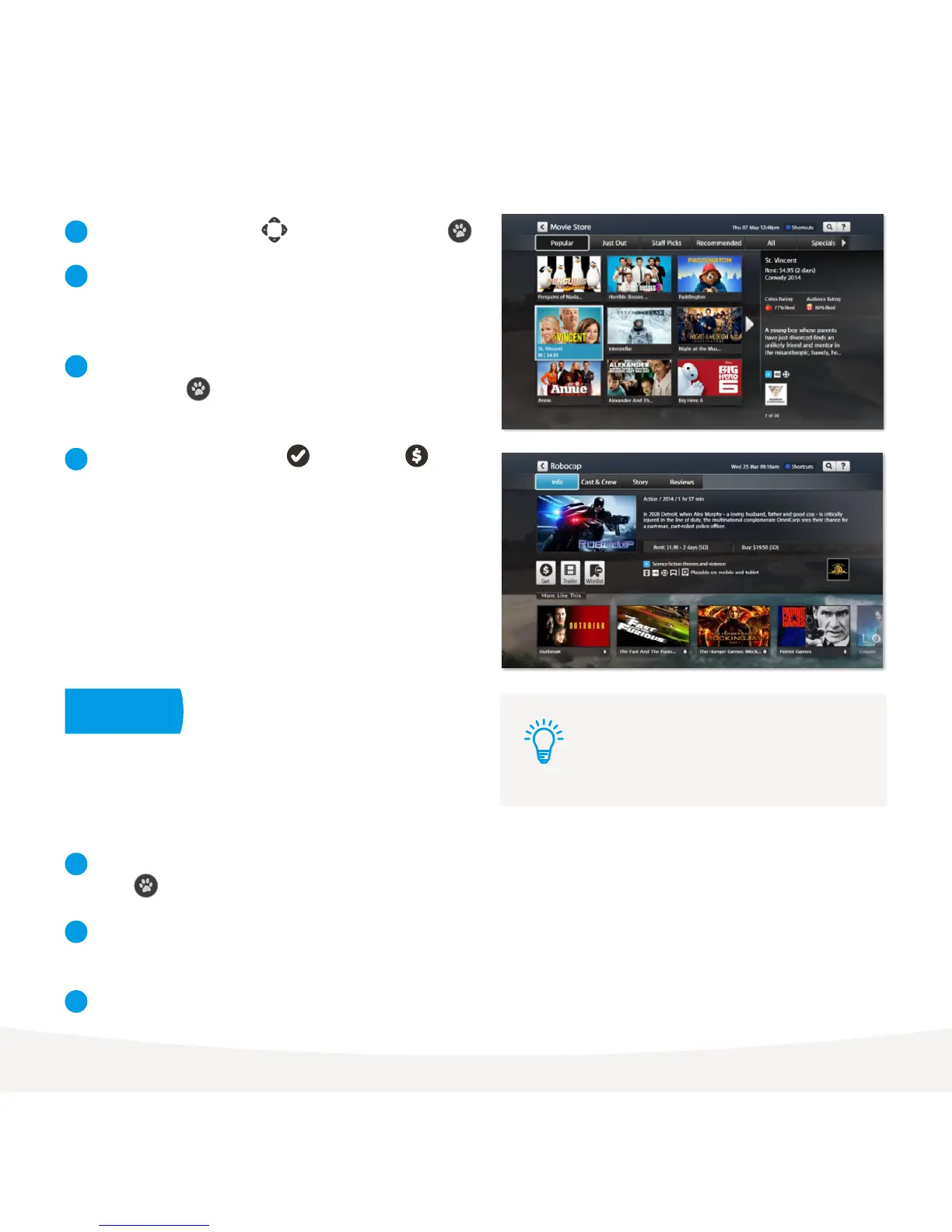
To buy or rent a movie use to select movie and press .
From the movie details screen, you can select to watch the
full screen trailer (if available), rent or buy the movie or add
the movie to your Wishlist.
If your purchase is successful a will replace the on
the title image and the movie will download ready to play.
To get a movie you will be prompted to enter your Parental
PIN and press . You can choose to rent or buy the SD
or HD format if available.
1
3
4
2
You can see your last watched Movie Box movie
in My Stuff > My Movies.
Finding your movies
To find the movies you have rented or bought go to
Menu > My Stuff > Movies > My Movies.
To find your wishlist go to Menu > My Stuff > Movies > Wishlist.
Movie Box brings you 30 movies at any time at no extra cost with a
new movie added each day. It’s not included in all subscriptions so
you may need to upgrade your subscription to access it.
Tip:
From the main menu, go to Movies > Movie Box and
press to view the movies.
You can use the All, Just Out, Top Rated, and Last Chance
tabs to help you find movies.
Once you’ve chosen a movie select Play to start watching.
1
3
2
Movie Box


 To Next Page