16
The remote control brings your Fetch Mini 4K to
life every time you use it. It has all the functions
you need for quick and easy viewing. To make
your remote control work, remove the battery
cover, insert the two batteries supplied, and
replace the cover.
Set Up Universal Remote
You can use the Fetch remote to operate your TV
as well as your Fetch Mini 4K. Your Fetch Mini 4K
will try to set up your remote for you when you
first set up your box but if that didn’t work, you
can set it up by going to Menu > Manage > Settings
> Remote Control.
For more information go to fetch.com.au/guides
and download the Universal Remote Instructions
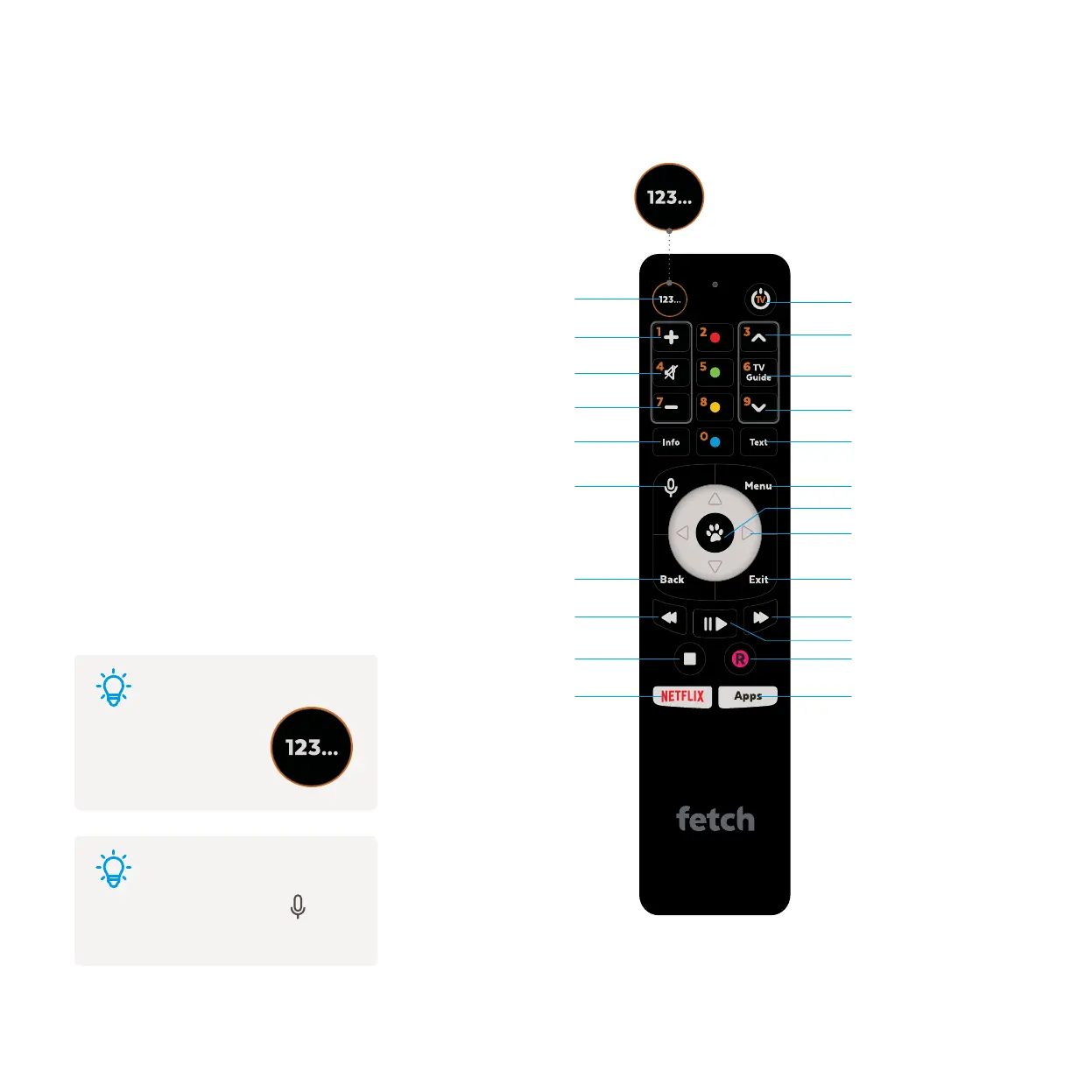
Press 123 to turn
function buttons into
numbers
For voice control hold down and
speak into the top of the remote
Remote Control
Tips
Tips
Press this button to turn the function keys into
numbers. Orange numbers will appear for you to
make your selection.
Mini 4K Power on/off
Channels Up
Channels Down
AvClear
TV Guide
Closed Captions
Main Menu
Fast Forward
Pause/Play
Record
Directional Arrow keys
Enter/Select
Exit
Exit from screen
Numeric Mode
Volume Up
Volume Down
Mute
Information Bar
Rewind
Opens Netflix
Stop
Back
Takes you up a level
Voice
Opens Apps
e.g Youtube
Recording requires a paired Fetch
Mighty or Gen 2 box


 To Next Page