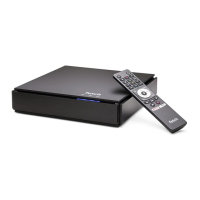
The Fetch Mini 4K is a set-top box designed to combine Free TV, Catch-Up services, premium channels, streaming applications, and movies into a single, easy-to-access platform. It features Universal Voice Search to simplify content discovery and playback. The device is intended for home entertainment use, offering a comprehensive viewing experience.
Function Description:
The Fetch Mini 4K serves as a central hub for various forms of television and streaming content. It allows users to access Free-to-Air Digital TV channels via a standard TV antenna, as well as broadband-delivered content such as premium channels, on-demand movies, and TV shows from integrated streaming apps. The device supports 4K HDR (High Dynamic Range) content, provided the connected TV and home theatre equipment are compatible and a sufficient broadband speed is available.
Usage Features:
Setup and Connection:
The setup process for the Fetch Mini 4K involves several steps to ensure proper functionality:
- Unpacking: The box includes the Fetch Mini 4K unit, a remote control with batteries, a power supply, and an HDMI cable. Users should verify all components are present.
- Broadband Modem Connection: The Fetch Mini 4K requires an internet connection. Several options are available:
- Wi-Fi Connection: Suitable if the modem is not near the TV but reliable Wi-Fi is available. Wi-Fi setup is performed during the initial startup phase.
- Wired Connection: The most reliable option, requiring an Ethernet cable (not provided) to connect the Fetch Mini 4K directly to a broadband modem.
- Power Line Adapters (PLA): Used when the modem is far from the TV and Wi-Fi is unreliable. PLA devices transmit the internet signal through the home's electrical wiring. It's important to use PLAs on the same electrical circuit and plug them directly into wall outlets, avoiding surge protectors or power boards if possible.
- Data Cabling: For installations with existing Ethernet wall sockets, allowing a wired connection to the broadband modem.
- Wireless Bridge: An alternative for extending network coverage, where one bridge device is near the modem and another near the Fetch Mini 4K, connected via Ethernet cables.
- TV Antenna Connection: To receive Free-to-Air Digital TV channels, the existing TV antenna cable needs to be connected to the ANTENNA port on the back of the Fetch Mini 4K. For multiroom setups with a Fetch Mighty box, the Mini 4K can stream Free-to-Air channels from the Mighty, potentially eliminating the need for a direct antenna connection.
- TV Connection: The Fetch Mini 4K connects to the TV using an HDMI cable. Users should plug one end into the HDMI port on the Fetch Mini 4K and the other into a free HDMI port on their TV. For 4K HDR content, the TV must be 4K HDR compatible, and the Fetch Mini 4K's video settings should be configured accordingly (e.g., Auto (4K - 2160P)). The TV and any audio-video receivers or soundbars must support HDMI 2.0/HDCP 2.2 signals. HDR mode may need to be enabled on both the TV and the Fetch Mini 4K.
- Power Up: After all connections are made and batteries are inserted into the remote, the power supply unit is connected to the Fetch Mini 4K and a wall socket. The power light on the Fetch Mini 4K will illuminate.
- Initial Start-up: The device will go through a series of loading screens. During this phase, the Bluetooth Voice remote will attempt to pair automatically. Users will be prompted to enter an Activation Code (obtained from their service provider or Fetch directly) and connect to their home Wi-Fi network if a wired connection isn't used. Other settings, such as naming the Fetch Mini 4K, setting up universal remote control for the TV, configuring 5.1 Surround Sound, and setting a Parental PIN, can be done during initial setup or later via the menu. A channel scan will also occur.
Remote Control:
The Fetch Mini 4K comes with a remote control that provides comprehensive control over the device and can be set up as a universal remote for the TV.
- Power: Turns the Mini 4K on/off.
- Navigation: Directional arrow keys, Enter/Select button, Back, and Exit buttons for menu navigation.
- Volume and Channels: Dedicated buttons for volume up/down and channel up/down.
- Numeric Mode: A "123..." button transforms function keys into numbers for direct channel input or other numeric selections.
- Information and Text: Buttons for displaying information and closed captions.
- Voice Control: The remote supports voice control; users hold down a dedicated button and speak into the top of the remote.
- Playback Controls: Rewind, Stop, Pause/Play, and Fast Forward buttons.
- Recording: A "Record" button is available, but recording functionality requires a paired Fetch Mighty or Gen 2 box.
- App Access: Dedicated buttons for Netflix and other apps.
- Remote Pairing: The Bluetooth Voice remote pairs during startup. If issues arise, it can be re-paired via the settings menu or by pressing specific buttons on the remote simultaneously.
Fetch Mobile App:
The Fetch Mobile App allows users to control their Fetch Mini 4K from a tablet or mobile phone, both at home and remotely. Features include:
- Downloading content for offline viewing.
- Acting as a second remote control.
- Watching channels, movies, and TV Store shows.
The app can be downloaded from the App Store or Google Play and needs to be paired with the Fetch Mini 4K.
Front Panel Indicators:
The front panel of the Fetch Mini 4K features several indicator lights:
- Remote: Flashes when a button is pressed on the remote, indicating the box is receiving commands.
- Internet: Blue when a broadband connection is active; red if there's no live connection.
- Standby & Power: Blue when powered on; red when in standby mode.
- IR Sensor: Receives infrared signals from the remote control (for non-Bluetooth mode).
Maintenance Features:
General Care:
- Placement: Place the Fetch box on a level surface, ensuring at least 5cm of space around it for adequate airflow. Avoid stacking it on vibrating or heat-generating objects.
- Cleaning: Unplug the Fetch box from the power source before cleaning. Use only a dry cloth; do not use water or chemicals.
- Safety: Do not attempt to open the Fetch box, as this is dangerous and will void the warranty. Keep liquids, children, and pets away from the device.
- Power Supply: Use only the provided 100V-240V 50Hz AC power supply.
Troubleshooting:
The manual provides guidance for common issues:
- Display Settings: If the TV image is distorted, adjust Display Resolution, Aspect Ratio, and Display Mode in Menu > Manage > Settings > Audio & Visual. For 4K/HDR issues, ensure cabling and TV are 4K-capable and check HDR Mode settings.
- Cabling and TV: Verify the power supply is correctly connected and powered. Check AV connections and ensure the TV is set to the correct AV input source and mode.
- Power Cycle: A simple box restart can resolve many issues. This can be done via Menu > Manage > Settings > Device Info > Options > Fetch Box restart, or by pressing the power button on the remote, or by turning off power to the box for 10 seconds.
- Internet Connection: Check that the broadband connection is active and the Internet LED on the Fetch Mini 4K is blue. For Ethernet connections, check modem indicator lights. For Wi-Fi, refresh the network list or manually add the network if it doesn't appear. If issues persist, power cycle the Fetch Mini 4K or contact the broadband provider.
- Remote Control: Ensure the remote is used within 10 meters (Bluetooth mode) or 6 meters (Infrared mode) of the Fetch Mini 4K. If the remote's LED doesn't light up, change batteries. If the LED is red and voice search isn't working, re-pair the remote via Menu > Manage > Settings > Remote Control.
User Guides:
Additional user guides, including the Fetch Mini 4K User Guide, Universal Remote Instructions, Mobile App Guide, My Media Hub User Guides, Wi-Fi User Guide, and Multiroom User Guide, are available for download from the Fetch website.

 Need help?
 General

 To Next Page