19
Troubleshooting
Display Settings
• If your TV image appears out of proportion or stretched you may need to change the Display Resolution,
Aspect Ratio and Display Mode. Go to Main Menu > Manage > Settings > Audio & Visual.
• If you have issues watching 4K or HDR, make sure your cabling and TV are 4K-capable (Page 11). You
may need to change the Display Resolution in Audio & Visual > Video or HDR Mode at Audio & Visual >
Advanced.
Cabling and TV
• Make sure the power supply unit is correctly connected (Page 12), and there is power available at the wall
power point.
• Check that the AV connections are secure and, if needed, try another connection mode (Page 11).
• Make sure the TV is set to the right AV input source and mode (Page 12).
Power cycle
• If you are having issues sometimes a box restart is all that’s needed. You can restart at Menu > Manage >
Settings > Device Info > Options > Fetch Box restart.
• Or restart by pressing
then on your Fetch remote.
• If your menu isn’t working try turning the power to the box off for 10 seconds before turning it back on.
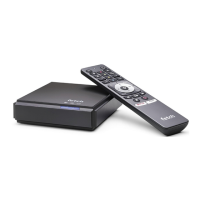
If you’re having trouble getting your Fetch Mini 4K to work check some of the tips below before you contact
your Service Provider for help.


 To Next Page