7
OPERATING THE DEVICE
#5: Operating the device
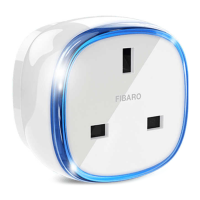
Controlling the Wall Plug using the button:
Wall Plug is equipped with a button, which allows to use the menu
and additionally perform the following actions:
1x click: turn controlled device ON/OFF, conrm selected menu op-
tion (if menu is active)
3x click: add/remove the device to/from a Z-Wave network
Hold: enter/navigate through the menu
Visual indications:
The Wall Plug is equipped with a LED frame, signalling sensor’s oper-
ating modes and current active power consumption. In addition the
visual indicator may inform of the Z-Wave network range.
Visual indicator frame signalling modes:
Active power consumption – by default, when the device is
turned ON, the colour will vary depending on the current power.
Z-Wave network inclusion status – once plugged into a mains sock-
et the device signals it with blink (green - added, red - not added).
Range of the Z-Wave network – signalled with colour depending
on type of communication or the lack of it (only in range tester
mode)
Menu position – signalled with colour assigned to position.
Ongoing software update – signalled with cyan blinking.
Hardware fault state – error in communication with radio chip,
device secured, plug the device out and back into the socket.
Menu allows to perform Z-Wave network actions. In order to use the
menu:
1. Press and hold the button.
2. Wait for the device to indicate desired position with a colour:
• GREEN - erase energy consumption memory
• VIOLET - Z-Wave network’s range test
• YELLOW - device reset
3. Release the button.
4. Click the button to conrm selection.
NOTE
Menu is preceded by
white ashes of the
LED frame - release
the button if you want
to disable/enable the
LED frame.
i
CAUTION
To avoid risk of electri-
cal shock, do not op-
erate the device with
wet or moist hands.
!


 To Next Page