2
2-7 Setting up the Fiery X3e as a PostScript printer
For AppleTalk, choose the AppleTalk Zone and choose the name of the Fiery X3e.
For IP Printing, enter the IP address or DNS name for the Fiery X3e in the Printer’s
Address
field. Clear the Use default queue on server field. In the Queue Name field,
enter print or hold. Make sure that LPR printing and the specified queue are enabled
on the Fiery X3e. For more information about configuring TCP/IP printing, see the
Configuration Guide.
4. For Printer Model, select the appropriate file for your language and Fiery X3e using
one of the following methods:
Select a manufacturer name to display the list of all printer models for that
manufacturer. Scroll through the list to select your copier/printer model name. If you
cannot find your printer model in the list for your copier/printer manufacturer, look in
the Fiery folders.
You can also choose Auto Select to have the system select the correct file for your
printer. If there is more than one file that corresponds to your printer, a dialog box will
display a list of all valid files. If there are multiple files with identical names, cancel the
Auto Select and choose the correct file from the Printer Model list as described above.
5. Click Add.
For more information about adding printers, see your Mac OS X documentation.
TO CONFIGURE INSTALLABLE OPTIONS
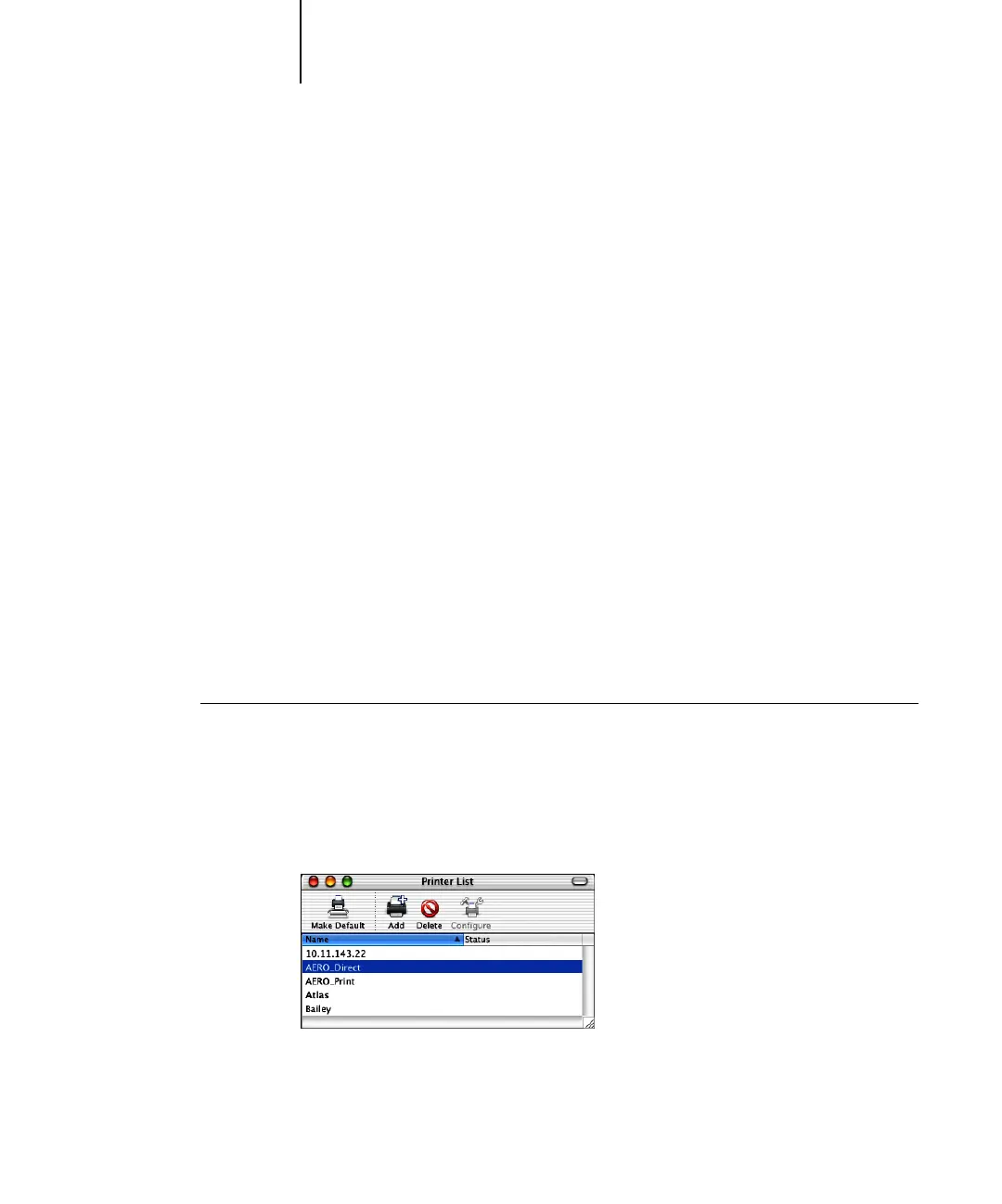
1. Start Print Center.
Click the Print Center icon. Or you can select Applications from the Go menu, select
Utilities, and then select Print Center.
2. Select your printer in the Printer List.



 To Next Page