- 17 -
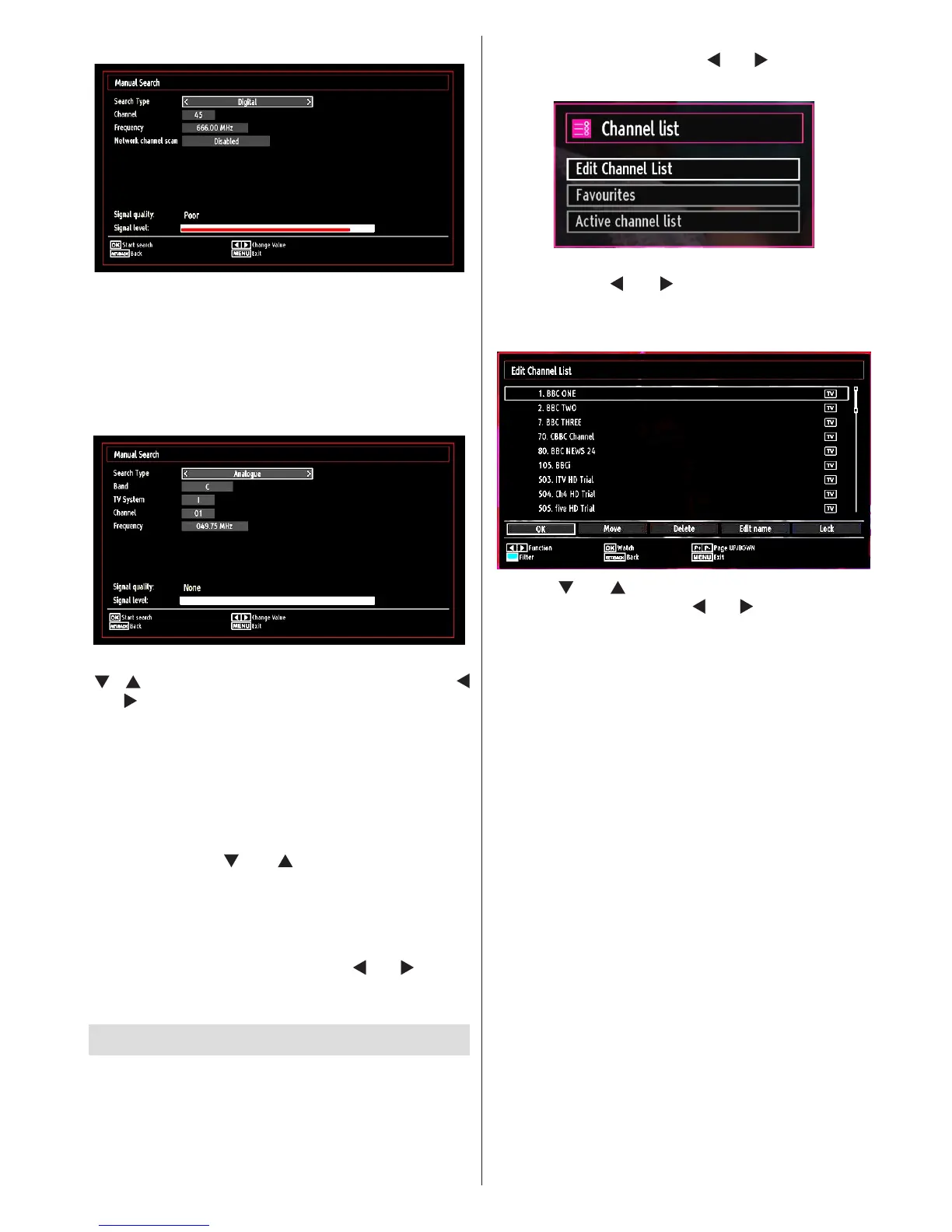
Digital Manual Search
In manual channel scan, the number of the multiplex
or frequency are entered manually and only that
multiplex or frequency are searched for the channels.
After selecting search type as Digital, you can enter
the multiplex or frequency number using the numeric
buttons and press OK button to search.
Analogue Manual Search
After selecting search type as analogue, you can use
“ ”/“ ” button to highlight an item and then press “
” or “ ” button to set an option.
Enter the channel number or frequency using the
numeric buttons. You can then press OK button
to search. When the channel is located, any new
channels that are not on the list will be stored.
Analogue Fine Tune
• Select Analogue Fine Tune from the Installation
menu by using “ ” or “ ” and OK buttons. The
analogue ne tune screen will be displayed. The
Analogue Fine Tune feature will not be available if
there are no analogue channels, digital channels
and external sources stored.
• Press OK button to proceed. Use “ ” or “ ” button
to set Fine Tune. When nished, press OK button
again.
Managing Stations: Channel List
The TV sorts all stored stations in the Channel List.
You can edit this channel list, set favourites or set
active stations to be listed by using the Channel List
options.
• Press MENU button to view main menu. Select the
Channel List item by using “ ” or “ ” button. Press
OK to view menu contents.
Select Edit Channel List to manage all stored
channels. Use “ ” or “ ” and OK buttons to select
Edit Channel List.
Operating the Channel List
• Press “ ” or “ ” button to select the channel that
will be processed. Press “ ” or “ ” button to select
a function on Channel List menu.
• Use P+ or P- buttons to move page up or down.
• Press BLUE button to view ltering options.
• Press MENU button to exit.
Moving a Channel
• First select the desired channel. Select Move option
in the channel list and press the OK button.
• Edit Number screen will be displayed. Enter the
desired channel number by using the numeric
buttons on the remote control. If there is a previously
stored channel on that number, a warning screen
will be displayed. Select Yes if you want to move the
channel and press OK.
• Press the OK button to process. Selected channel
is now moved.
Deleting a Channel
You can press GREEN button to tag/untag all
channels; YELLOW button to tag/untag channel.
• Select the channel that you want to delete and select
Delete option. Press the OK button to continue.
• A warning screen will appear. Select YES to
delete, select No to cancel. Press the OK button
to continue.







 To Next Page