45Page
In case of a trouble with the unit, please look through below and see if you can solve the problem
before calling your dealer.
No Sound:
• If you are not getting any sound into the software application, go back to the preferences as
shown above and make sure you have selected the USB input for the recording device.
• Power Cycle: Close Audacity, turn off the turntable, unplug the USB Cable. Then plug in the
USB Cable, turn on the turntable, and re-open Audacity.
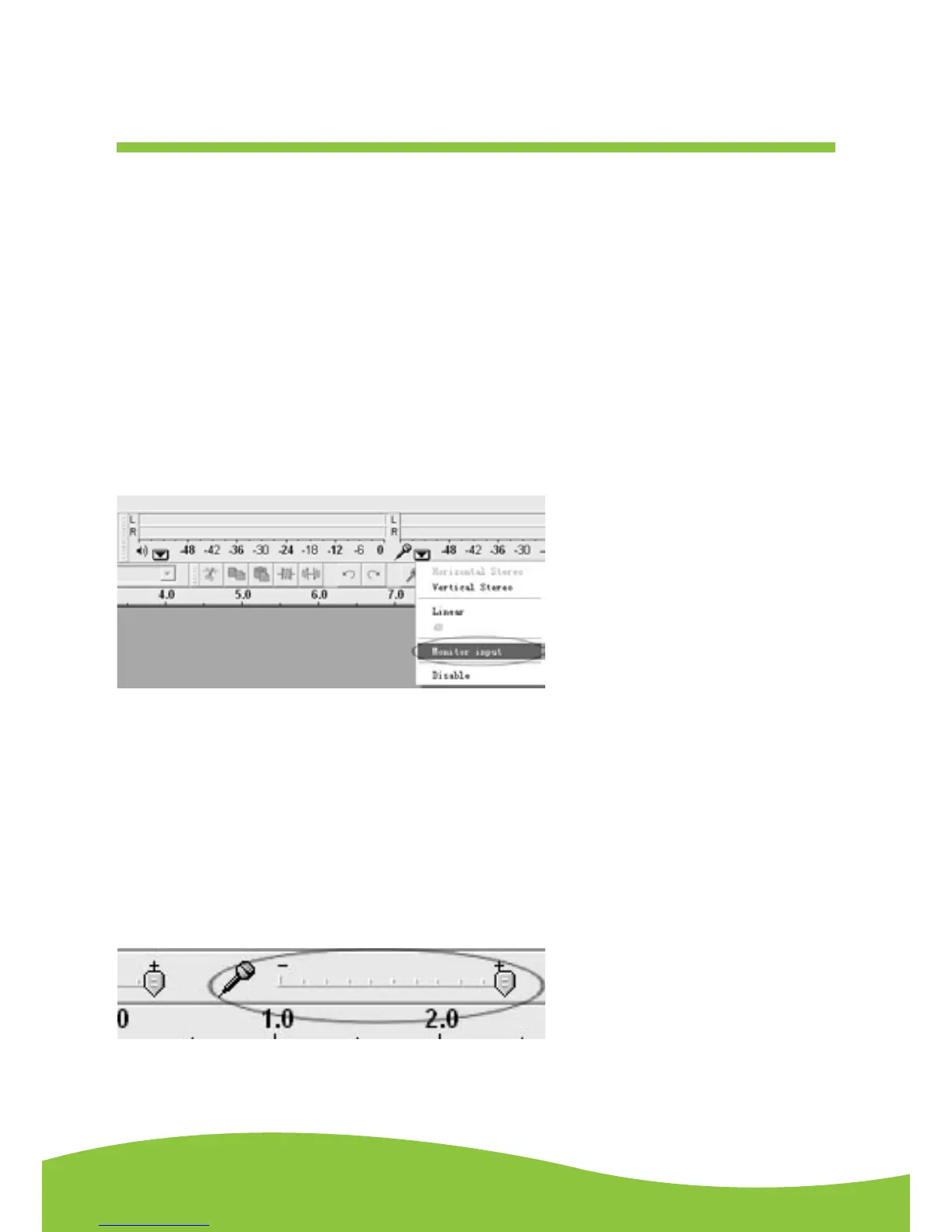
• If you are not able to hear any audio as you play the record, please click on the microphone
drop-down arrow and select Monitor Input. This will enable you to hear the audio from the
turntable, even if you have not record-enabled the Audacity application.
• If you are not seeing the microphone slider, please go to the Preferences menu in Audacity,
click on the Interface tab and make sure that the Enable Mixer Tool bar and Enable Meter Tool
bar options are checked. If they are not, please check them and then press OK.
• Check the microphone slider to make sure that it is at full volume, all the way to the right as
shown in below: If you are not seeing the microphone slider, please go to the previous step and
start again.


 To Next Page