Notifications from your phone
Ace can show call notifications from your phone to keep you informed. Keep your
tracker within 30 feet of your phone to receive notifications.
Set up notifications
Check that Bluetooth on your phone is on and that your phone can receive
notifications (often under Settings Notifications). Then set up notifications:
1.
From the Today tab in the Fitbit app, tap the icon in the top left Ace
tile.
2. Tap Notifications.
3. Follow the on-screen instructions to pair your tracker if you haven't already.
Call notifications are turned on automatically.
For more information, see the related help article.
See incoming notifications
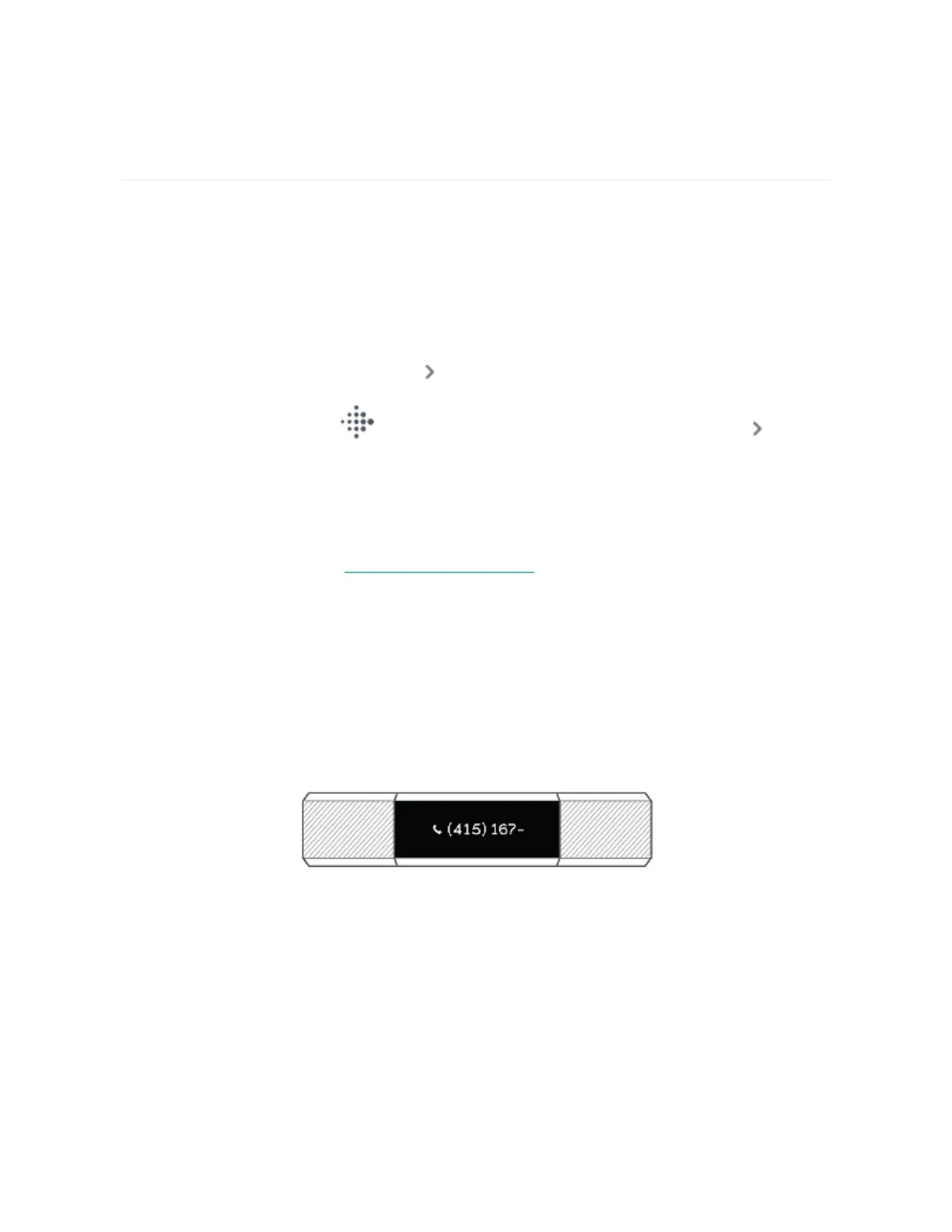
When your phone and Ace are within range, a call causes the tracker to vibrate. If
the screen is off, turn your wrist or double-tap Ace to wake it up.
The notification scrolls three times with the name or number of the caller. The
notification is visible for one minute.
Note that notifications are shown horizontally, even if the clock orientation is
normally vertical.
14


 To Next Page