EasyManua.ls Logo

FLIR C233BC - User Manual

FLIR C233BC
2 pages
Print Icon
To Next Page IconTo Next Page
Loading...
Package Contents
MODEL: C233BC/
C233BCP
QUICK START GUIDE
English Version 2.0
www.flirsecurity.com/pro
FLIR Systems, Inc., Copyright © 2015
As our products are subject to continuous improvement, FLIR
Systems Inc. reserves the right to modify product design,
specifications and prices, without notice and without incurring
any obligation. E&OE
Safety Precautions
Use an appropriate low voltage power cable to
prevent fire or electrical shock.
Make sure to install the camera in an area that can
support the camera weight.
There are no user serviceable parts inside the
camera. Please do not disassemble the camera.
Do not clean the lens cover with an abrasive cleaning
material. Please use a soft cloth to clean the lens
cover.
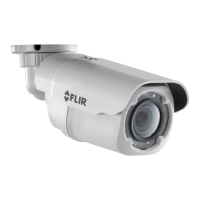
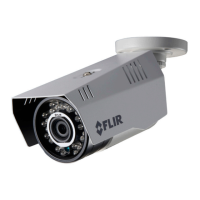
1.3MP Fixed WDR Bullet Camera
www.flirsecurity.com/pro
VISIT
1x 1.3MP Fixed WDR Bullet Camera
3x Mounting Screws
3x Drywall Anchors
1x Allen Key
1x Power Pigtail Adapter
1x Mounting Template
NOTE: 12V DC adapter not included.
On-Screen Display (OSD) Menu
IT’S ALL ON THE WEB!
Language
Video Format
Backlight
OFF
WDR
BLC
HLC
DNR
Advanced Lens ELC
ALC
Exposure
Brightness
Shutter
Sens-Up
AGC
White Balance
Auto
ATW
Preset
Manual
Day&Night
Mode
Delay
D N Level
N D Level
Smart IR
Smart IR Level
Image
Sharpness
Color Gain
Freeze
Flip
D-Zoom
Defog
Special Black Level
Privacy
DP Comp
Reset
Version
Exit
To use the OSD menu:
OPTIONAL: Connect a test monitor to the
camera’s analog (yellow) BNC connector.
Push the middle of the joystick to open the
OSD menu.
Move the joystick / to select a setting,
then / to change the setting value.
Push the middle of the joystick to confirm selection.
Arrows beside settings indicate a submenu ( ).
Select the setting and push the joystick to enter.
Select RETURN and push the joystick to return to the
previous menu, or EXIT from the main menu to exit.
Configure OSD menu options using the
integrated control stick on the camera
cable (see image to the right).
See the full OSD menu tree below. For detailed
explanation of camera settings, see the OSD
instruction manual on www.flirsecurity.com/pro.
Question and Answer IconNeed help?

Do you have a question about the FLIR C233BC and is the answer not in the manual?

Summary

On-Screen Display (OSD) Menu

OSD Menu Operation

Details on navigating and operating the OSD menu using the joystick controls.

OSD Menu Structure Overview

Overview of the OSD menu tree and its hierarchical structure for camera settings.

Package Contents

Safety Precautions

Installing the Camera

Camera Mounting Procedure

Steps for marking holes, drilling, and attaching the camera base.

Camera Positioning and Angle Adjustment

Instructions on adjusting the camera's horizontal and vertical positions.

Setting up the Camera

Camera Wiring and Connections

Guide for connecting MPX and Analog video signals and power.

Power Connection Requirements

Details on connecting DC power, including adapter and pigtail options.

Extension Cable Options

Information on cable types, maximum lengths, and potential interference.

Camera Specifications

Camera Dimensions

Overview

This document describes the 1.3MP Fixed WDR Bullet Camera, a surveillance device designed for both digital and analog video systems. The camera is equipped with an integrated control stick for on-screen display (OSD) menu navigation, allowing users to configure various settings directly from the camera.

Function Description

The 1.3MP Fixed WDR Bullet Camera is designed to capture video footage with a 1.3-megapixel CMOS sensor. It supports both 720p digital video output (MPX HD-CVI) and 960H analog composite video output, making it versatile for different surveillance setups. The camera features Wide Dynamic Range (WDR) for improved image quality in challenging lighting conditions, ensuring clear video even in scenes with both very bright and very dark areas. It includes IR LEDs for night vision, providing visibility up to 70 feet (21 meters) in complete darkness. The camera is housed in an IP66-rated enclosure, indicating its resistance to dust and water, making it suitable for outdoor installation.

Usage Features

On-Screen Display (OSD) Menu: The camera's settings are configured via an OSD menu, accessible through an integrated control stick located on the camera cable. To use the OSD menu:

  1. Optional Test Monitor: For initial setup or detailed configuration, a test monitor can be connected to the camera's analog (yellow) BNC connector.
  2. Accessing the Menu: Push the middle of the joystick to open the OSD menu.
  3. Navigation: Move the joystick up/down to select a setting and left/right to change its value.
  4. Confirmation: Push the middle of the joystick to confirm a selection.
  5. Submenus: Arrows next to settings indicate a submenu. Select the setting and push the joystick to enter the submenu.
  6. Exiting Menus: Select "RETURN" to go back to the previous menu, or "EXIT" to leave the main menu.

The OSD menu allows configuration of various aspects, including:

  • Language: Set the display language for the OSD.
  • Video Format: Adjust the video output format.
  • Backlight: Choose between OFF, WDR, BLC (Backlight Compensation), or HLC (Highlight Compensation) to optimize image visibility in different lighting scenarios.
  • DNR (Digital Noise Reduction): Configure noise reduction settings for clearer images, especially in low light.
  • Advanced Settings:
    • Lens: Adjust settings related to the lens, such as ELC (Electronic Light Control) or ALC (Automatic Light Control).
    • Exposure: Control brightness, shutter speed, Sens-Up (slow shutter), and AGC (Automatic Gain Control) to manage image exposure.
    • White Balance: Select from Auto, ATW (Automatic Tracking White Balance), Preset, or Manual to ensure accurate color reproduction.
    • Day&Night: Configure the camera's behavior for day and night modes, including mode selection, delay, IR cut filter levels (DN Level, ND Level), and Smart IR settings.
    • Image: Fine-tune image quality with settings like sharpness, color gain, freeze frame, flip image, digital zoom (D-Zoom), defog, black level, privacy masking, and DP Comp (Defect Pixel Compensation).
  • Special Settings: Access additional specialized configurations.
  • Reset: Restore all settings to their factory defaults.
  • Version: View the camera's firmware version.
  • Exit: Close the OSD menu.

Installation: The camera is designed for straightforward installation:

  1. Pre-installation Test: It is recommended to temporarily connect the camera to a DVR and test its functionality before permanent mounting.
  2. Mounting: Use the included mounting template to mark and drill holes. Insert drywall anchors if mounting into drywall.
  3. Cable Connection: Connect the video and power cables as detailed in the "Setting up the Camera" section.
  4. Mounting the Base: Attach the camera base to the mounting surface using the provided screws.
  5. Positioning and Angle Adjustment: Use the included Allen key to adjust the camera's horizontal and vertical position, and to rotate the camera housing.
    • To adjust horizontal position, turn the adjustment ring to tighten/loosen the stand connection.
    • To adjust vertical position, loosen the lower screw with the Allen key.
    • To rotate the camera housing, loosen the upper screw with the Allen key.
  6. Protective Film Removal: Remove the protective film from the camera lens after installation.

Camera Wiring: The camera offers flexible wiring options for both digital and analog systems:

  • MPX Connection: Connect one of the BNC connectors to an MPX DVR for 720p viewing and recording.
  • Analog Connection: Connect the other BNC connector to an analog DVR for 960H viewing and recording.
  • Power Connection:
    • DC Power-Power Pigtail: Connect the included power pigtail to the camera and then directly connect the terminating wires to a DC power source.
    • DC Power-Power Adapter: Connect a 12V DC power adapter (not included) to the camera and a local power outlet.
    • Important: A regulated 12V DC power supply is required. Using a non-regulated or non-conforming power supply can damage the product and void the warranty. When using a pigtail connection, ensure correct polarity.

Extension Cable Options: For longer cable runs, specific cable types are recommended:

  • RG59 20AWG Conductor 95% Braid (CSA/UL or C(UL) Approved): Up to 1500ft (455m).
  • RG6 20AWG Conductor 95% Braid (CSA/UL or C(UL) Approved): Up to 2300ft (700m).
  • Analog CCTV Balun: Up to 300ft (91m). Long cable runs over 1000ft (300m) may experience electro-mechanical interference (EMI), potentially increasing noise in the picture.

Maintenance Features

Safety Precautions:

  • Power Cable: Use an appropriate low voltage power cable to prevent electrical shock or fire.
  • Mounting Surface: Ensure the installation area can adequately support the camera's weight.
  • Internal Components: The camera contains no user-serviceable parts. Do not attempt to disassemble the camera.
  • Lens Cleaning: Do not use abrasive cleaning materials on the lens cover. Instead, use a soft cloth to gently clean the lens.

General Maintenance:

  • The IP66 rating ensures the camera is protected against dust ingress and powerful water jets, reducing the need for frequent cleaning in typical outdoor environments.
  • Regularly check cable connections to ensure they are secure and free from damage, especially for outdoor installations where environmental factors can cause wear.
  • Periodically review the camera's video feed to ensure optimal image quality and adjust OSD settings as needed to adapt to changing environmental conditions or surveillance requirements.
  • Keep the camera's firmware updated by checking the manufacturer's website for new releases, which may include performance improvements or bug fixes.

FLIR C233BC Specifications

General IconGeneral
Weather ResistanceIP66
Frame Rate9 Hz
FocusFixed
Ingress ProtectionIP66
Resolution320 x 240 pixels
Sensor TypeUncooled Microbolometer
Field of View24° x 18°
Video OutputComposite video
Power Supply12 VDC
Operating Temperature-40 °C to 50 °C (-40 °F to 122 °F)
Spectral Range7.5 – 14 µm

Related product manuals