CERTIFIBER ENGLISH - 36
4. If the Job Name you wish to use was not
predefined in the Job Name setup screen,
CERTIFIBER allows you to edit one by pressing
F2 (Edit). (See Chapter 2 Setup: Job Names
for information about customizing Job
Names.)
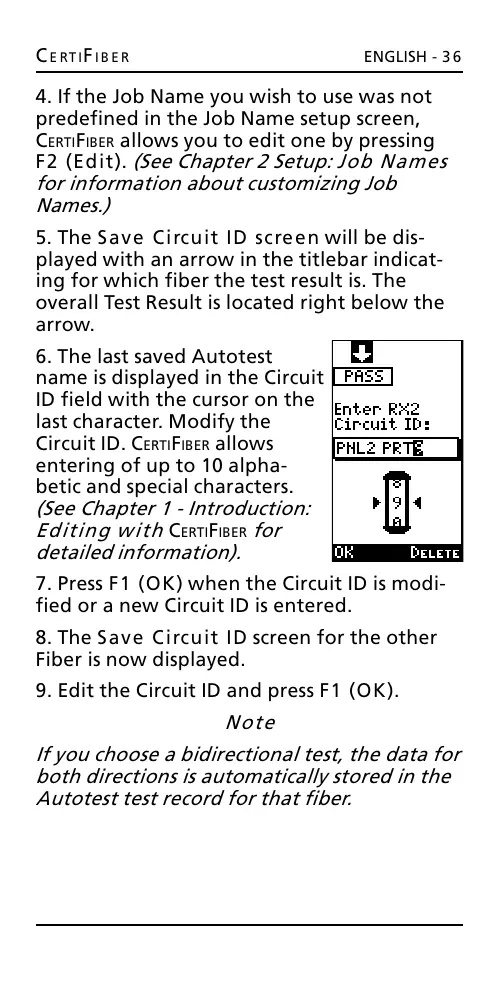
5. The Save Circuit ID screen will be dis-
played with an arrow in the titlebar indicat-
ing for which fiber the test result is. The
overall Test Result is located right below the
arrow.
6. The last saved Autotest
name is displayed in the Circuit
ID field with the cursor on the
last character. Modify the
Circuit ID. CERTIFIBER allows
entering of up to 10 alpha-
betic and special characters.
(See Chapter 1 - Introduction:
Editing with CERTIFIBER for
detailed information).
7. Press F1 (OK) when the Circuit ID is modi-
fied or a new Circuit ID is entered.
8. The Save Circuit ID screen for the other
Fiber is now displayed.
9. Edit the Circuit ID and press F1 (OK).
Note
If you choose a bidirectional test, the data for
both directions is automatically stored in the
Autotest test record for that fiber.
All manuals and user guides at all-guides.com






 To Next Page