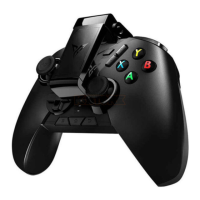
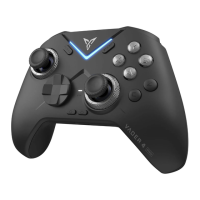
STEP 3: Activate button mapping
(Android users only)
Follow the activation instructions in Flydigi Game
Center - Key Mapping to enable USB debugging and
complete the activation.
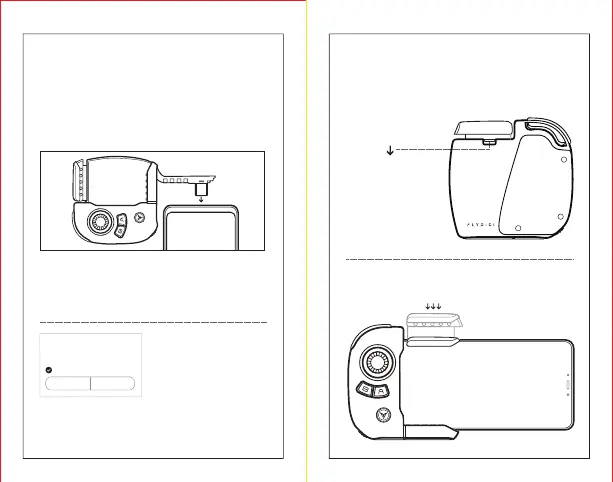
Pull out the Utool cable from Wasp 2, plug it into the
charging port of your device, then turn on the gamepad.
iOS users please skip toSTEP 4
If your device has Micro-USB only, you needto purchase
an additional Type-C to Micro USB adapter.
*
If your device prompts
you to authorize USB
debugging, tap OK.
Allow USB debugging?
The computer’s RSA key fingerprint is:
C7:BB:CC:19:26:38:24:97:09:C6:BE:98:EA:5B:16:D7.
Always allow this computer to debug.
Cancel OK
Once activation is successful, the indicator light will stop
blinking and stay in blue. You can then unplug the Utool
cable.
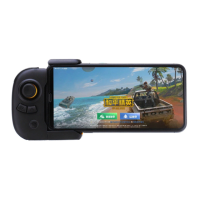
STEP 4: Install the gamepad
1. Press the lock button to pop up the handle.
2. Press on the handle until your device is secured.


 To Next Page