w
w
w
w
w
w
w
w
.
.
f
f
o
o
s
s
c
c
a
a
m
m
.
.
c
c
o
o
m
m
S
S
h
h
e
e
n
n
z
z
h
h
e
e
n
n
F
F
o
o
s
s
c
c
a
a
m
m
I
I
n
n
t
t
e
e
l
l
l
l
i
i
g
g
e
e
n
n
t
t
T
T
e
e
c
c
h
h
n
n
o
o
l
l
o
o
g
g
y
y
C
C
o
o
.
.
,
,
L
L
i
i
m
m
i
i
t
t
e
e
d
d
T
T
e
e
l
l
:
:
8
8
6
6
7
7
5
5
5
5
2
2
6
6
7
7
4
4
5
5
6
6
6
6
8
8
F
F
a
a
x
x
:
:
8
8
6
6
7
7
5
5
5
5
2
2
6
6
7
7
4
4
5
5
1
1
6
6
8
8
34
3.3.4 WiFi
Step 1: Choose “Settings” on the top of the camera interface, and go to the “Network” panel on
the left side of the screen, then click “Wireless Settings.”
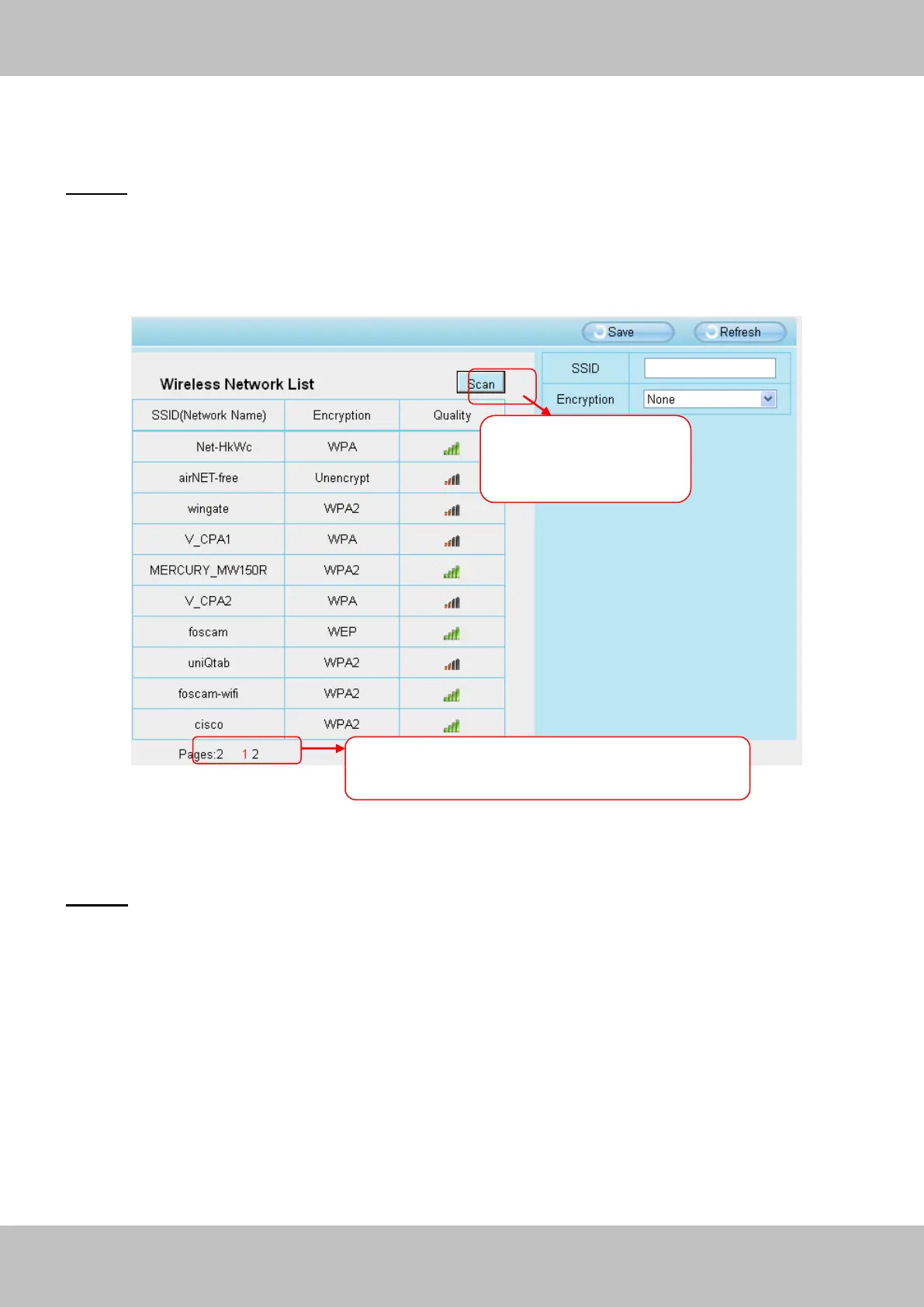
Click the Scan button and the camera will detect all wireless networks around the area. It should
also display your router in the list (Figure 3.31).
Figure 3.31
Step 2: Click the SSID (name of your router) in the list, the corresponding information related to
your network, such as the name and the encryption, will be filled into the relevant fields
automatically.
You will only need to fill in the password of your network. Make sure that the SSID, Encryption
and the password you filled in are exactly the same for your router.
Click the Page number to see other wireless
networks devices if there are more than 10.
Click the Scan button
to search for wireless
networks.


 To Next Page