51
w
w
w
w
w
w
w
w
www
www
www
www
www
www
www
www
.foscam.com
.foscam.com
.foscam.com
.foscam.com
.foscam.com
.foscam.com
.foscam.com
.foscam.com
Shenzhen
Shenzhen
Shenzhen
Shenzhen
Shenzhen
Shenzhen
Shenzhen
Shenzhen
Foscam
Foscam
Foscam
Foscam
Foscam
Foscam
Foscam
Foscam
Intelligent
Intelligent
Intelligent
Intelligent
Intelligent
Intelligent
Intelligent
Intelligent
Technology
Technology
Technology
Technology
Technology
Technology
Technology
Technology
Co.,
Co.,
Co.,
Co.,
Co.,
Co.,
Co.,
Co.,
Limited
Limited
Limited
Limited
Limited
Limited
Limited
Limited
Tel:
Tel:
Tel:
Tel:
Tel:
Tel:
Tel:
Tel:
86
86
86
86
86
86
86
86
755
755
755
755
755
755
755
755
2674
2674
2674
2674
2674
2674
2674
2674
5668
5668
5668
5668
5668
5668
5668
5668
Fax:
Fax:
Fax:
Fax:
Fax:
Fax:
Fax:
Fax:
86
86
86
86
86
86
86
86
755
755
755
755
755
755
755
755
2674
2674
2674
2674
2674
2674
2674
2674
5168
5168
5168
5168
5168
5168
5168
5168
51
51
51
51
Figure 4 .33b
The camera
’
s software will be configured for port forwarding. There may be issues with your routers security
settings, and sometimes may error. We recommend you configure port forwarding manually on your router
(Figure 4 .30).
4.3.3
4.3.3
4.3.3
4.3.3 Port
Port
Port
Port
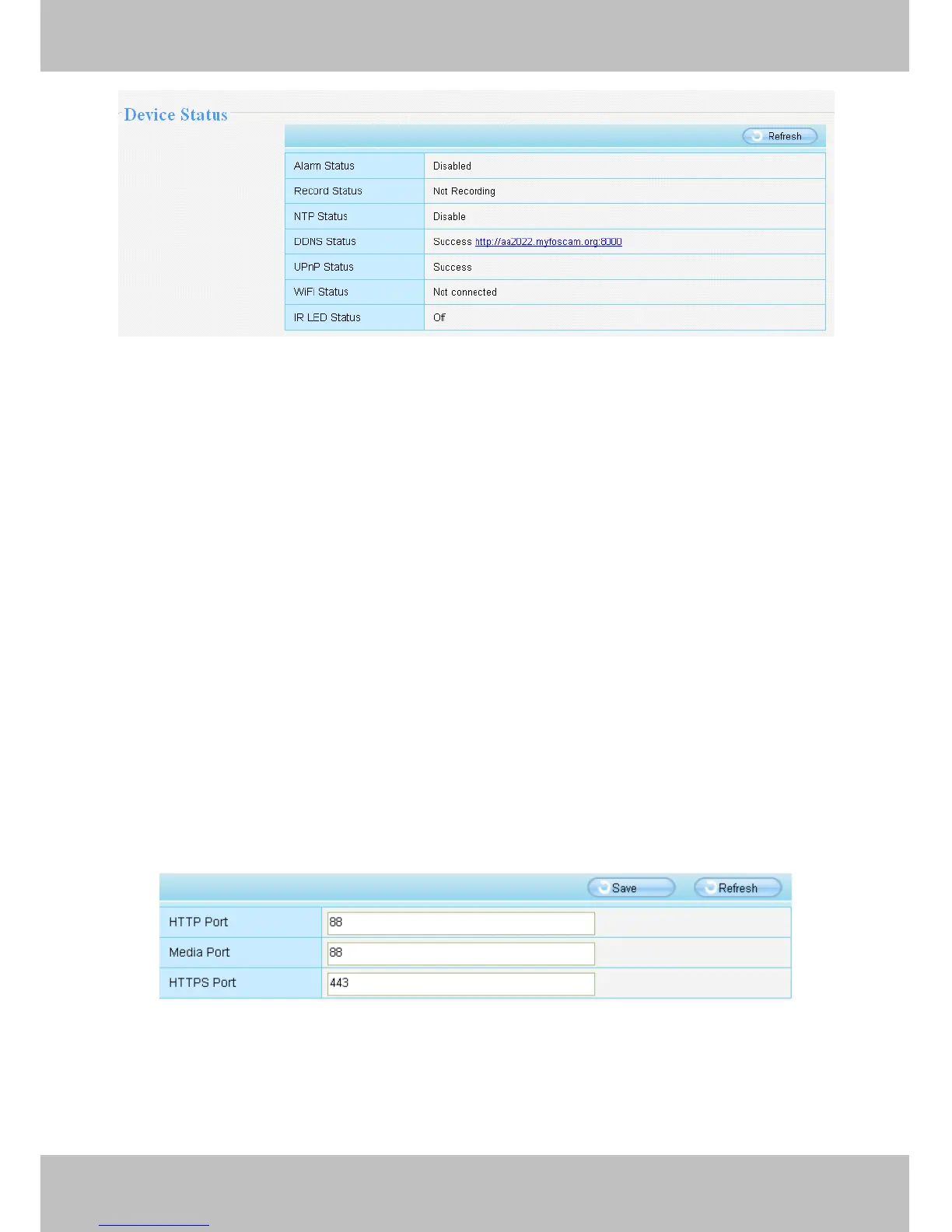
This camera supports HTTP Port and Media Port. The Media port is used to view the camera
’
s video stream,
HTTP Port is used to access the camera remotely. If you want to access the camera and view the video, the
Media Port and the HTTP Port must both be configured correctly.
HTTP
HTTP
HTTP
HTTP port
port
port
port /
/
/
/ Media
Media
Media
Media port:
port:
port:
port: By default, the HTTP and Media port is set to 88. Also, they can be
assigned with another port number between 1 and 65535. But make sure they canl not be
conflict with other existing ports like 25, 21.
Figure 4 .34
Another
Another
Another
Another way
way
way
way to
to
to
to change
change
change
change the
the
the
the HTTP
HTTP
HTTP
HTTP port
port
port
port no.
no.
no.
no.
Step
Step
Step
Step 1:
1:
1:
1: Open the IP Camera Tool, select the camera you would like to change the port of, right click on the IP


 To Next Page