If the camera has connected with a speaker or other audio output device, if you select Camera Sound or PC
Sound, when the motion has been detected, the people around the camera will hear beep alarm sound.
B Send E-mail
If you want to receive alarm emails when motion is detected, you must select Send E-mail and set Mail
Settings first.
C Take Snapshot
If you select this checkbox, when the motion has been detected, the camera will snap the live view window as
a still picture and load it to the FTP. Make sure you have set FTP and set FTP as the storage path in Video >
Snapshot settings panel.
Time interval: The interval time between two pictures.
D Recording
If you select this checkbox, when the motion has been detected, the camera will recording and load it to the
FTP server. Make sure you have set FTP and set FTP as the storage path in Video->Snapshot settings panel.
E Push message to the phone
If you select this checkbox, when the motion has been detected, the camera will push the message to the
phone which has been connected the camera.
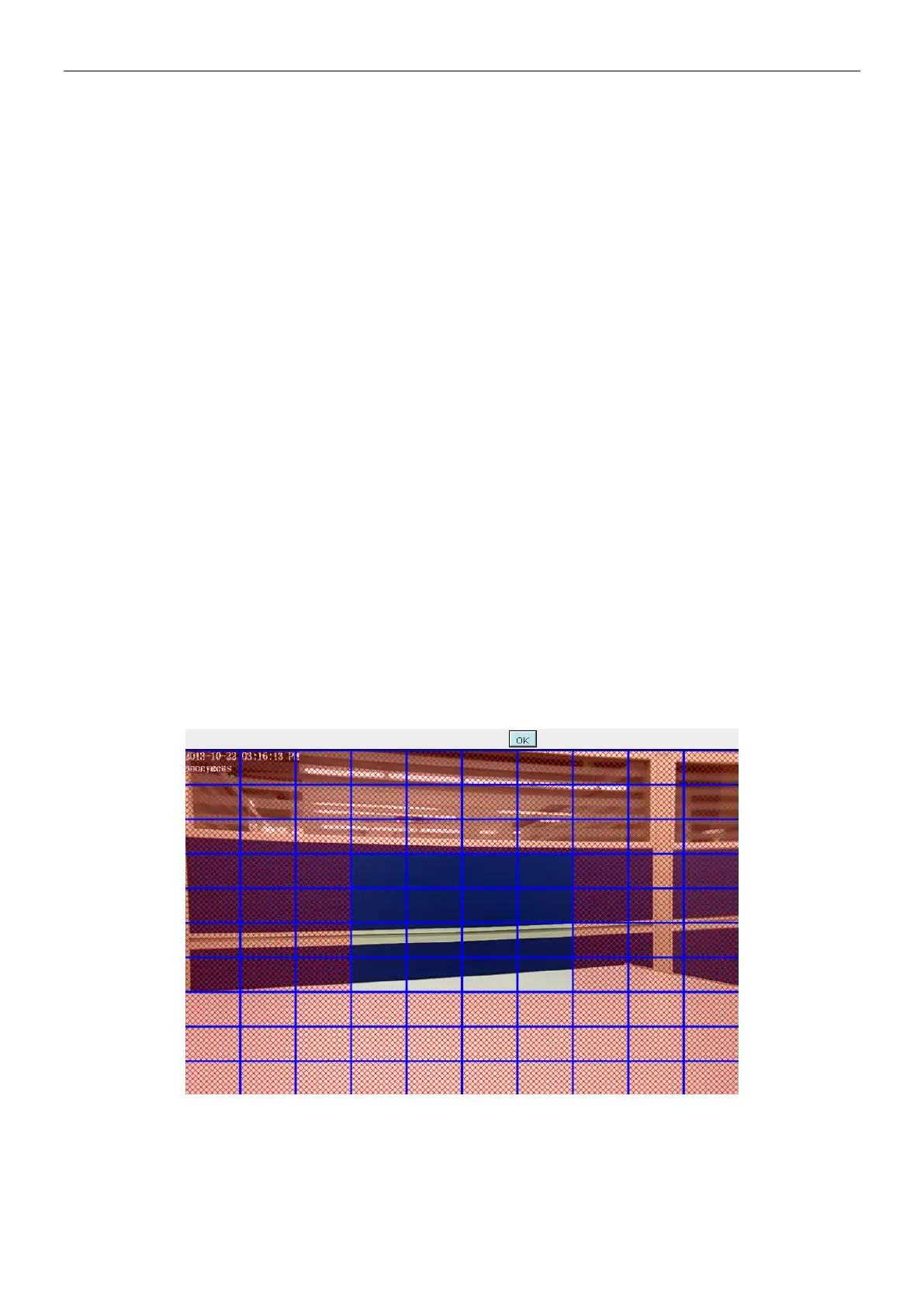
5 Set detect area
Click set detect area and it pop up a window, then you can draw the detection area. Click Back button after
settings. When something moving in the detection area, the camera will alarm.
6 Alarm Schedule
A Alarm anytime when motion is detected
Click the black button up the MON, you will see all time range turn red. When something moving in the


 To Next Page