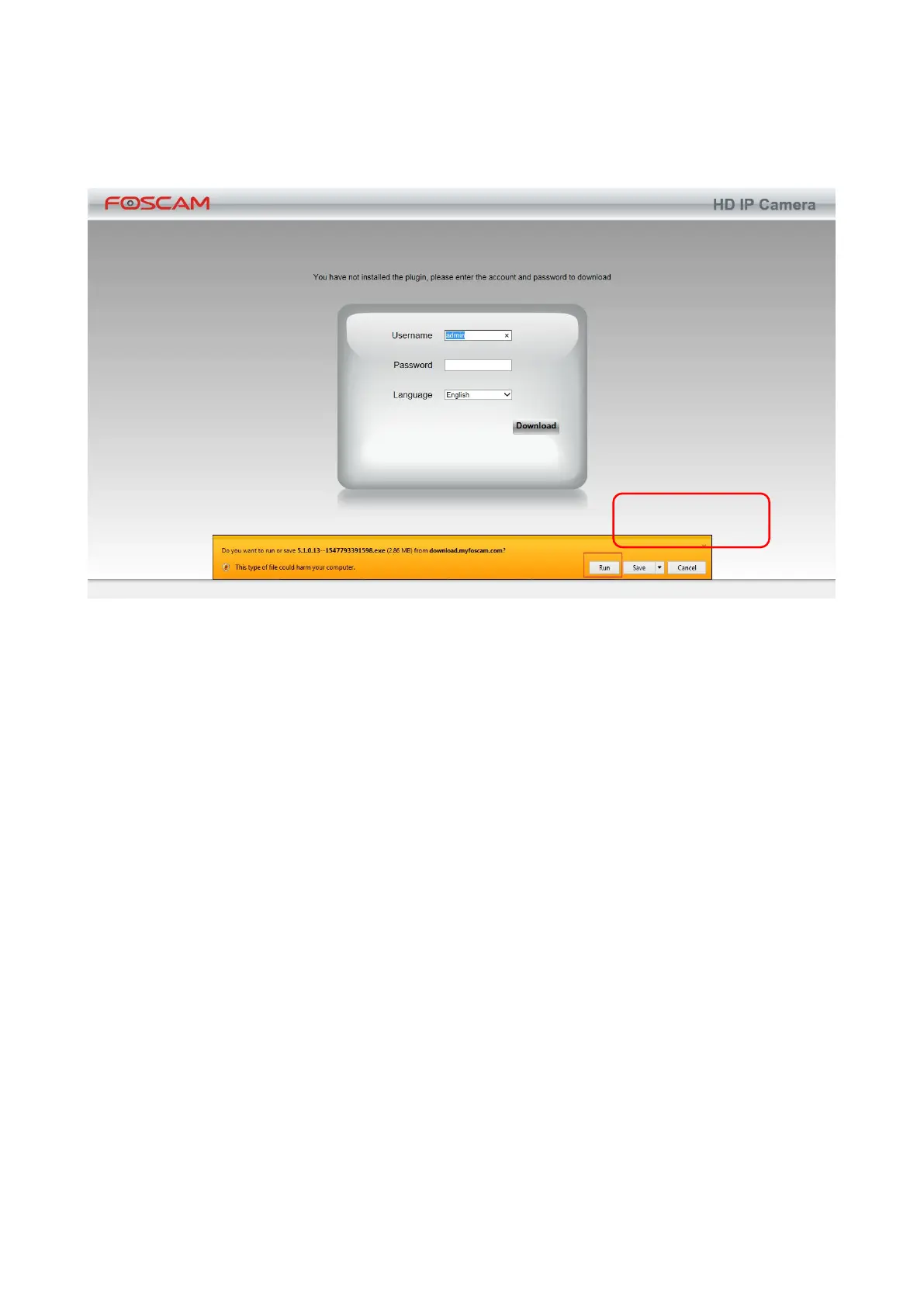
NOTE:
When logging in for the first time, you will need to download and install the add-on.
2.3 Wireless Connection
There are some ways of wireless connection: EZLink connection, soft AP connection and WPS
connection.
EZLink connection: Use the mobile phones or other mobile devices to download APP, then
connect the camera and the wireless router by the APP. The procedure of the EZLink connection,
please refer to the Quick Setup Guide.
WPS connection: WI-FI Protected Set-up, Press and hold the WPS button on your wireless router
and your camera within 60 seconds. So that your camera and wireless router connect successfully.
WPS (WI-FI Protected Set-up)
Before using WPS wireless connection, you need to:
Make sure that your wireless router has the WPS function, and has been properly connected to the
Internet.
WPS button on the wireless router is typically located on the front panel or rear panel.TP-LINK
router's WPS button is called QSS (Quick Security Setup).
Make sure that the ethernet cable and the camera is disconnected.



 To Next Page