
 Need help?
Do you have a question about the Foxconn G41MX 2.0 and is the answer not in the manual?
Guidelines for handling components safely to prevent damage from electrostatic discharge.
Tips for CPU cooler installation and preventing overheating, including overclocking considerations.
Ensuring correct pinout matching for internal connectors to avoid damage.
Advice on touching motherboard parts like metal leads or connectors.
Recommends a 24-pin ATX power supply for PCI Express x16 graphics cards.
Ensure the power supply AC input voltage is set to the local standard.
Avoid motherboard damage by preventing contact with screws or loose components.
Consult a certified technician for installation uncertainties or problems.
Link to the main Foxconn product information website.
Direct access to the Foxconn dedicated support website.
Worldwide contact information for support inquiries.
Access the list of supported CPUs for the motherboard.
Information on compatible memory and VGA cards.
Detailed specifications of the motherboard's components and features.
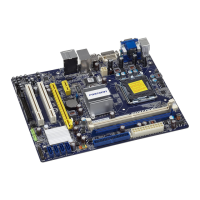
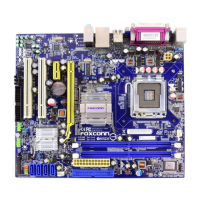
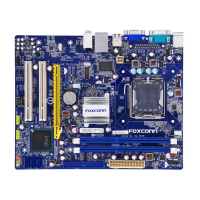
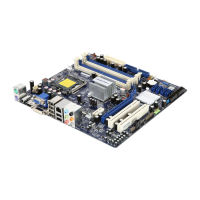
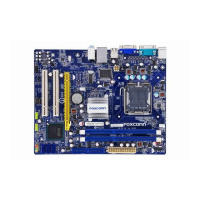
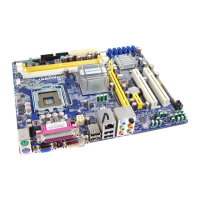
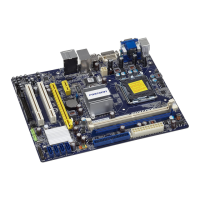
A visual guide illustrating the placement of motherboard components and connectors.
Description of the function and type of each port on the motherboard's back panel.
Step-by-step instructions for installing the CPU and CPU cooler correctly.
Instructions on how to install DDR2 memory modules into the DIMM slots.
Procedures for installing expansion cards into PCI or PCIe slots.
Guides on connecting power supply, SATA drives, and internal headers.
Explains the function and settings of various motherboard jumpers.
Method to enter the BIOS setup utility from the system startup screen.
An overview of the main menu options available in the BIOS setup.
Displays system configuration like BIOS version, CPU, and memory.
Configuration options for boot order, PCI latency, and other advanced features.
Settings for proprietary features like CPU frequency and voltage control.
Adjustments for North Bridge and South Bridge chipset features.
Configuration for onboard devices like SATA, IDE, and USB controllers.
Settings for ACPI suspend types and power management features.
Monitor system temperatures, voltages, and fan speeds.
Set up supervisor/user passwords and boot sector virus protection.
Option to load optimal default settings for the BIOS.
Save configuration changes to CMOS and exit the BIOS setup.
Exit the BIOS setup without applying any changes.
Lists all drivers and software utilities included on the motherboard's utility CD.
Step-by-step instructions for installing system drivers and software utilities.
A powerful utility for monitoring and adjusting system performance settings.
Utility for backing up and updating system BIOS, drivers, and utilities.
Utility to backup, change, or delete the boot time logo.
A tool to view and analyze Desktop Management Interface (DMI) data.
 General
| Form Factor | Micro ATX |
|---|---|
| Chipset | Intel G41 |
| Socket | LGA 775 |
| Maximum Memory | 8 GB |
| Storage Interface | 4 x SATA 3Gb/s |
| USB Ports | 8 x USB 2.0 |
| IDE Ports | 1 x ATA 100 |
| Video Outputs | 1 x VGA |
| Memory Slots | 2 x DIMM |
| Expansion Slots | 1 x PCIe x16, 2 x PCI |
| Audio | Realtek ALC662, 6-Channel |
| LAN | Realtek RTL8111 Gigabit Ethernet |
| Supported CPU | Intel Core 2 Quad, Core 2 Duo, Pentium, Celeron |
| Memory Type | DDR3 |


 To Next Page