QUANTUM
™
LX CONDENSER/VESSEL CONTROL PANEL
MAINTENANCE
090.560-M (MAY 2016)
Page 55
SERVICE – Software Maintenance
DESCRIPTION: This screen allows the technician to perform
system software maintenance. NOTE: Use caution when
accessing this screen remotely with a web browser.
Perform the following steps to prepare the Quantum™ LX for
software maintenance:
• Ensure that all setpoint values have been documented
as a safety precaution. Install a USB device into the
provided connection on the Quantum™.
• With power ON, insert the USB device into the
USB port. Ensure that the tabbed key of the drive
connector is plugged in as shown in Figure 1 of this
section.
• Go to User Level 2. The default password is 20.
• Press the [Menu] key.
• Cursor down to Service… and press [Enter].
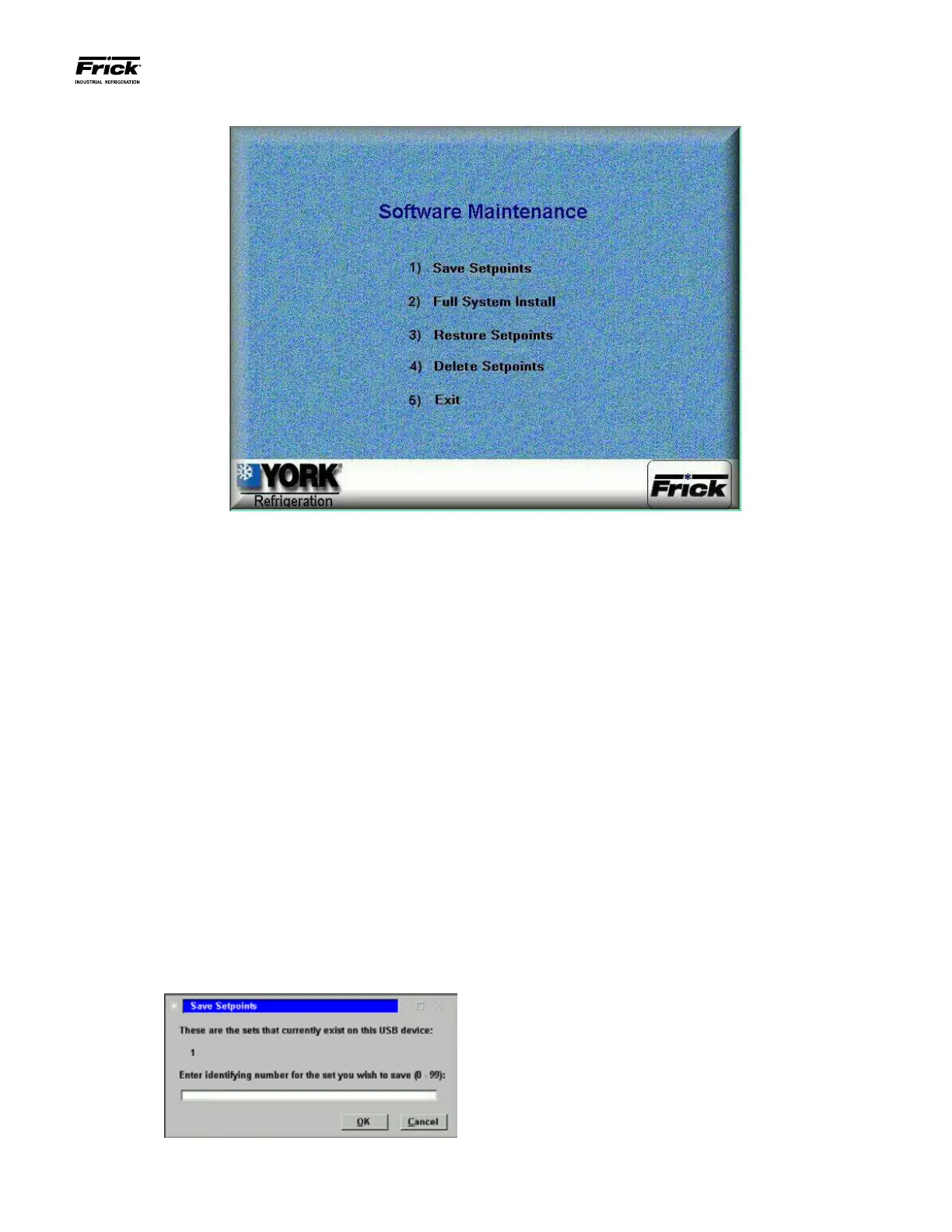
• Cursor down to Software Maintenance and press the
[Enter] key.
The following selections have been provided:
1) Save Setpoints - Use this option to save all setpoints
and custom text to a USB device as a form of backup:
• Press [1] to Save Setpoints.
• The program will read the USB device, and the
following dialog box will appear:
• Any numerals that appear on the center line of
this box will represent units that have already
been saved (from 0 to 99). If no units have yet
been saved, the center line will be blank.
• Enter a number on the keypad that corresponds
to the unit number that you wish to save, and
then press [Enter]. If the unit number has not
been saved before, the setpoints will be saved
to a le on the USB device (a progress bar
will appear asking you to Please Wait… In the
future, any time you try to write the setpoints
to this number, you will be prompted with a
message telling you that the set number already
exists – do you wish to overwrite it? Answer by
highlighting the Yes button, and pressing [Enter]
if you wish to overwrite the values. If you enter a
number that does not appear on the center line,
no such warning will appear.
• After the le has been written, the dialog boxes
will disappear, and you can either exit or continue
with another function.
2) Full System Install - Use this option to install the
program:
• Ensure that all setpoint values have been
documented as a safety precaution.
• Press [2] to do a Full System Install.
• If a valid USB device with the operating system
loaded on it is plugged in, the software will
be loaded. If however, there is no USB device
installed, or the device does not contain the
operating software, the following dialog box will
appear:




 To Next Page