FRITZ!Powerline 546E 14
Expanding a Powerline Network with FRITZ!Powerline 546E
6.2 Expanding a Powerline Network with FRITZ!Powerline 546E
If a powerline network is already set up, you can expand the
powerline network with FRITZ!Powerline:
1. Insert FRITZ!Powerline 546E in an outlet in the vicinity of
a powerline adapter that is integrated in the powerline
network.
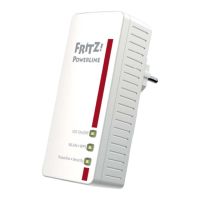
2. Wait for the “Powerline • Security” LED to start flashing.
This will take about a minute.
3. Press the button for secure powerline connections on
the other powerline adapter. The button is labeled “Se-
curity”, “Powerline” or something similar.
This starts transmission of the network password.
4. For the next step you have two minutes: Press and hold
down the “Powerline • Security” button on the
FRITZ!Powerline 546E until the “Powerline • Security”
LED begins flashing faster.
The FRITZ!Powerline is receiving the network password.
When “Powerline • Security” lights up, FRITZ!Powerline
is integrated in the powerline network.
Before you launch operation of FRITZ!Powerline: Make note
of the network key on the back of the device for later use.
LAN
Power
Powerline
On/O
WLAN•WPS
Powerline •Security
On/O
WLAN•WPS
Powerline •Security



 To Next Page
 Loading...