Configuring Windows® Multimedia Settings
During the installation of the DMX8 USB Mixer, Windows multimedia settings may be
configured in a way that is unsuitable for use with FTR Reporter or TheRecord Recorder.
It is good practice to check the multimedia settings and make adjustments as required.
These settings need to be checked for each user account that is to use FTR Reporter or
TheRecord Recorder.
Ensure that your stereo sound card and drivers for playback are installed and functioning
properly. Refer to the vendor documentation for installation instructions.
To check and adjust Windows multimedia settings:
1. Click Start then click Control Panel.
2. Click Sounds, Speech and Audio Devices.
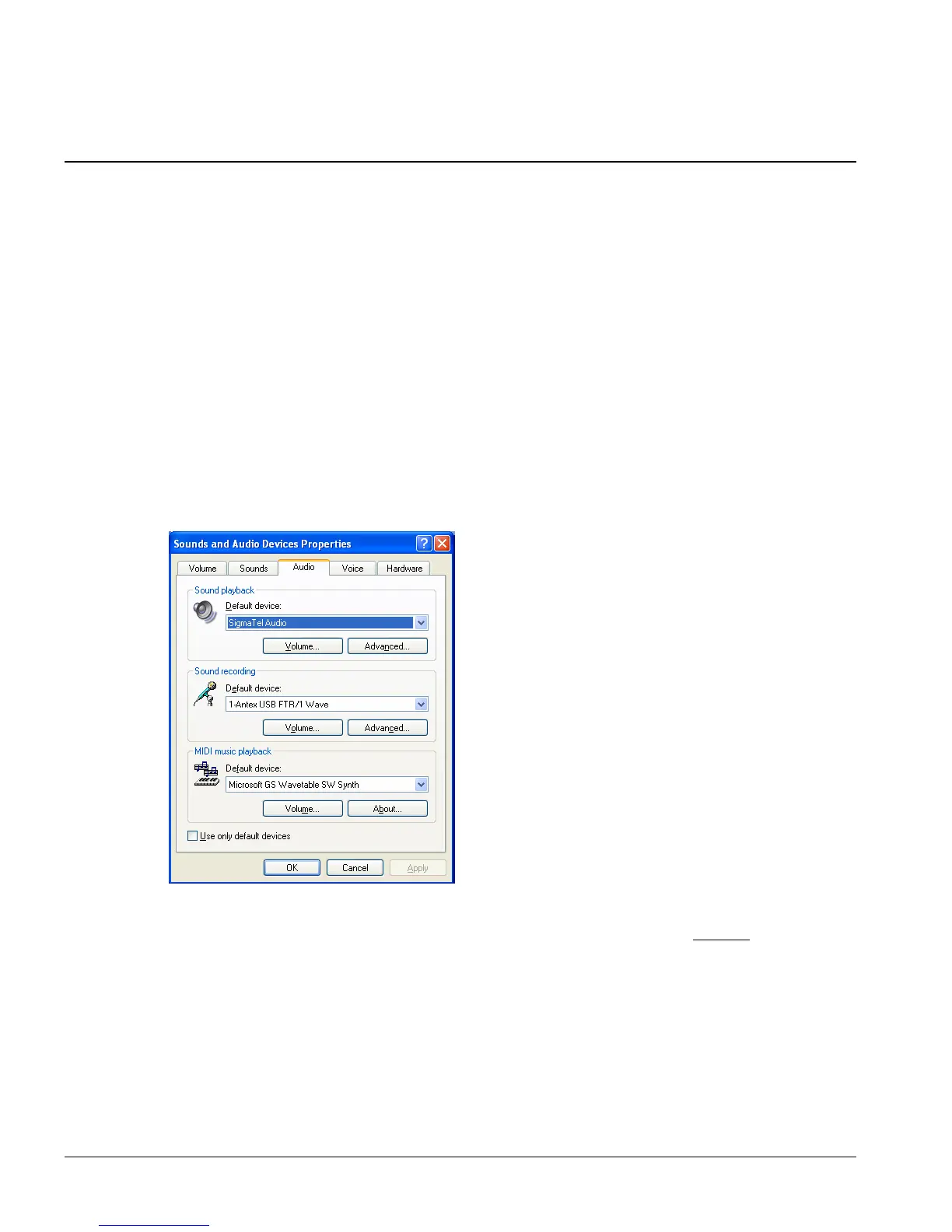
3. Click Sounds and Audio Devices and select the Audio tab.
4. In the Sound playback section select the standard stereo sound card of your
computer as the playback device from the Default device list.
Do not select any
of the Antex USB FTR Wave devices for this playback setting.
5. Click OK.
6. Proceed to the Completing the Installation section of this guide.
7. Repeat these steps for each user account that is to use FTR Reporter or TheRecord
Recorder.
Page 10



 To Next Page