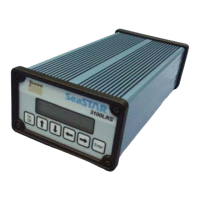
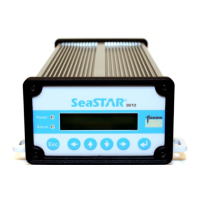
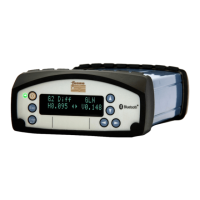
B31002700PMBRA2 Installing the GLONASS option (on Fugro 920x GNSS receivers)
1
Introduction
Ranges of four or more GNSS satellites are required in order to compute a single
point in 3D space. Generally speaking, the more satellite ranges that are used to
compute a position, the more accurate that position will be.
Vessels working adjacent to offshore installations may experience blanking,
where the structure blocks the antenna’s view of one or more satellites. Since a line-
of-sight is required between the antenna and each satellite, this can result in too few
satellites being visible to allow computation of a sufficiently precise position. This is
especially the case if relying on only a single GNSS constellation, for example GPS,
which currently has 31 active, broadcasting satellites.
Configuring your 920x receiver with the GLONASS option gives it access to
satellite ranges from an additional 24 satellites, thus significantly reducing the risk of
position degradation due to antenna blanking.
The configuration change is achieved using the receiver’s browser-based user
interface to insert a code into its internal memory.
This guide describes the steps necessary to complete the upgrade using a
computer that is connected to the receiver either:
Using Dynamic Host Configuration Protocol (DHCP) over a TCP/IP ethernet
local area network (LAN), or
Directly to a standalone receiver, using a static private network over ethernet
The upgrade cannot be performed remotely, i.e. across the internet or a wide area
network (WAN).
Setup overview
Applying the GLONASS upgrade is a two-step process:
1
Establish an ethernet connection between the computer and receiver
2
Use the browser interface to install the option code that will enable the
receiver’s GLONASS functionality
You will need
TCP/IP LAN connection Direct connection to a standalone receiver
A computer running
Windows XP/2000/Vista/7
or Mac OS X, connected to
a network switch/router
with a standard straight-
through ethernet flylead
(see appendix X)
A 920x receiver connected
to the same network
switch/router with a
standard straight-through
ethernet flylead
A computer running Windows XP/2000/Vista/7
or Mac OS X, with an available ethernet port
A 920x receiver connected to a 9200 IPDU
A straight-through ethernet flylead
Or
A 920x receiver connected to a Multi Port
Adapter (MPA) with ethernet port (part no.
57168)
A crossover ethernet flylead
Web browser software – Microsoft Internet Explorer 9 is described in this guide,
others operate in a similar fashion
The GLONASS option code for your receiver (obtained from Fugro Satellite
Positioning)


 To Next Page