B31002700PMBRA2 Installing the GLONASS option (on Fugro 920x GNSS receivers)
7
2 Installing the GLONASS option code
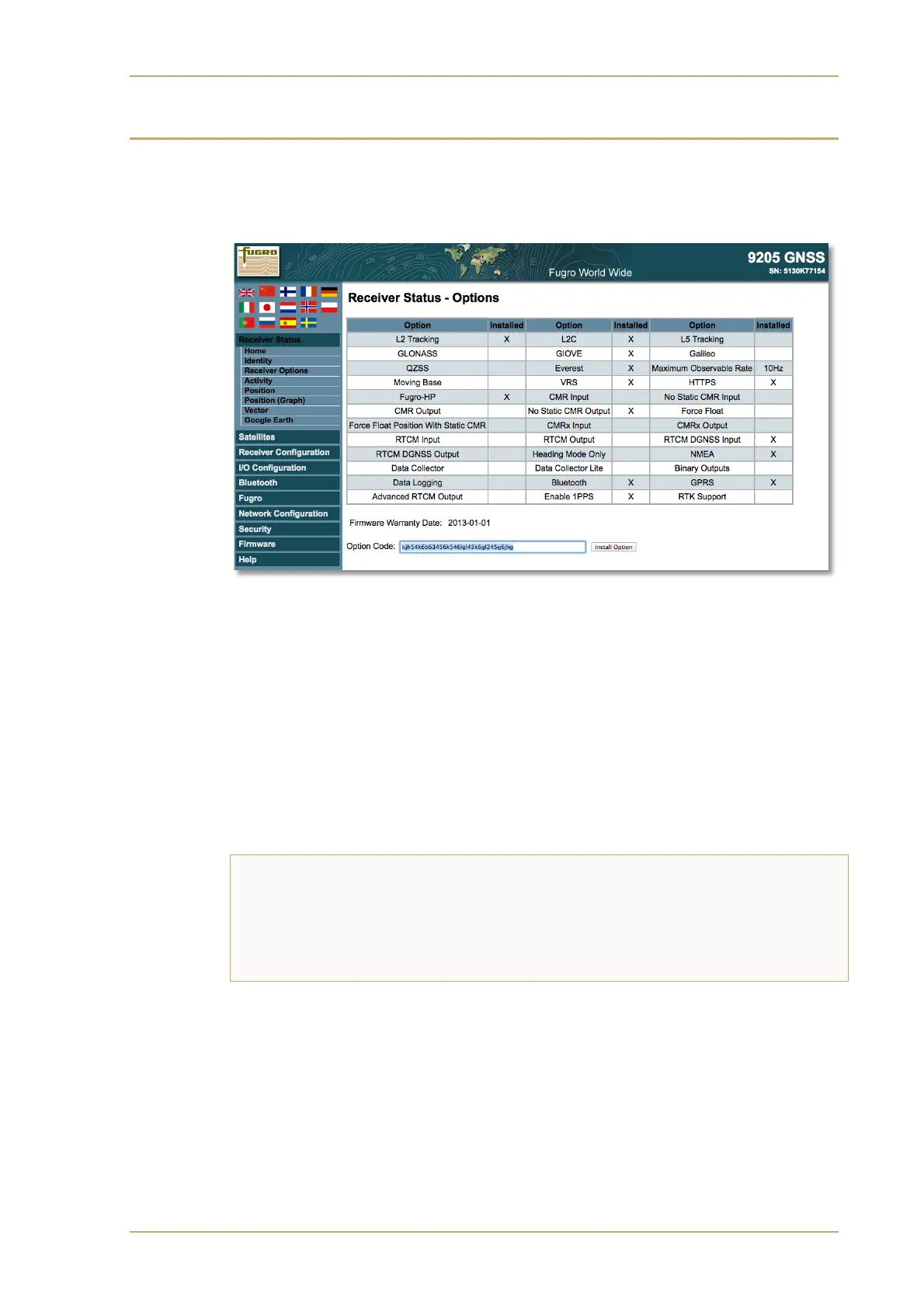
Log into the receiver’s browser interface as described on the previous page
Click on the Receiver Status menu item
Click on Receiver Options submenu item
Type-in (or copy and paste) the option code exactly as provided
Click on the Install Option button
If you receive a Configuration change failed message, double check the code
you typed in and try again
Once the code is accepted, check the Receiver Status – Options page to
confirm that an X has appeared in the Installed column, next to the GLONASS
option
The receiver must now be restarted so that the changes take effect.
Shut the receiver down by holding the power button for 3 seconds
Once the receiver’s green power indicator light has gone out, press the power
button once to restart it
Option code not accepted?
The option code is receiver-specific – if the process fails and you are certain you have
entered the code exactly as provided, it is possible you are using a code intended for
a different receiver. Note down the serial number shown in the upper right hand corner
of the Receiver Status – Options page and email it, with the option code and your
order details, to Fugro technical support, who will investigate further.


 To Next Page