B31002700PMBRA2 Installing the GLONASS option (on Fugro 920x GNSS receivers)
3
1 Connecting to the receiver with Ethernet
1.1 Connecting via a TCP/IP local area network (LAN)
Connect your computer to a port on the LAN’s network switch/router, using a
standard straight through Cat 5/Cat 5e ethernet flylead
Connect the receiver to a separate port on the same network switch/router, also
using a straight through flylead, plugged-into the ethernet connector on the
receiver’s multi port adapter (MPA) or on the rear panel of the 9200-IPDU
Configure the receiver to use DHCP addressing
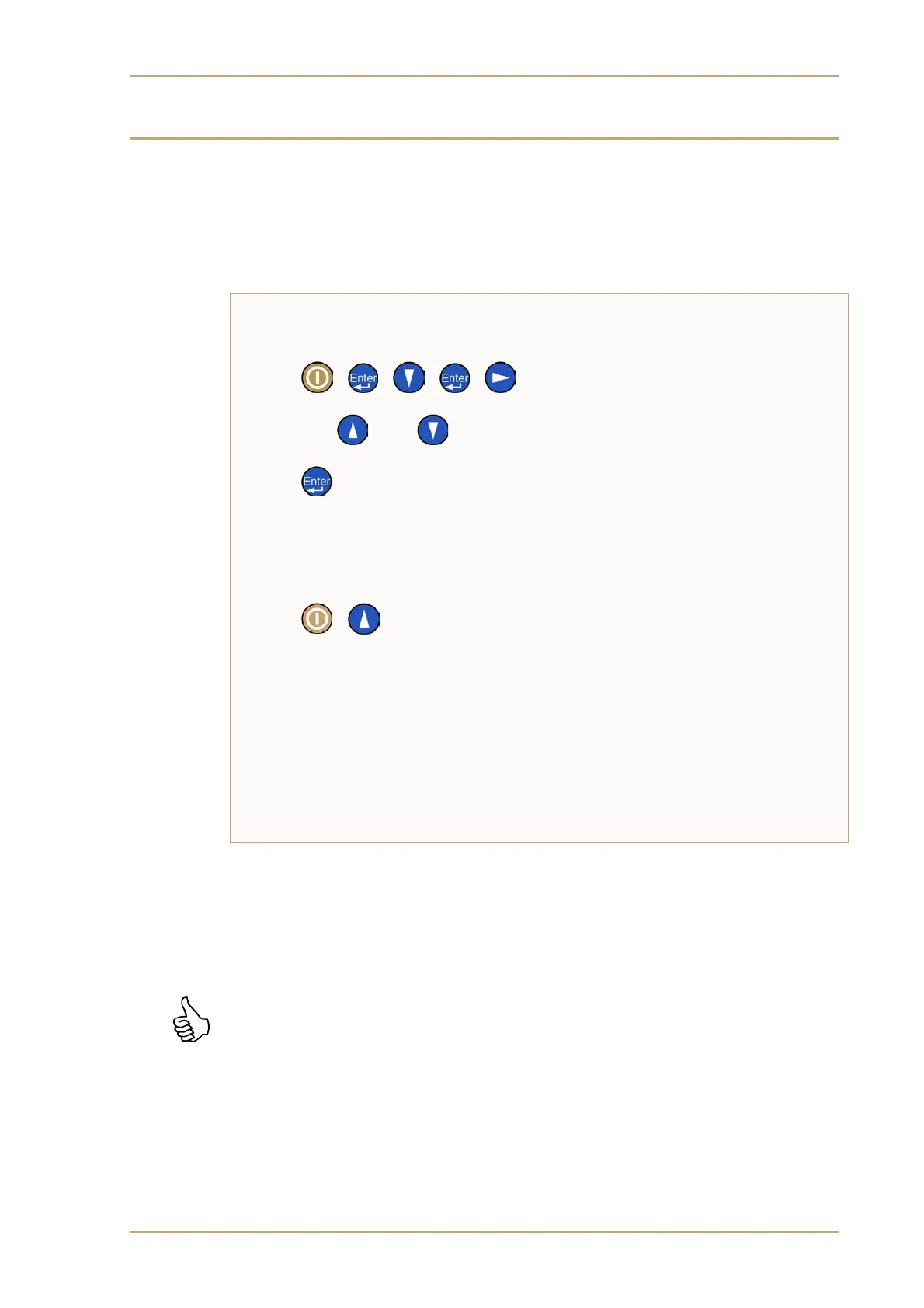
On the receiver’s front panel, use the following key sequence:
to enter Edit mode
Then or as necessary to change from Disabled to Enabled
to store the new setting
Shut the receiver down by holding the power button for 3 seconds
Once the receiver’s green power indicator light has gone out, press the power
button once to restart it
Find out the receiver’s IP address using the following key sequence:
Connect to the receiver
Enter the receiver’s IP address, including the dots, into your computer’s web
browser address bar, and press Return
Supply the username and password when asked. The factory-set default values
are:
Username: admin Password: password
Note that these may have been changed by the person responsible for
administering the receiver
1.2 Connecting directly to a standalone receiver
If you have a standalone receiver i.e. one that is not already connected to a LAN via a
network switch/router, it will be necessary to make a direct ethernet connection
between the computer and receiver and set up a static private network.
Make sure you use the correct type of ethernet flylead:
If your receiver is configured with a 9200-IPDU you may use a
normal straight through Cat 5/Cat 5e ethernet flylead
If your receiver is configured with a MPA you MUST use a
crossover Cat 5/Cat 5e ethernet flylead (see next page)
Once the receiver and the computer are physically connected, a static private network
is must be set up on the computer and the receiver then configured to use it.


 To Next Page