B31002700PMBRA2 Installing the GLONASS option (on Fugro 920x GNSS receivers)
5
1.2.2 Configure the 920x receiver for the static private network
Use the following key sequences, ensuring you restart (reboot) the receiver afterwards
so that the changes take effect.
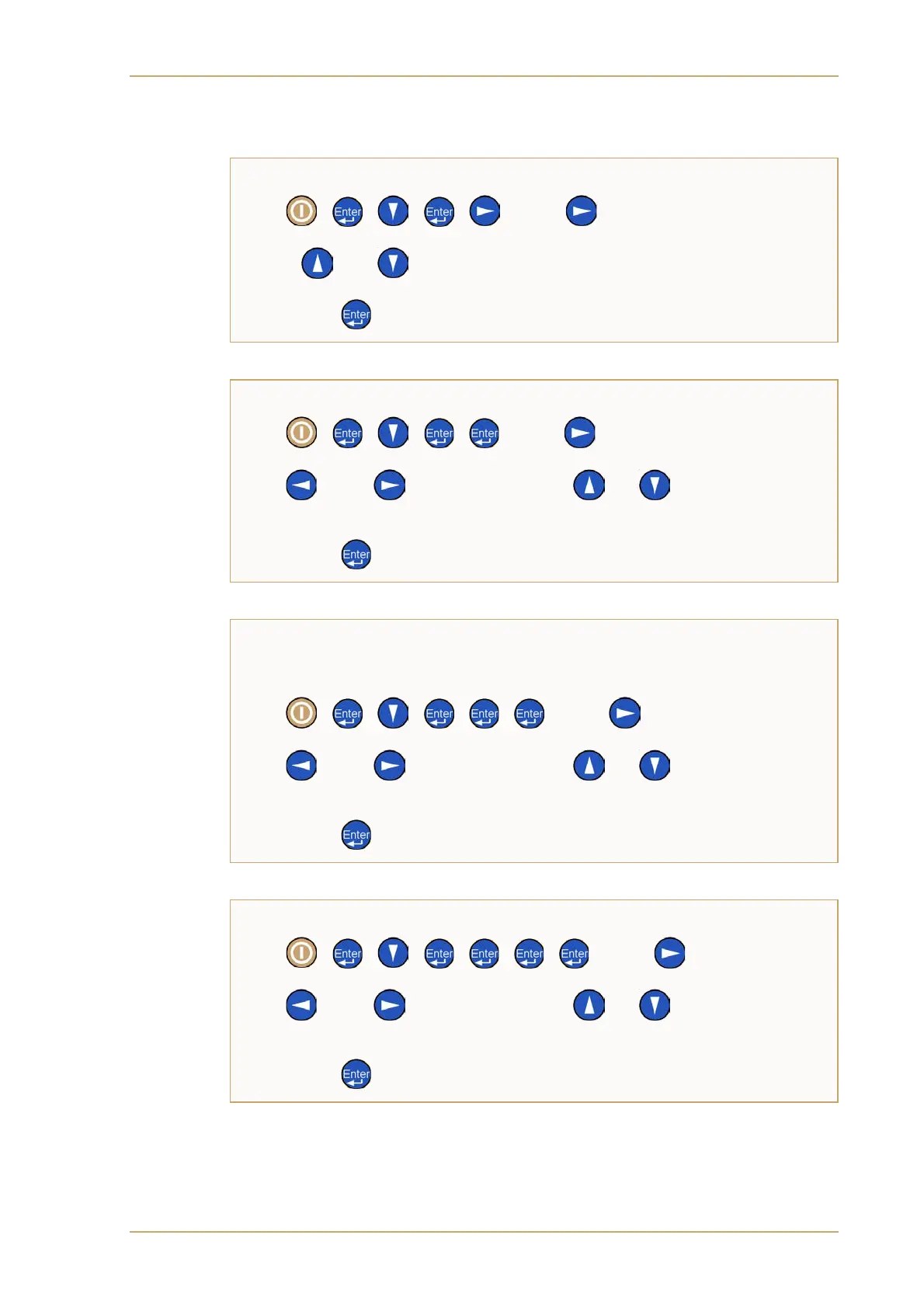
Turn Dynamic Host Configuration Protocol (DHCP) addressing off
then to enter Edit mode,
or to change from Enabled to Disabled
Press to store the new setting
Then:
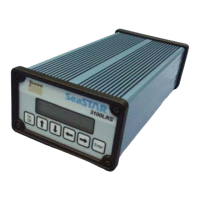
Set a unique IP address
then to enter Edit mode,
and to move the cursor, and to change values
so that the display reads 169.254.1.3
Press to store the new IP address
Then:
Set the Subnet Mask to match the computer
Use the following key sequence:
then to enter Edit mode,
and to move the cursor, and to change values
so that the display reads 255.255.0.0
Press to store the new Subnet Mask
Then:
Set the Router/Gateway to match the computer
then for Edit mode,
and to move the cursor, and to change values
so that the display reads 169.254.1.3
Press to store the new Router/Gateway
Finally:
Shut the receiver down by holding the power button for 3 seconds
Once the receiver’s green power indicator light has gone out, press the power
button once to restart it


 To Next Page